
Windows 11 Debloating Tools Tested: Do They Actually Improve Performance?
Windows 11 offers a modern interface, useful built-in features, and broad software compatibility. However, many users feel the operating system comes with too much unnecessary software, background activity, advertising, and data collection. This has created growing interest in Windows debloating tools, which promise to make PCs faster, lighter, and more private with just a few clicks.
But do these tools actually deliver meaningful improvements, or do they introduce more problems than they solve?
A recent test of four popular Windows debloating utilities suggests that the results may disappoint users hoping for a major performance boost.
The tools evaluated included Chris Titus Tech’s Windows Utility, Raphire’s Win11Debloat, Tiny11 Builder, and Tiny11 Core Builder. Each offers different ways to remove unwanted applications, adjust system settings, and simplify the Windows experience.
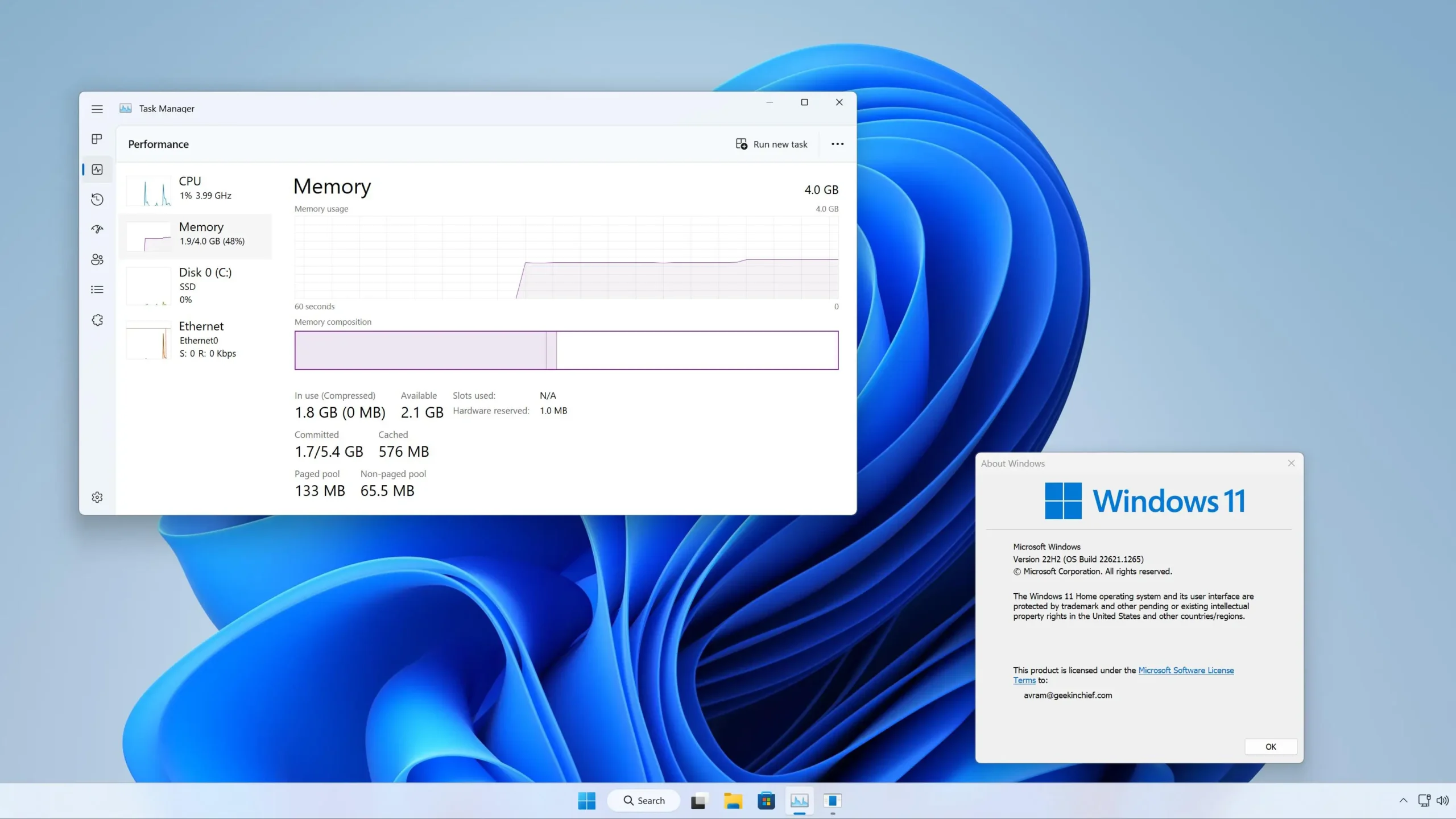
The testing was conducted using a fresh installation of Windows 11 version 25H2 inside a virtual machine with 4GB of RAM. Surprisingly, the standard Windows installation already performed reasonably well, consuming approximately 1.9GB to 2.1GB of memory after startup.
This established a useful baseline for comparing the results.
The first tool, Chris Titus Tech’s Windows Utility, applied its standard collection of system tweaks alongside privacy-related adjustments through O&O ShutUp10++. Despite the changes, memory consumption remained around 1.9GB, offering almost no noticeable improvement over the original installation.
Raphire’s Win11Debloat produced similarly disappointing results. Although it removed several preinstalled applications and adjusted various Windows settings, memory usage remained approximately 2.1GB after restarting the system.
Tiny11 Builder, which creates a customized Windows installation with fewer bundled applications, delivered a cleaner-looking experience. However, its memory consumption still hovered around 2GB.
Tiny11 Core Builder achieved the lowest figure, reducing startup memory usage to approximately 1.8GB. However, this came with a significant compromise: the customized installation no longer supported normal Windows Update functionality.
The differences were relatively small, especially considering the potential consequences of making extensive changes to the operating system.
Beyond memory usage, some of these utilities also modify important Windows settings. For example, certain configurations can change how background services start, potentially introducing delays when applications need those services.
Win11Debloat also disables Fast Startup by default, meaning some computers may take longer to boot after shutdown.
Privacy-related adjustments deserve particular attention as well. Windows 11 Home and Professional editions continue sending required diagnostic information to Microsoft, even when certain registry or policy settings are modified. This means some privacy promises associated with debloating utilities may not work as users expect.
There is also the question of trust. Third-party debloating scripts often require extensive system permissions. An incorrectly configured script can interfere with important services, future updates, or everyday functionality. Users should therefore understand what a tool changes before allowing it to modify their computers.
Fortunately, improving Windows 11 does not necessarily require downloading additional software. Users can uninstall unwanted applications directly through the Start menu, adjust advertising preferences through Settings, manage OneDrive, and use built-in storage management features to remove unnecessary files.
These straightforward changes offer greater control without handing deep system access to unfamiliar third-party utilities.
Ultimately, Windows 11 debloating tools are not entirely without value. They can create a cleaner interface, remove unwanted applications, and provide convenient access to customization options. However, the performance improvements observed in this comparison were modest, while certain changes introduced unnecessary risks.
For most users, manually adjusting Windows settings is the more sensible approach. And although Windows still has plenty of room for improvement, its existing performance is better than many people might expect. A cleaner, more personalized PC is certainly achievable without sacrificing essential security updates or system stability.