

MEmu Android Emulator 9.5.8
MEmu Android Emulator for PC: Download, Features, and Complete Guide
MEmu is a free Android emulator for Windows that lets you run Android games and apps on your computer. Developed by Microvirt, it is primarily designed for mobile gaming, offering features such as keyboard and mouse mapping, gamepad support, multi-instance management, and APK installation.
With MEmu, you can enjoy compatible Android games on a larger screen without relying entirely on your phone’s touchscreen. Whether you want to play strategy games, explore mobile titles with keyboard controls, or use selected Android apps on your desktop, MEmu provides a practical way to bring the Android experience to your PC.
If you are looking for the MEmu Android emulator download for Windows, this guide covers its main features, installation process, performance considerations, advantages, limitations, and frequently asked questions.
Screenshots
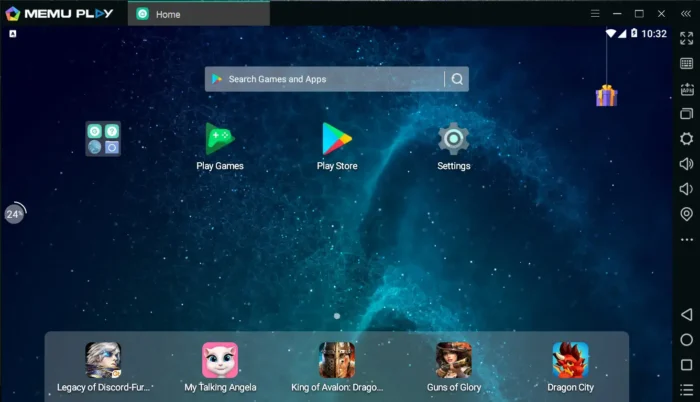
What Is MEmu Android Emulator?
MEmu is an Android emulator that creates a virtual Android environment on a Windows computer. It allows compatible Android applications and games to run on your PC, using your computer’s processor, memory, graphics hardware, and input devices.
Unlike playing directly on a smartphone, you can use a physical keyboard, mouse, or compatible gamepad. This can be especially useful for games that require precise aiming, frequent commands, or extended play sessions.
MEmu is primarily aimed at gamers, but it can also be useful for testing applications and running certain Android utilities on a desktop. However, not every Android app or game is guaranteed to work correctly, and some applications may require specific Android versions or additional compatibility adjustments.
MEmu Download for Windows
To download MEmu safely, visit the official MEmu website and obtain the installer from its official download page.
Official website: https://www.memuplay.com/
Before downloading, check the current version, supported Windows editions, available system requirements, and installer details on the official website. Version numbers, file sizes, and compatibility information may change as new releases become available.
After downloading the installer, follow these steps:
- Locate the downloaded MEmu setup file on your computer.
- Double-click the installer to begin the installation process.
- Review the installation options and follow the on-screen instructions.
- Launch MEmu after installation is complete.
- Complete any initial setup steps and sign in to Google Play if required.
- Search for a compatible Android game or app and install it.
Only download the installer from a source you trust. Avoid unofficial download pages that bundle additional software or distribute modified installers.
Key Features of MEmu Android Emulator
1. Play Android Games on a Bigger Screen
MEmu lets you run compatible Android games on a desktop or laptop display. A larger screen can make game interfaces easier to see and provide a more comfortable experience during longer sessions.
Popular Android games, including Clash of Clans, Subway Surfers, Minion Rush, and Geometry Dash, are examples of titles that players may want to experience on a PC. Actual availability and compatibility can vary by game version, Android environment, and regional restrictions.
2. Keyboard and Mouse Mapping
One of MEmu’s main gaming features is its key-mapping system. It lets you assign keyboard keys and mouse actions to touchscreen controls within a game.
For example, you can map movement to keyboard keys, assign actions to individual buttons, or use mouse input for supported aiming controls. This can make certain games easier to control than when using a touchscreen.
Control layouts may differ between games, so you might need to adjust the default configuration before playing comfortably.
3. Gamepad Support
MEmu supports compatible game controllers, allowing you to use a gamepad instead of relying only on keyboard and mouse input.
Controller compatibility and the quality of the experience depend on the device, the emulator configuration, and the game itself. Some titles may require manual control mapping.
4. Install Android Apps Using APK Files
You are not limited to installing apps through Google Play when the relevant option is supported. MEmu also provides a way to install Android applications from APK files.
To install an APK:
- Download the APK from a reputable source.
- Open MEmu and locate its APK installation option.
- Select the APK file you want to install.
- Wait for the installation to finish.
- Open the app from the emulator’s home screen.
Some versions also support drag-and-drop installation. If this feature is available in your installed version, you can drag a compatible APK file into the emulator window.
Security tip: APK files can contain malicious software. Download them only from trusted sources, and remember that installing an APK does not guarantee that the app will function correctly.
5. Multi-Instance Manager
MEmu includes multi-instance functionality that can let you create and run multiple Android environments on the same computer.
This can be useful if you want to keep different games or accounts in separate emulator instances. Depending on the available features and configuration, you may also be able to synchronize actions across instances.
However, running multiple instances increases CPU, RAM, and sometimes GPU usage. The number of instances you can run smoothly depends on your computer’s hardware and the resource allocation of each environment.
6. Multiple Android Environment Options
Different Android applications may behave differently depending on the Android version they require. MEmu has offered different Android environment options across its releases, giving users additional flexibility when dealing with compatibility issues.
The exact versions available depend on the current release and the instance configuration. Not every Android version or app combination will necessarily be supported, so check the available options before creating a new instance.
7. Performance and Graphics Settings
MEmu provides configuration options that can help you balance performance and visual quality. Depending on the version, these may include processor and memory allocation, resolution, frame-rate settings, and graphics rendering options.
Adjusting these settings can improve the experience on some computers, but results depend on the game and hardware. A demanding 3D game may still perform poorly on a system with limited processing or graphics capability.
How to Install Games on MEmu
Installing games through MEmu is generally straightforward.
Using Google Play
- Start MEmu.
- Open Google Play, if available in your Android environment.
- Sign in with your Google account when prompted.
- Search for the game you want to play.
- Select Install and wait for the download to complete.
- Launch the game from the home screen.
Using an APK file
- Obtain the compatible APK from a trustworthy source.
- Select the APK installation option in MEmu.
- Browse to the file and confirm the installation.
- Open the installed application when it is ready.
Some games require additional data files, Google services, a supported Android version, or other setup steps. Others may block emulator use or require specific security checks. Therefore, installation success does not guarantee that every game will run without issues.
MEmu System Requirements
The hardware required to run MEmu depends on the Android environment and the apps you intend to use. Basic applications may run on relatively modest hardware, while demanding games benefit from a more capable computer.
Consider the following when preparing your PC:
- Operating system: Check the official website for currently supported Windows versions.
- Processor: A compatible Intel or AMD CPU is important; additional processing capacity can help with demanding games and multiple instances.
- RAM: More memory helps when running resource-intensive games or multiple emulator instances.
- Graphics: A compatible graphics adapter and updated drivers can improve rendering and stability.
- Storage: Leave enough free disk space for the emulator, Android environments, games, updates, and downloaded data.
- Virtualization: Hardware virtualization may improve performance. Availability and setup depend on your processor, firmware settings, and Windows configuration.
Older computers may run some applications successfully, but there is no universal guarantee that MEmu will run every game smoothly on low-end hardware. Always compare your system with the current requirements published by the developer.
Advantages and Disadvantages of MEmu
Advantages
- Runs compatible Android games and applications on Windows.
- Offers keyboard and mouse mapping for games with touchscreen controls.
- Supports compatible gamepads.
- Provides APK installation options.
- Includes multi-instance functionality for separate Android environments.
- Offers performance and graphics configuration options.
- Can make mobile gaming more comfortable on a larger display.
Disadvantages
- Not every Android app or game is compatible.
- Demanding games may require a relatively capable computer.
- Multiple instances can consume substantial system resources.
- Some games require manual control mapping or configuration changes.
- Emulator performance can vary with graphics drivers, Windows settings, and Android environment versions.
- Users should review installation options and download only from trusted sources.
MEmu vs. Other Android Emulators
MEmu is one of several Windows Android emulators designed to run mobile applications and games on a PC. Alternatives include BlueStacks, LDPlayer, and NoxPlayer.
The best choice depends on your priorities. You may prefer one emulator’s interface, compatibility with a particular game, resource usage, controller support, or multi-instance tools. Performance comparisons also depend on the computer and software versions being tested.
If your main goal is mobile gaming with customizable controls, MEmu is worth considering. If a particular game is your priority, check its compatibility and compare performance on your own system before deciding which emulator to keep.
Is MEmu Safe to Download?
The safest starting point is the official MEmu website. Downloading from the developer reduces the risk of obtaining a repackaged or modified installer from an unknown third party.
As with any desktop software, downloading from the official source is not an absolute guarantee that every installation will be risk-free. Review installation prompts, keep Windows security protections enabled, and avoid optional software you do not want.
You should also be aware that Android apps running inside an emulator may request access to accounts, files, and other information. Install apps selectively and review their permissions.
Frequently Asked Questions
1. Is MEmu free to download?
MEmu has been distributed as a free Android emulator. Check the official website for the current licensing terms and any optional services or offers.
2. Can I use MEmu on Windows 10 and Windows 11?
MEmu is designed for Windows PCs, but supported operating system versions can change between releases. Check the developer’s current system requirements before installing it.
3. Can I install games without Google Play?
Yes, compatible APK files can be installed using MEmu’s APK installation functionality. Use a trustworthy source and check whether the app requires additional services or data files.
4. Can MEmu run multiple games or accounts at once?
Its multi-instance manager can run separate Android environments, making multiple games or accounts possible in supported configurations. Running additional instances requires more system resources, and individual games may impose their own restrictions.
5. Does MEmu work on a low-end PC?
It may run lightweight games and applications on modest hardware, but performance varies. Lowering the resolution or frame rate and limiting allocated resources may help, although demanding games can still struggle.
6. Can I use a controller with MEmu?
MEmu supports compatible gamepads. Depending on the game and controller, you may need to configure the controls manually.
7. Why is a game not working in MEmu?
Possible causes include an incompatible Android environment, insufficient system resources, outdated graphics drivers, missing app services, or game-specific emulator restrictions. Updating MEmu, checking its available Android environments, and reviewing the game’s compatibility requirements may help.
8. Is MEmu better than other Android emulators?
There is no universal winner. MEmu offers gaming controls and multi-instance features, but the best emulator depends on your preferred games, PC specifications, and compatibility needs.
Final Verdict
MEmu Android Emulator is a useful option for Windows users who want to run compatible Android games and applications on a larger screen. Its key-mapping tools, gamepad support, APK installation options, and multi-instance manager make it particularly relevant to mobile gamers who prefer desktop controls.
It is not a guarantee of better performance for every game, and it does not eliminate the hardware demands of modern Android titles. Compatibility, resource usage, and available features depend on the software version and your computer.
If you want to try Android gaming on your PC, download MEmu from its official website, check the current system requirements, and test your preferred game before committing to a particular emulator.
Download MEmu: https://www.memuplay.com/