
Windows 11 Keeps Showing You Ads? Here’s How to Turn Them Off
Windows is designed to make everyday computer tasks easier, but its constant suggestions, promotional notifications, and app recommendations can sometimes get in the way. Whether you’re using Windows 10 or Windows 11, you may have noticed Microsoft promoting Edge, OneDrive, Microsoft 365, and other services in places where you simply want to get things done.
The good news is that you don’t have to put up with all these distractions. Windows includes several settings that let you reduce promotional content without installing additional software or making complicated system changes.
One of the first places to check is the Start menu. Microsoft sometimes uses this space to recommend apps, shortcuts, and services. In Windows 11, open Settings, go to Personalization, select Start, and turn off the option for recommendations and suggestions. Windows 10 users can disable occasional Start menu suggestions through the same Personalization section.
The lock screen is another place where promotional messages can appear. If you’re using Windows Spotlight, you may see tips, facts, and recommendations alongside your background image. Switching to Picture or Slideshow under Settings > Personalization > Lock screen can help remove these distractions.
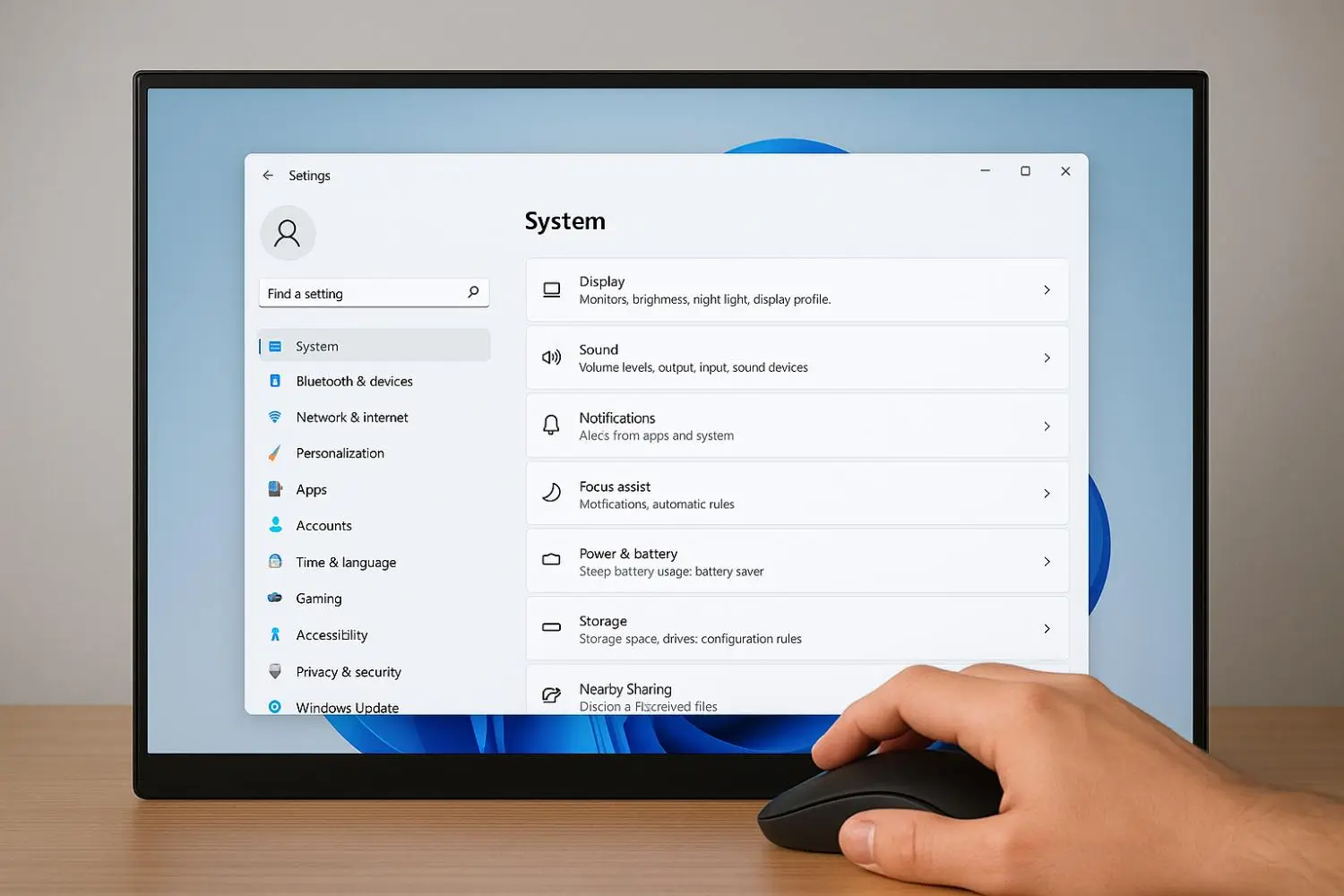
Notifications deserve attention, too. Windows sometimes displays messages encouraging users to try Microsoft Edge, explore new features, or complete device setup. In Windows 11, visit Settings > System > Notifications and check the Additional settings section. Turn off suggestions and welcome experience messages. Windows 10 users can find similar controls under Notifications & actions.
However, not every promotional notification comes directly from Microsoft. Computer manufacturers often install their own applications, which may send product offers, promotional messages, and service reminders. Programs such as Dell SupportAssist and Lenovo Commercial Vantage can have separate notification preferences. Check their settings if unwanted messages continue appearing. You can also uninstall manufacturer apps you no longer need, provided they aren’t essential to your device.
Even the Windows Settings app can display recommendations for Microsoft’s services. To reduce them, open Settings > Privacy & security > General in Windows 11 and disable Show me suggested content in the Settings app.
File Explorer is another surprising place where promotional messages may appear. Microsoft can use sync provider notifications to promote services such as OneDrive. To disable these messages, open File Explorer, select the three-dot menu, choose Options, and open the View tab. Find Show sync provider notifications and uncheck it.
For additional privacy, consider disabling personalized advertising. Windows uses an advertising ID to help apps deliver targeted advertisements. In Windows 11, open Settings > Privacy & security > General and turn off the option allowing apps to show personalized ads using your advertising ID. Windows 10 offers a similar control under Privacy > General.
These adjustments won’t necessarily eliminate every advertisement or recommendation across Windows. Microsoft may introduce new promotional features or restore certain suggestions through future updates, so checking your settings occasionally is worthwhile.
Still, taking a few minutes to make these changes can create a noticeably calmer computing experience. You’ll have fewer interruptions, more control over your privacy, and a Start menu and desktop that feel more like your own. Windows may not become completely ad-free, but it can certainly become a more comfortable place to work.