

Adobe Lightroom Classic 15.6.0
Adobe Lightroom Classic 2026 Free Download for Windows
Every serious photographer eventually hits the same wall: a hard drive full of RAW files, no consistent way to find anything, and edits that either take forever one photo at a time or destroy the original if something goes wrong. Adobe Lightroom Classic 2026 exists specifically to solve that problem on Windows — a catalog-based workflow where nothing you do to a photo ever touches the original file, and thousands of images stay searchable instead of buried in folders.
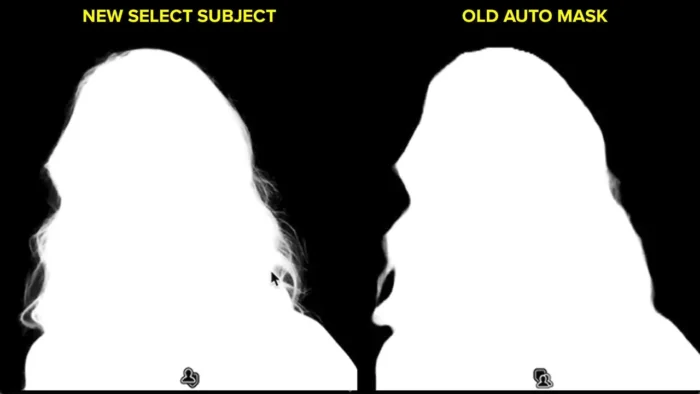
The 2026 release leans further into AI-assisted editing than previous versions — subject detection, sky masking, and object removal that used to take manual brush work now happen in a couple of clicks. Combined with strong GPU acceleration on modern Windows hardware, it’s a meaningfully faster and smarter tool than it was even a couple of years ago, without losing the manual control professional photographers actually rely on.
Overview
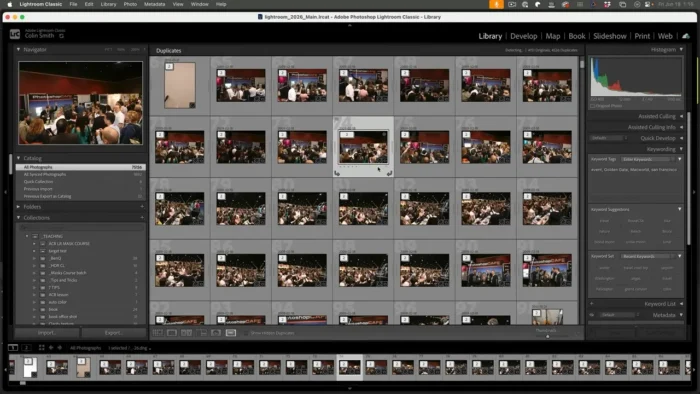
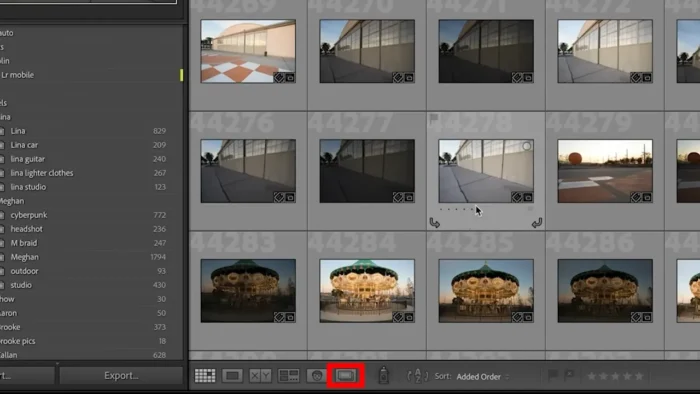
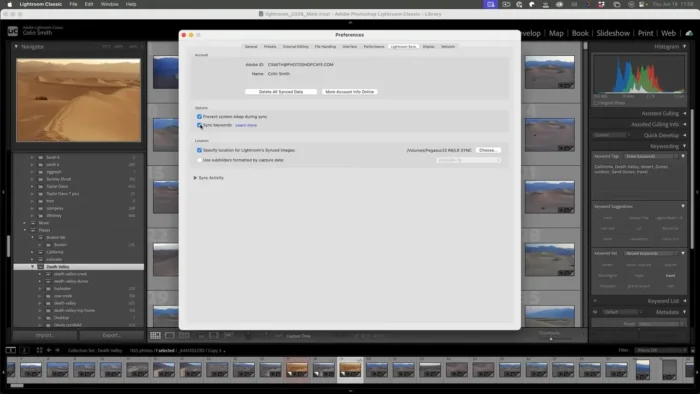
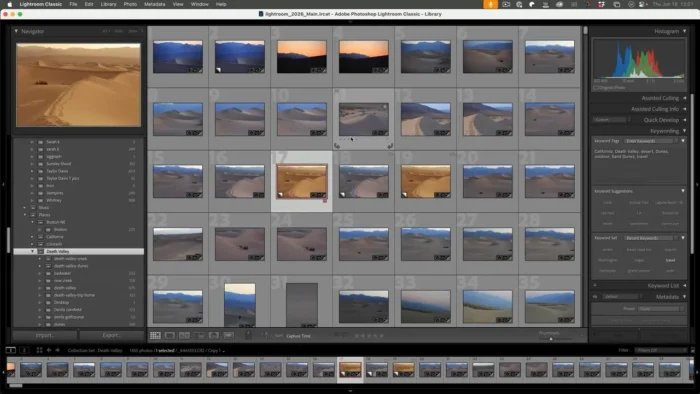
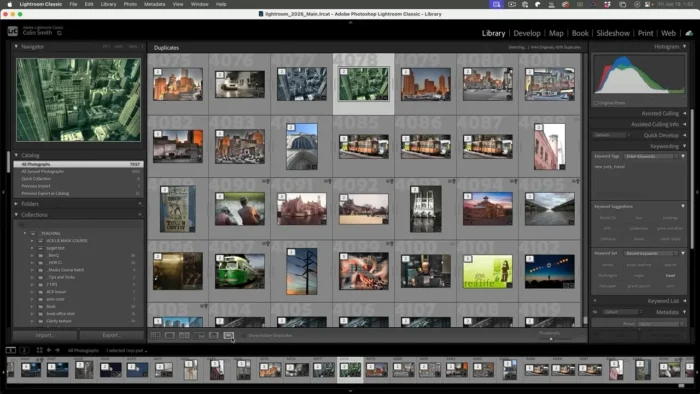
Lightroom Classic centers on a local catalog: every photo you import, every edit you make, and every keyword you attach lives in one searchable database rather than scattered across folders.
- Purpose: Non-destructive photo editing paired with large-scale library management
- Main workflow: Import into catalog → cull and rate → edit (globally and selectively) → export or deliver
- Ideal users: Photographers managing large shoots — weddings, sports, real estate, commercial work — who need both editing precision and organizational speed
- RAW support: Extensive camera and lens profile coverage, updated regularly for new equipment
- Major strength in 2026: AI-assisted masking and object removal that dramatically cuts manual editing time without sacrificing control
Key Features
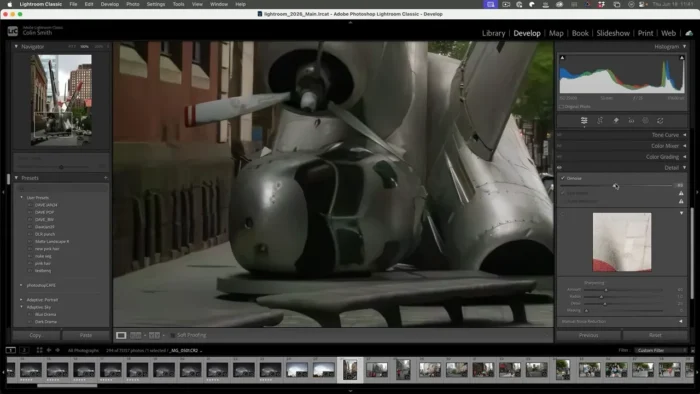
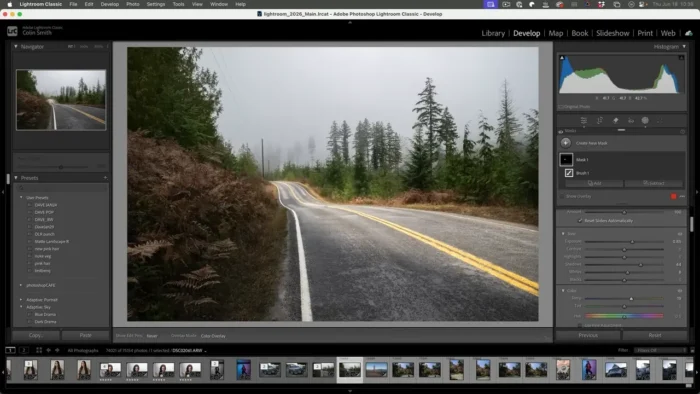
- AI-Powered Subject and Sky Detection – Select a person, sky, or background with one click instead of manually brushing a mask, which turns what used to be a five-minute task into a five-second one on a typical portrait or landscape shot.
- AI Object Removal – Remove distracting elements — a stray power line, a photobomber — directly within Lightroom Classic, without needing to round-trip into Photoshop for simple fixes.
- Advanced Masking Suite – Beyond AI selection, brush, linear gradient, radial gradient, color range, luminance range, and depth range masks give pixel-level control when automatic selection isn’t precise enough.
- Non-Destructive RAW Processing – Camera-specific profile support, highlight/shadow recovery, and lens corrections are all stored as instructions rather than baked into the file, so nothing is ever permanently altered.
- HDR Merge & Panorama Stitching (Including HDR Panoramas) – Combine bracketed exposures or wide shots into a single high-quality image with automatic alignment and ghost reduction, useful for real estate and landscape work where dynamic range is a constant problem.
- Batch Editing at Scale – Synchronize settings across hundreds of images, apply presets automatically during import, and batch-rename or export entire shoots in one pass — the single biggest time-saver for anyone shooting weddings or events.
- Face Recognition (Supported Versions) – Automatically groups photos by the people in them, which speeds up client delivery when you need every photo of a specific person from a large event.
- Smart Collections – Build dynamic groups of photos based on rules (rating, keyword, camera settings) that update automatically as your catalog grows, rather than manually re-sorting every time.
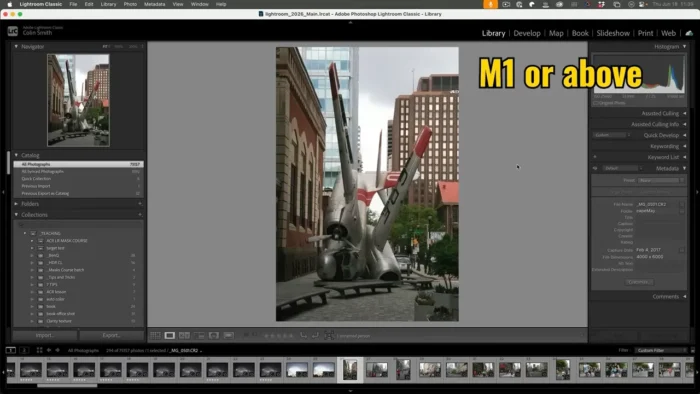
- GPU-Accelerated Performance – Editing sliders, previews, and catalog browsing take advantage of your GPU, which is especially noticeable on Windows systems with a dedicated graphics card handling large RAW files.
- Watermark & Print Templates – Built-in templates for contact sheets, slideshows, and web galleries make client delivery and portfolio presentation part of the same workflow instead of a separate export step.
What’s New in the 2026 Release
- Expanded AI-assisted editing: subject detection, sky masking, and object removal
- Enhanced Lens Blur effects for more realistic depth-of-field simulation after the fact
- Improved automatic adjustment quality on first import
- Faster RAW processing and preview generation
- Improved GPU utilization, with noticeably quicker catalog performance on modern Windows hardware
- Continued expansion of supported camera and lens profiles
For the specific changelog tied to your installed build, check Help > About Lightroom Classic inside the app.
System Requirements
| Component | Minimum | Recommended |
|---|---|---|
| Operating System | Windows 10 (64-bit) or Windows 11 | Latest Windows 11 update |
| Processor | Intel or AMD multicore processor | Faster multicore processor |
| RAM | 8 GB | 16 GB or more |
| Storage | Sufficient for catalog + image library | SSD with generous free space |
| Graphics | GPU with DirectX 12 support | Dedicated GPU with more VRAM |
| Internet | Required for activation, updates, cloud features | Required |
Large catalogs (tens of thousands of images) benefit noticeably from more RAM and fast SSD storage — this is where performance differences between machines show up most.
How to Install
Lightroom Classic installs through the Adobe Creative Cloud desktop app, not as a standalone offline installer.
- Visit Adobe’s official Lightroom Classic page and start a free trial or select a subscription plan.
- Sign in with your Adobe ID (or create one).
- Download the Creative Cloud desktop app for Windows.
- In the Creative Cloud app, go to Apps and click Install next to Lightroom Classic.
- Launch it from your Start menu or desktop shortcut once installed.
An active subscription or trial is required to keep using the software beyond the trial period.
Pros
- AI-assisted masking and object removal genuinely cut editing time on repetitive tasks
- Catalog system scales cleanly to tens of thousands of images
- Non-destructive workflow means zero risk to original files
- Batch tools make high-volume shoots (weddings, events) manageable
- HDR and panorama merging remove the need for separate specialized software
- Strong GPU-accelerated performance on modern Windows hardware
Cons
- Subscription-only, with no perpetual license option
- AI features depend on Adobe’s cloud processing for some operations, requiring internet access
- Large catalogs demand real hardware investment (RAM, SSD space) to stay fast
- New users coming from simpler editors face a learning curve around the catalog concept itself
Why Download from WindowsTan?
We link directly to Adobe’s official Creative Cloud installer, so you’re getting a clean, verified path to Lightroom Classic with no bundled extras — kept current with accurate, up-to-date information about the latest release.
Frequently Asked Questions
Is Lightroom Classic 2026 free for Windows? No, but a free trial is available to test the full feature set, including the AI editing tools, before subscribing.
Do the AI features require an internet connection? Some AI-assisted operations rely on cloud processing, so an internet connection improves reliability and speed for those specific tools.
Is there a standalone offline installer? No. Lightroom Classic installs and updates exclusively through the Adobe Creative Cloud desktop app.
How is Lightroom Classic different from Lightroom (cloud-based)? Lightroom Classic manages your catalog locally with deeper organizational tools; Lightroom (non-Classic) is built primarily around cloud storage and lighter cross-device syncing.
Does it support GPU acceleration on Windows? Yes, and the 2026 release includes further performance optimization, with editing and catalog browsing benefiting noticeably from a dedicated GPU.
Can I recover a photo after editing it in Lightroom Classic? Yes — editing is non-destructive, so you can reset or modify any adjustment at any point without affecting the original RAW or JPEG file.
Is face recognition available in every version? Face recognition support depends on the specific release; check your version’s feature list to confirm availability.
How much storage do I need for a large photo catalog? This depends heavily on library size, but SSD storage with generous free space is strongly recommended, since previews and catalog files grow substantially with large image collections.
Final Verdict
Adobe Lightroom Classic 2026 pushes further into AI-assisted editing without giving up the manual precision that professional photographers depend on — subject and sky detection alone will save hours across a typical shoot’s worth of editing. Combined with its non-destructive RAW workflow and catalog-based organization, it remains the strongest option for photographers managing serious volume: weddings, events, real estate, and commercial work all benefit directly from its batch tools and AI shortcuts.
For photographers with smaller, simpler libraries, the learning curve and subscription cost might outweigh the benefit — but for anyone whose workflow depends on speed and consistency across hundreds or thousands of images, Lightroom Classic 2026 is worth the investment, especially on modern Windows hardware with a capable GPU.