

Adobe Media Encoder 2026
Adobe Media Encoder 2026 Free Download for Windows
If you’ve ever finished a video edit in Premiere Pro only to spend the next hour babysitting exports for YouTube, a client deliverable, and a social media cut, Adobe Media Encoder is the app built to take that off your plate. It’s Adobe’s dedicated encoding and export engine — the background workhorse that renders everything from Premiere Pro, After Effects, and Audition without tying up the app you’re actually trying to keep working in.
On Windows, that matters more than it sounds like. Instead of watching a progress bar in Premiere Pro while you wait to start the next edit, you queue exports in Media Encoder and keep working. The 2026 release adds better GPU acceleration and improved handling of modern camera codecs, so even 4K and HDR exports move faster than manually exporting inside each individual app. Whether you’re a solo YouTuber batch-exporting a week’s worth of videos or a post-production house pushing broadcast deliverables out the door, Media Encoder is the tool that keeps rendering out of your way.
Overview
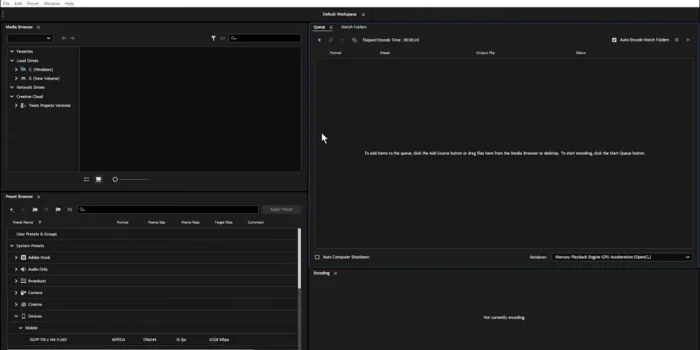
Media Encoder is a standalone encoding and export application that works alongside other Adobe Creative Cloud apps rather than replacing any editing workflow itself.
- Purpose: Encode, convert, and export audio/video from Premiere Pro, After Effects, Audition, and other Creative Cloud apps
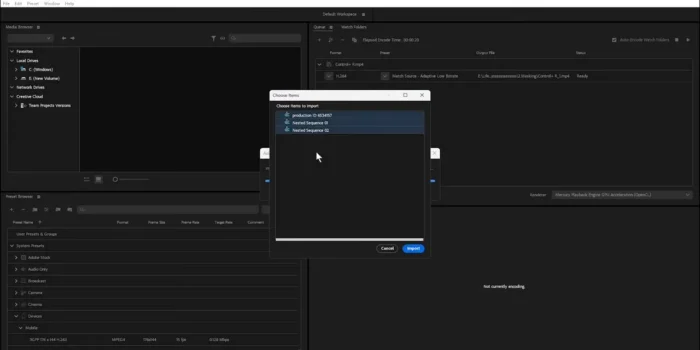
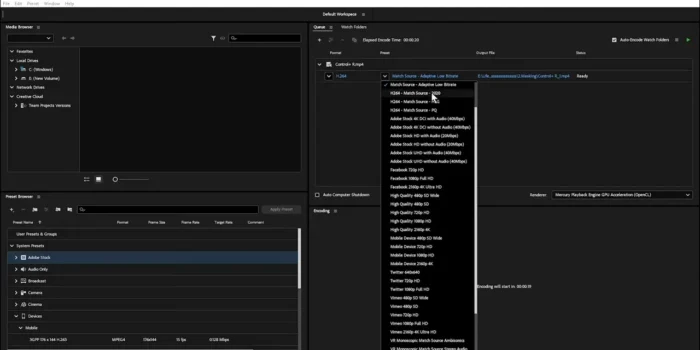
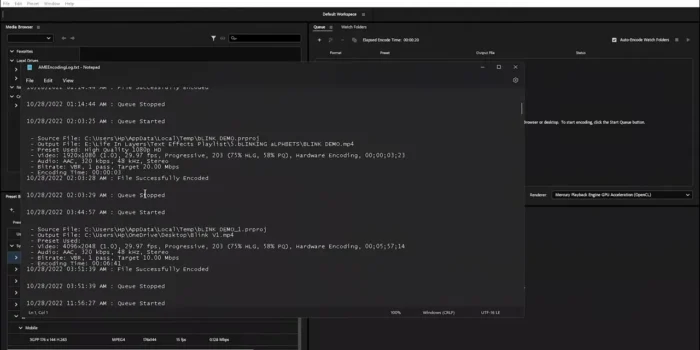
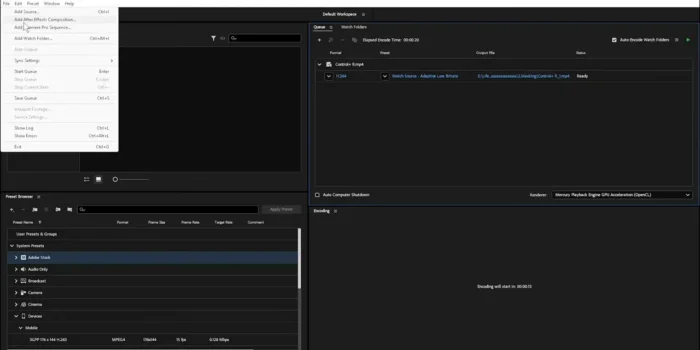
- Main workflow: Add sources or queue exports from a connected app → apply presets or custom settings → render in the background → deliver finished files
- Ideal users: Video editors, content creators, broadcasters, and post-production professionals who need to export frequently or at scale
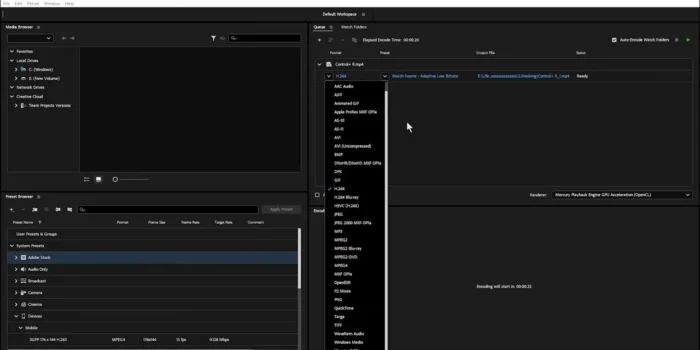
- Formats supported: H.264, HEVC (H.265), ProRes, DNxHD, and a broad range of modern video, audio, and image formats
- Major strengths: Background rendering that doesn’t block your editing app, plus automation tools for repetitive export tasks
Key Features
- Background Rendering – Exports run as a separate process, so you can keep editing in Premiere Pro or After Effects instead of staring at a progress bar, which is the single biggest productivity win the app offers.
- GPU-Accelerated Encoding – Leverages your GPU to speed up H.264 and HEVC encoding significantly, cutting render times on long-form or high-resolution projects, especially on Windows systems with a capable dedicated graphics card.
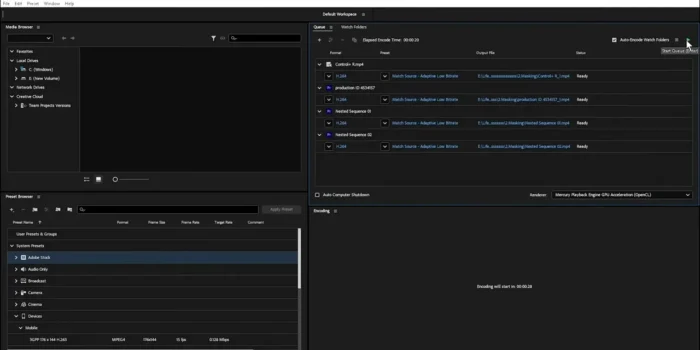
- Batch Processing – Queue up dozens of export jobs at once — different formats, different destinations — and let them process sequentially without manual babysitting.
- Watch Folder Automation – Point Media Encoder at a folder, and it automatically encodes anything dropped into it using preset settings, ideal for recurring workflows like daily broadcast deliverables or repeated client formats.
- Customizable Export Presets – Save encoding settings tailored to YouTube, broadcast specs, mobile playback, or a specific client’s requirements, so you’re not rebuilding settings from scratch every time.
- HDR and Color Management Support – Properly handles HDR metadata and color space conversion during export, which matters for anyone delivering HDR content to streaming platforms.
- Wide Camera Format Support – Keeps pace with modern camera codecs, so footage from newer cameras encodes correctly without needing a third-party conversion step first.
- Hardware Acceleration on Modern GPUs – Encoding tasks take direct advantage of dedicated GPU acceleration, resulting in noticeably faster export times on capable Windows hardware.
- Direct Integration with Premiere Pro, After Effects, and Audition – Send a project straight to Media Encoder’s queue from within any of these apps without manual file handling in between.
- Stability and Performance Improvements – The 2026 release focuses on smoother batch processing and fewer render errors on complex, multi-layer timelines.
What’s New in the 2026 Release
- Optimized H.264 and HEVC encoding performance
- Enhanced GPU acceleration across supported hardware
- Improved support for modern camera formats and codecs
- Better HDR and color management handling during export
- Tighter integration with the latest Creative Cloud app versions
- Overall improved encoding performance and application stability
For the exact changelog of your installed version, check Help > About Media Encoder inside the app.
System Requirements
| Component | Minimum | Recommended |
|---|---|---|
| Operating System | Windows 10 (64-bit) or Windows 11 | Latest Windows 11 update |
| Processor | Intel or AMD multicore processor | Faster multicore processor |
| RAM | 8 GB | 16 GB or more |
| Graphics | GPU with DirectX 12 support | Dedicated GPU with more VRAM |
| Storage | 4 GB free space for installation | Additional SSD space for render/output files |
| Internet | Required for activation and Creative Cloud services | Required |
Export-heavy workflows benefit from more RAM and fast storage beyond the stated minimums, especially when batch-encoding large 4K or HDR projects.
How to Install
Media Encoder is distributed through the Adobe Creative Cloud desktop app, not as a standalone offline installer.
- Go to Adobe’s official Media Encoder page and start a free trial or select a Creative Cloud plan.
- Sign in with your Adobe ID, or create one if you’re new to Creative Cloud.
- Download the Creative Cloud desktop app for Windows.
- Open the Creative Cloud app, go to the Apps tab, and click Install next to Media Encoder.
- Launch Media Encoder from your Start menu, or send jobs to it directly from Premiere Pro, After Effects, or Audition.
New users can try a fully functional 7-day free trial before committing to a subscription.
Pros
- Background rendering keeps your editing app free while exports process
- Genuinely fast GPU-accelerated encoding on capable Windows hardware
- Watch Folders remove manual effort from repetitive export tasks
- Wide format support covers nearly every modern delivery requirement
- Tight, seamless integration across the Creative Cloud video/audio apps
- Batch processing scales well for high-volume export workflows
Cons
- Requires an active Creative Cloud subscription — no standalone purchase option
- Most useful alongside other Adobe apps; less valuable as an isolated tool
- Large batch jobs still demand solid RAM and storage to stay fast
- Some automation features (Watch Folders, presets) take initial setup time to configure well
Why Download from WindowsTan?
We link directly to Adobe’s official Creative Cloud installer, so you’re getting a clean, verified path to Media Encoder with no bundled extras — kept current with accurate, up-to-date information about the latest release.
Frequently Asked Questions
Is Adobe Media Encoder free for Windows? No, but Adobe offers a 7-day free trial so you can test the full feature set before subscribing.
Does Media Encoder support Windows 11? Yes, it’s compatible with both Windows 10 and Windows 11.
Is there an offline installer for Media Encoder? No. It installs through the Adobe Creative Cloud desktop app rather than a standalone installer.
Do I need Premiere Pro to use Media Encoder? No, though it’s designed to work seamlessly alongside Premiere Pro, After Effects, and Audition. It can also encode standalone media files added directly to its queue.
Does Media Encoder support HDR export? Yes, including proper HDR metadata handling and color management during the export process.
Can I automate repetitive export tasks? Yes, Watch Folders let you set up automated encoding for files dropped into a designated folder using saved presets.
What formats does Media Encoder support? A wide range, including H.264, HEVC (H.265), ProRes, DNxHD, and many other modern video, audio, and image formats.
Does Media Encoder support GPU acceleration on Windows? Yes, encoding tasks take advantage of a dedicated GPU where available, significantly speeding up render times on supported hardware.
Final Verdict
Adobe Media Encoder 2026 for Windows solves a problem every video editor eventually runs into: exports that eat into editing time. By handling encoding as a background process with GPU acceleration, it lets you keep working while renders happen elsewhere. Video editors, content creators, and post-production teams exporting frequently or in bulk will get real, measurable time savings from Watch Folders and batch processing alone.
If you only export the occasional short clip, Media Encoder’s automation features may be more than you need — but for anyone regularly delivering video across multiple formats and platforms, it’s an essential companion to Premiere Pro and After Effects rather than an optional extra, and the free trial makes it easy to see the time savings firsthand.