

CorelDRAW Graphics Suite 2026 v27.2.0.135
CorelDRAW Graphics Suite Free Download for Windows
Illustrator gets most of the attention in design conversations, but CorelDRAW has quietly stayed the go-to choice for a specific kind of work: precise vector illustration paired with genuinely strong page layout and print production tools, all in one package instead of separate apps. It’s less about flashy digital-first illustration and more about the practical, production-ready side of design — logos, brochures, packaging, signage, and layouts that need to go to print correctly the first time.
Download CorelDRAW Graphics Suite directly from Corel’s official website for Windows 10 and 11 (64-bit). Whether you’re a freelance brand designer building a logo from scratch or a small business handling your own marketing materials, the suite bundles vector illustration, photo editing, and font management together so you’re not juggling three separate subscriptions to get one project finished.
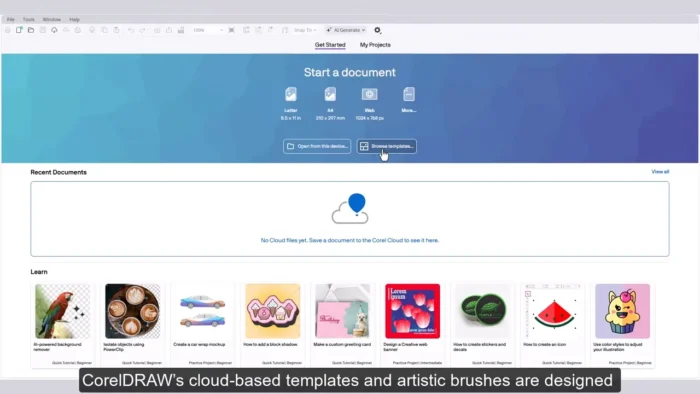
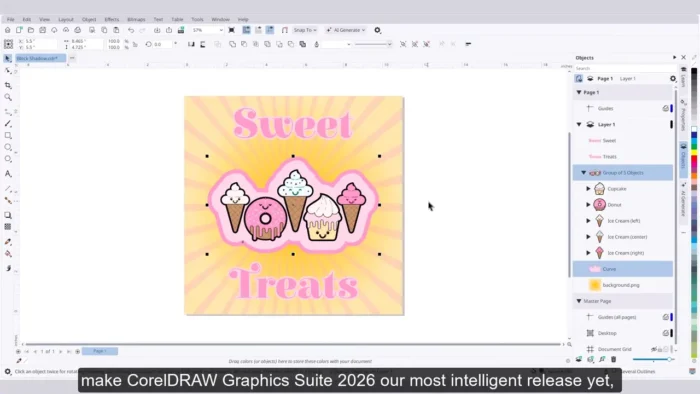
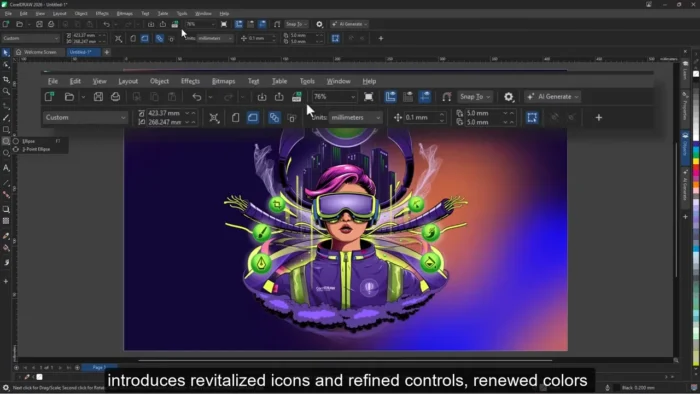
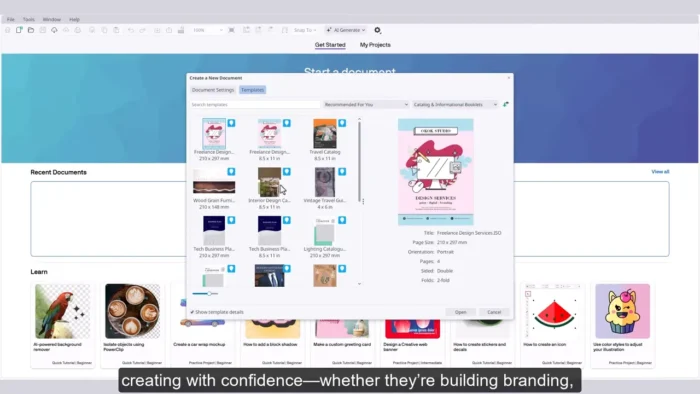
Overview
CorelDRAW Graphics Suite combines vector illustration, page layout, bitmap photo editing, and font management into a single application suite rather than separate standalone apps.
- Purpose: Vector illustration, page layout, photo editing, and typography for print and digital design
- Main workflow: Illustrate or lay out in CorelDRAW → edit photos in Corel PHOTO-PAINT → manage fonts via Corel Font Manager → export for print or digital delivery
- Ideal users: Graphic designers, brand designers, illustrators, marketing professionals, and small businesses handling their own design work
- File formats supported: CDR, AI, PSD, PDF, SVG, EPS, PNG, JPG, TIFF, DWG, DXF
- Major strength: A genuinely complete, print-focused design workflow in one package, with especially strong page layout and typography tools
Key Features
- Professional Vector Illustration – Advanced drawing tools, curves, shapes, and layer-based editing give you complete control over building anything from a simple logo to a complex, multi-layer illustration.
- Advanced Page Layout – Design brochures, posters, presentations, and multi-page documents with flexible page management, making CorelDRAW as much a layout tool as an illustration one.
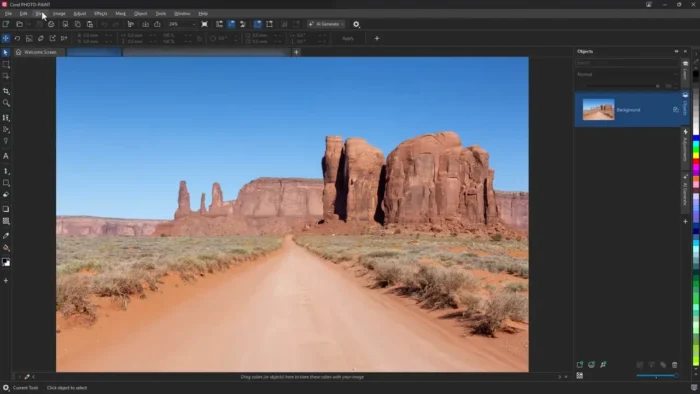
- Photo Editing via Corel PHOTO-PAINT – A dedicated raster editing application handles color adjustment, retouching, and effects, and combines cleanly with vector artwork in the same project.
- Typography and Font Management – Advanced text controls, spacing adjustments, text effects, and a dedicated Font Manager app keep large font libraries organized instead of scattered across your system.
- PowerTRACE Bitmap-to-Vector Conversion – Convert a scanned sketch or raster logo into clean, editable vector artwork automatically, a genuine time-saver compared to manually retracing by hand.
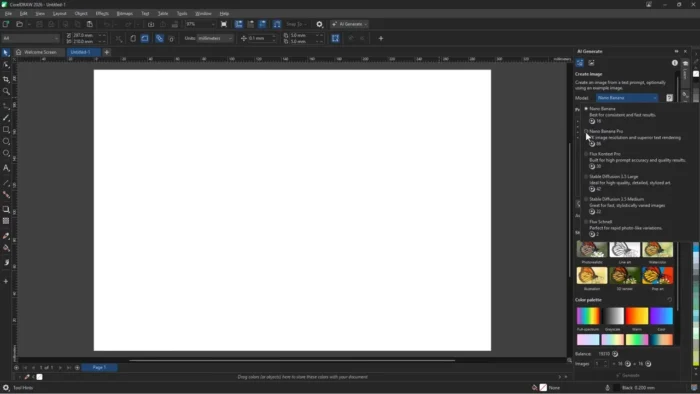
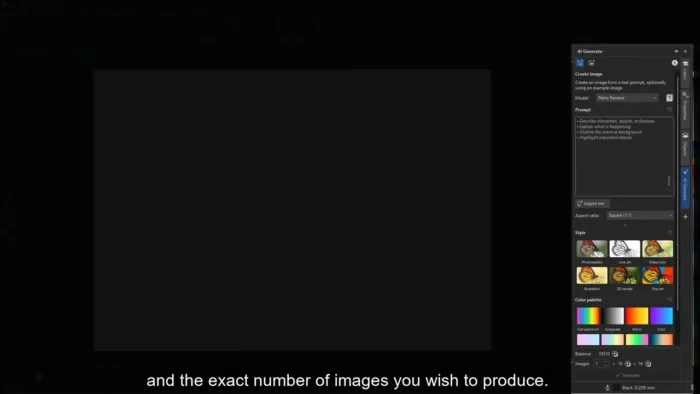
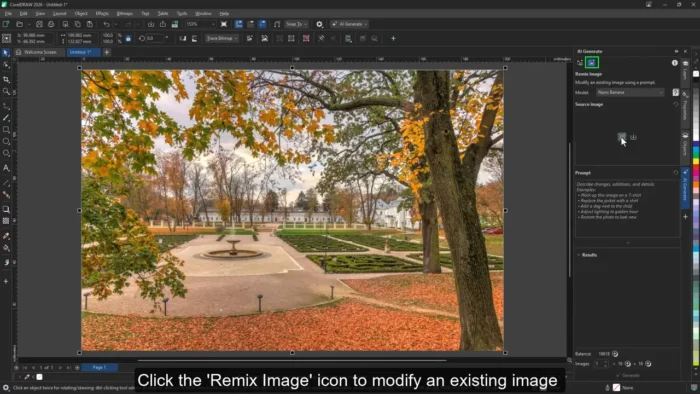
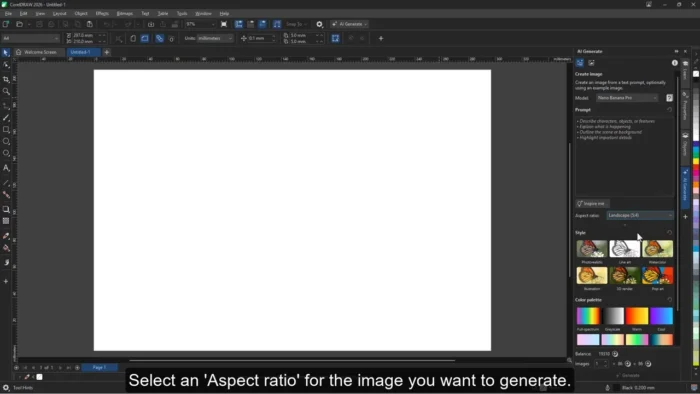
- AI-Assisted Design Tools – Intelligent image enhancement and automated design improvements speed up repetitive parts of the workflow without taking creative control away from the designer.
- Professional Color Management – Advanced transparency, gradients, fills, and color adjustment tools help ensure what you design matches what actually prints.
- Wide File Format Support – Native compatibility with CDR, AI, PSD, PDF, SVG, EPS, and even CAD formats like DWG and DXF, which smooths collaboration with designers and clients using different software.
- Multi-Monitor and High-Resolution Display Support – Take advantage of larger or multiple displays on Windows for a more comfortable, spread-out design workflow.
- Touch and Pen Tablet Support – Works well with graphics tablets and touch-enabled Windows devices, useful for illustrators who prefer drawing directly rather than working purely with a mouse.
Creative Applications Included
CorelDRAW Graphics Suite isn’t a single app — it’s a bundle of specialized tools:
- CorelDRAW – Vector illustration and page layout
- Corel PHOTO-PAINT – Professional raster image editing
- Corel Font Manager – Font organization and management
- PowerTRACE – Bitmap-to-vector conversion
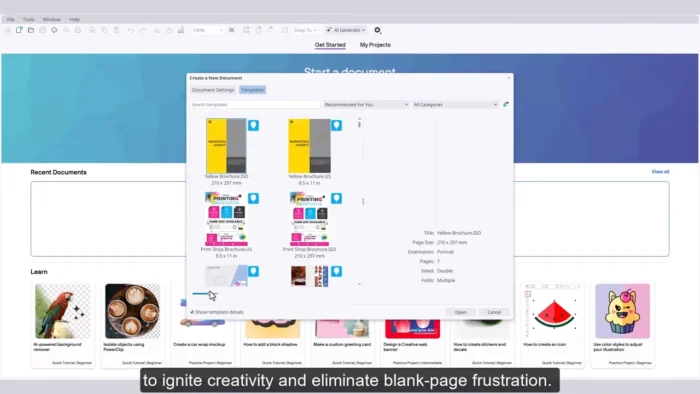
- Additional design resources and templates included with the suite
Windows-Specific Features
- Native 64-bit performance on modern Windows systems
- Multi-monitor and high-DPI display support
- Touch Bar-style shortcut customization and pen tablet compatibility
- Cloud-based collaboration features tied to your Corel account
System Requirements
| Component | Minimum | Recommended |
|---|---|---|
| Operating System | Windows 10 or 11 (64-bit) | Latest Windows 11 update |
| Processor | Intel or AMD multicore processor | Faster multicore processor |
| RAM | 8 GB | 16 GB or more for large, complex projects |
| Storage | At least 4 GB free | SSD with additional space for asset libraries |
| Display | 1280 × 800 | 1920 × 1080 or higher |
| Internet | Required for installation, account verification, updates | Required for cloud collaboration features |
Complex, multi-page projects and high-resolution image editing benefit from more RAM and SSD storage beyond the stated minimums.
How to Download and Install CorelDRAW Graphics Suite for Windows
- Download the installer from Corel’s official website.
- Run the downloaded setup file.
- Follow the on-screen installation instructions.
- Sign in with your Corel account, or create one during setup.
- Activate using your purchased license or start a free trial.
- Launch CorelDRAW and begin your project.
Pros
- Complete design suite — illustration, layout, photo editing, and font management — in one package
- Genuinely strong print production and page layout tools, not just illustration
- PowerTRACE makes bitmap-to-vector conversion fast and clean
- Strong native Windows performance, including multi-monitor and pen tablet support
- Wide file format support smooths collaboration across different design tools
- AI-assisted tools speed up repetitive tasks without removing creative control
Cons
- Advanced tools take real time to learn, especially for users new to vector design
- Full feature set may be more than casual or occasional users need
- Cloud collaboration features depend on an active internet connection
- Licensing cost is a real consideration for freelancers and small studios
Why Download from WindowsTan?
We link directly to Corel’s official installer, so you’re getting a clean, malware-checked file with no bundled extras — kept current with the latest official release and accompanied by accurate, up-to-date software information.
Who Should Use CorelDRAW Graphics Suite?
- Graphic and brand designers building logos and identity systems
- Illustrators who need precision vector tools alongside layout capability
- Marketing professionals producing brochures, packaging, and print materials
- Print specialists and small businesses handling their own design work in-house
- Students learning professional, production-focused design workflows
CorelDRAW vs Other Design Applications
CorelDRAW focuses specifically on professional vector design, layout creation, and print-ready workflows, with particular strength in typography and page layout control. It’s especially popular among designers who need precise control over how a document will actually print, not just how it looks on screen.
Designers whose work is mostly digital illustration, photo manipulation, or animation may find other specialized applications a better fit, depending on the specific demands of that workflow.
Frequently Asked Questions
Is CorelDRAW Graphics Suite free for Windows? A free trial is available; full use requires a purchased license. Check Corel’s official site for current trial and pricing details.
Does CorelDRAW support Windows 11? Yes, it’s optimized for both Windows 10 and Windows 11 (64-bit).
What file formats does CorelDRAW support? A wide range, including CDR, AI, PSD, PDF, SVG, EPS, PNG, JPG, TIFF, DWG, and DXF.
Does the suite include photo editing tools? Yes, Corel PHOTO-PAINT is included as a dedicated raster image editor alongside CorelDRAW’s vector tools.
Is CorelDRAW suitable for beginners? It’s approachable for newcomers, though mastering its full advanced toolset — especially typography and page layout features — takes practice.
Does CorelDRAW support pen tablets on Windows? Yes, it works well with graphics tablets and touch-enabled Windows devices for more natural drawing input.
How does CorelDRAW compare to Illustrator? CorelDRAW places more emphasis on integrated page layout and print production alongside vector illustration, while some designers prefer Illustrator for pure digital illustration workflows. The right choice depends on your specific project needs.
Is an internet connection required to use CorelDRAW? Yes, for installation, account verification, and updates. Cloud collaboration features also require an active connection.
Final Verdict
CorelDRAW Graphics Suite for Windows is a genuinely complete design solution for professionals who need vector illustration, page layout, and print production working together rather than across separate apps. Brand designers, illustrators, and marketing professionals producing print-ready materials will get real value from its typography controls, PowerTRACE conversion tool, and strong file format compatibility.
Casual users or those focused purely on digital illustration may find its full feature set more than they need. But for designers and small businesses handling branding, packaging, and print materials in-house, CorelDRAW remains a strong, well-rounded choice on Windows.