
DaVinci Resolve Studio 21.1.1.10
DaVinci Resolve Free Download for Windows
Most professional post-production pipelines bounce footage between three or four separate applications — one for editing, another for color, a separate one for audio, maybe a fourth for visual effects. DaVinci Resolve exists to collapse all of that into a single app. Built by Blackmagic Design, it started as a dedicated color-grading tool and grew into a genuinely complete editing, VFX, and audio suite without losing what made it exceptional at color in the first place.
Download DaVinci Resolve directly from Blackmagic Design’s official website for Windows — a free version with a huge feature set is available with no time limit, alongside the paid Resolve Studio edition for professionals who need the full toolset. Whether you’re grading a short film, cutting a YouTube video, or building a complete soundtrack, Resolve is built to handle the entire workflow without switching software.
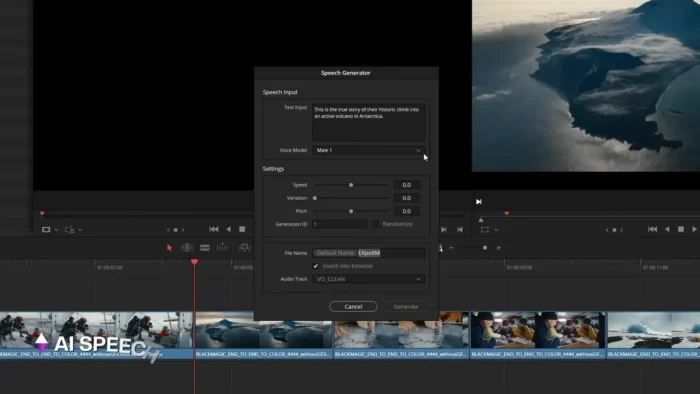
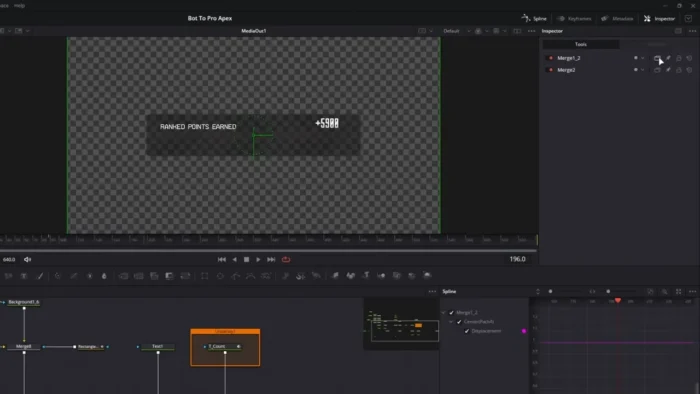
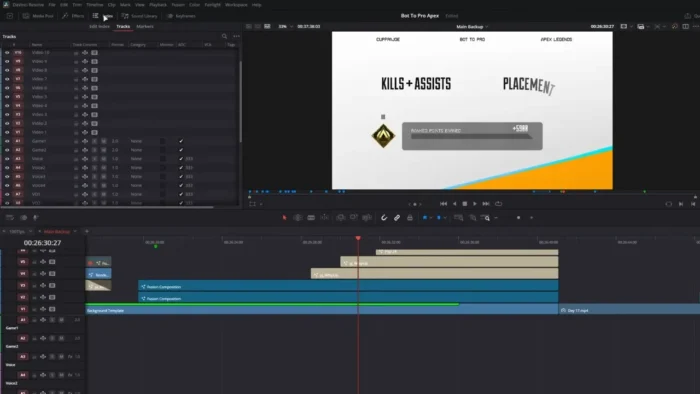
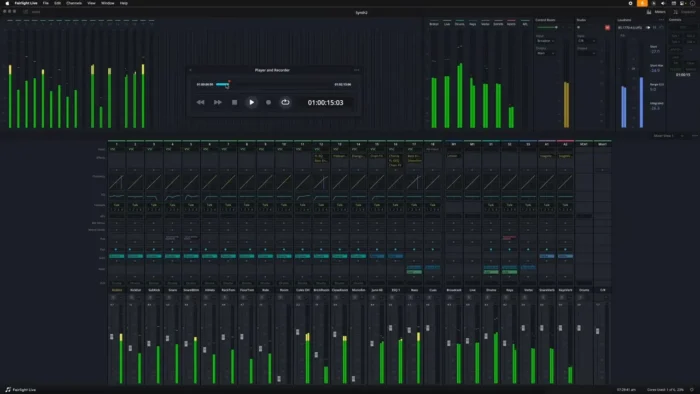
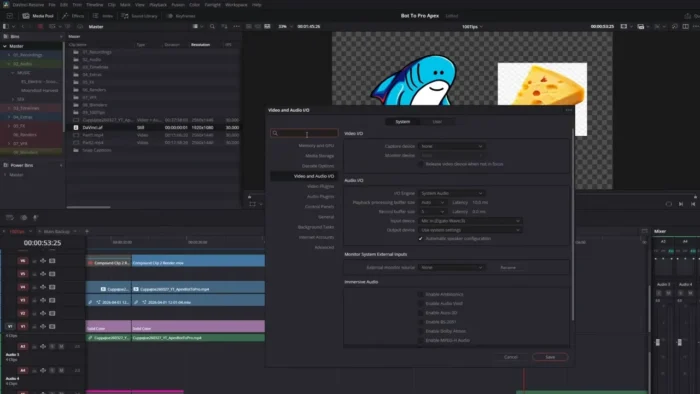
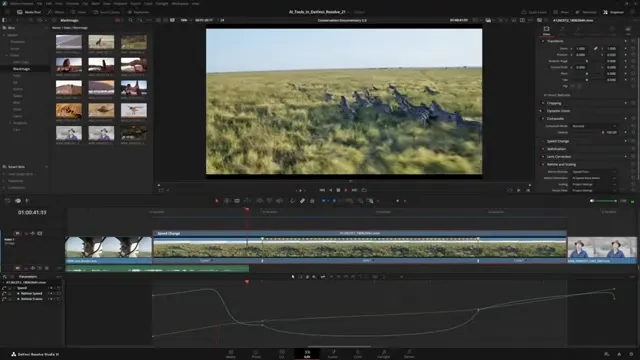
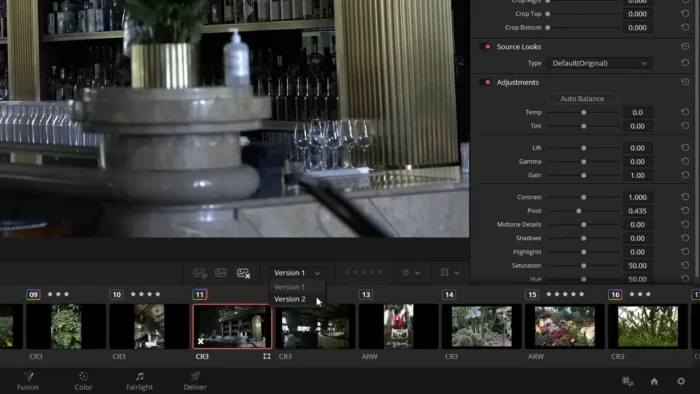
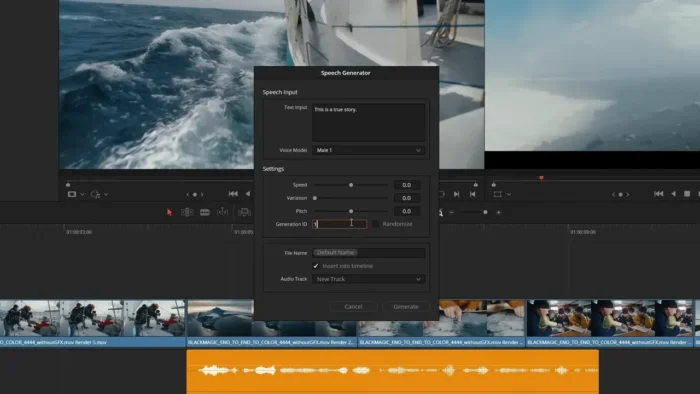
Overview
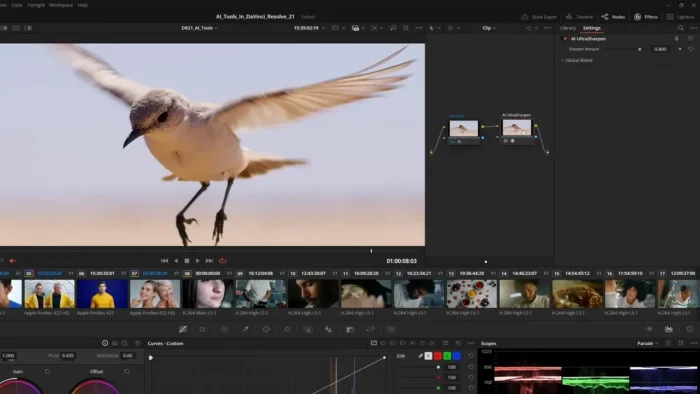
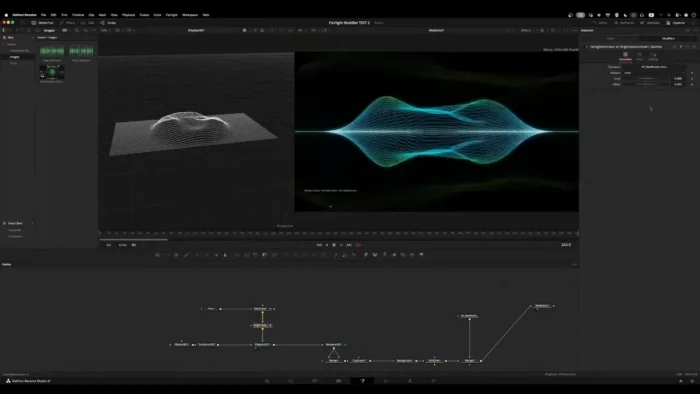
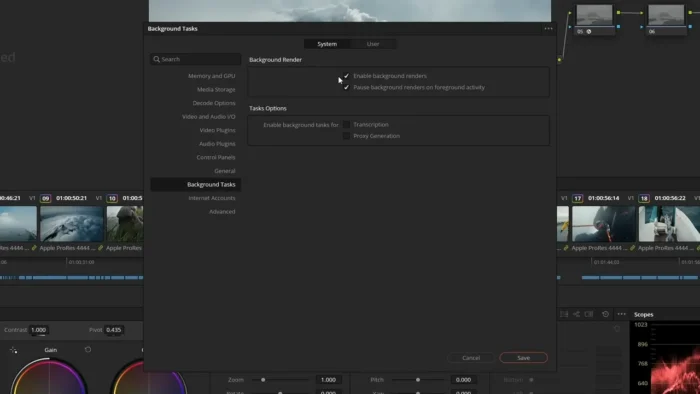
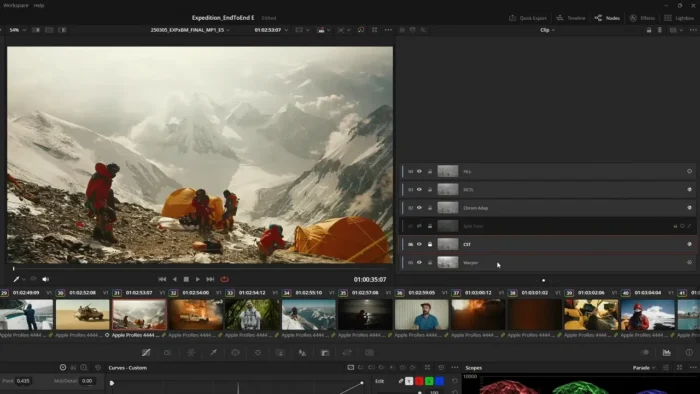
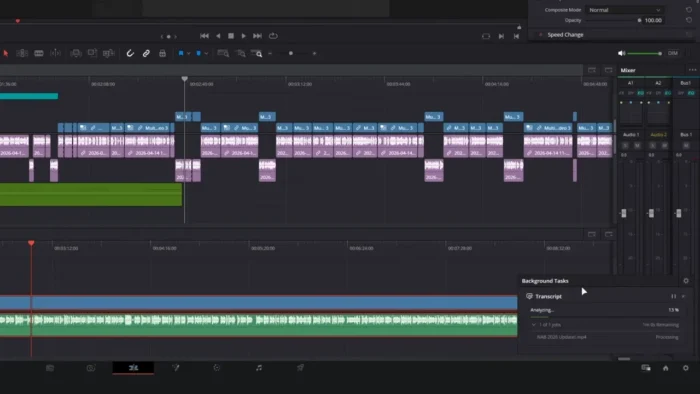
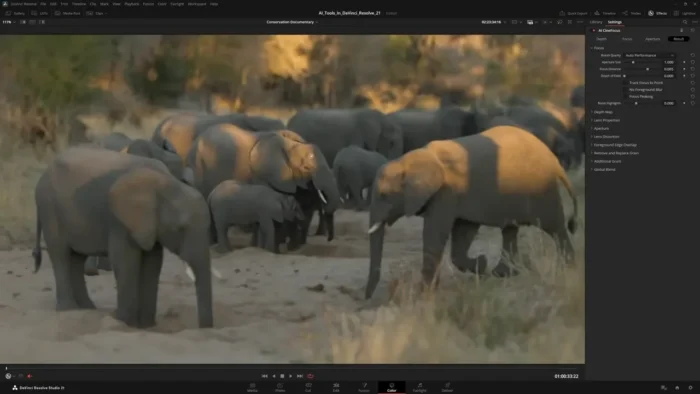
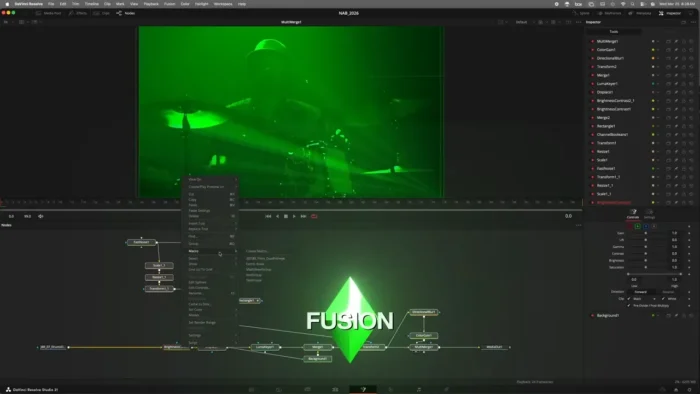
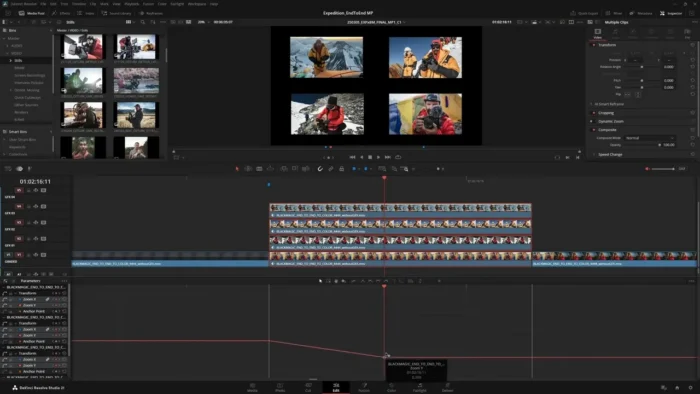
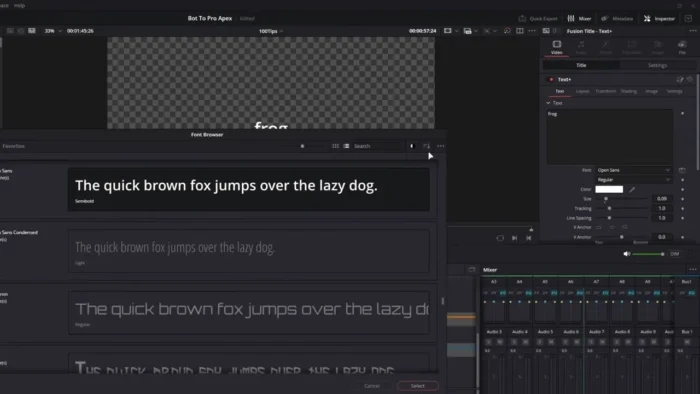
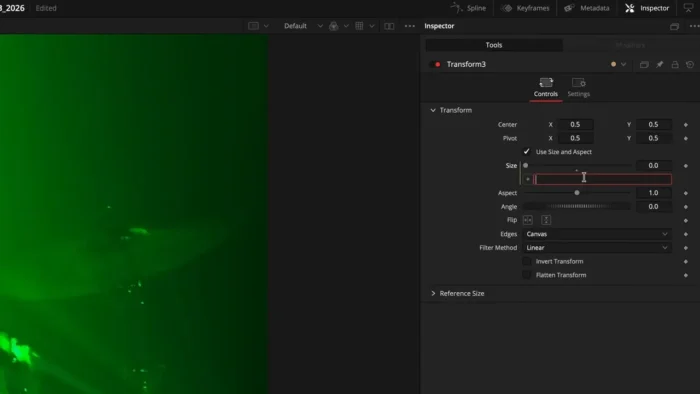
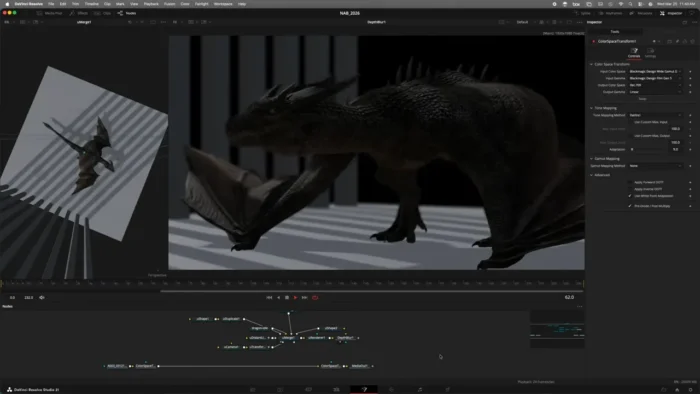
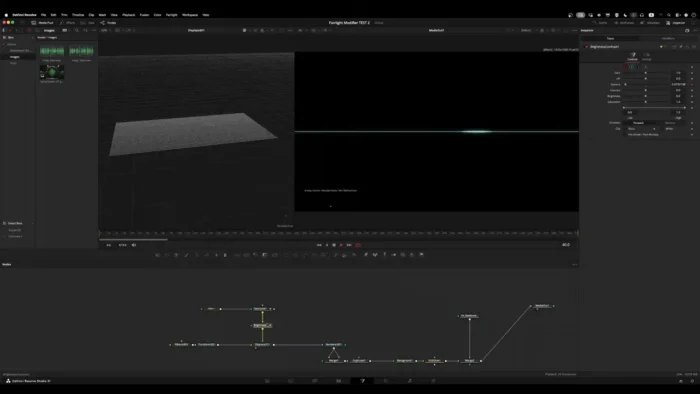
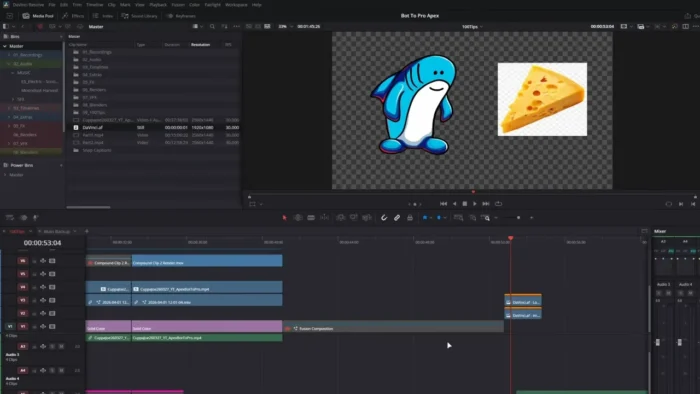
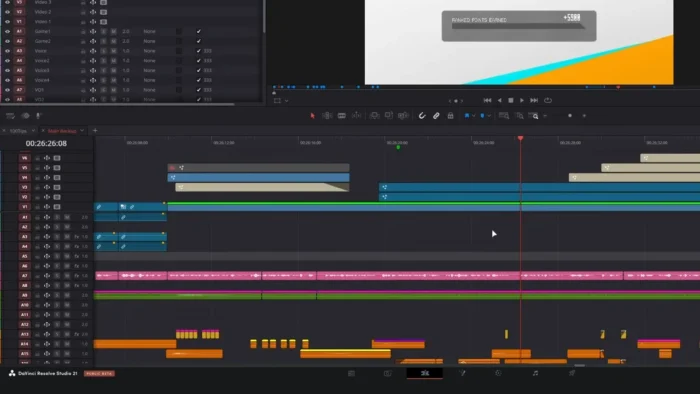
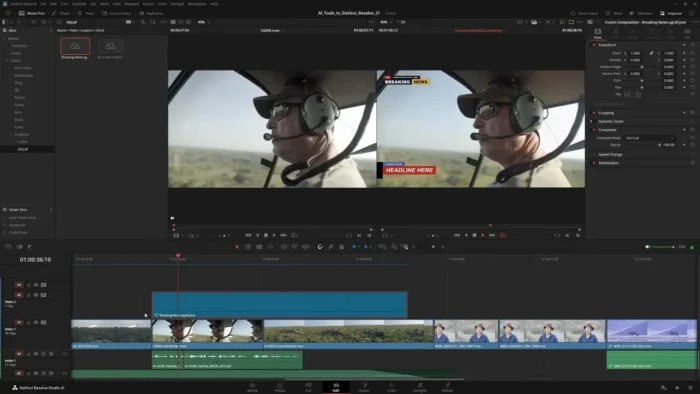
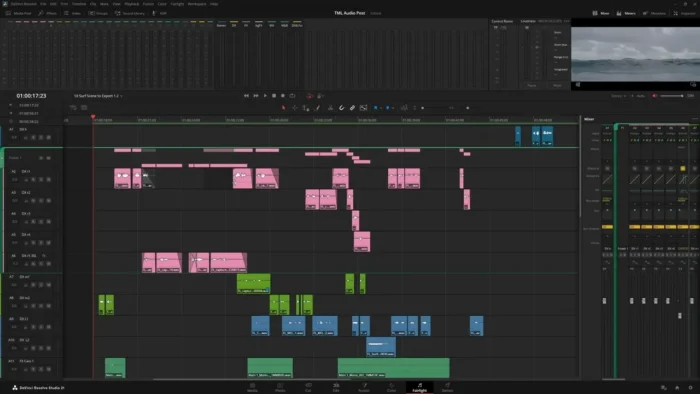
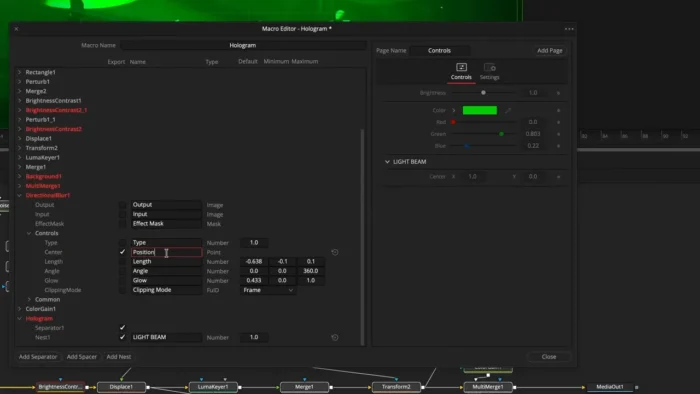
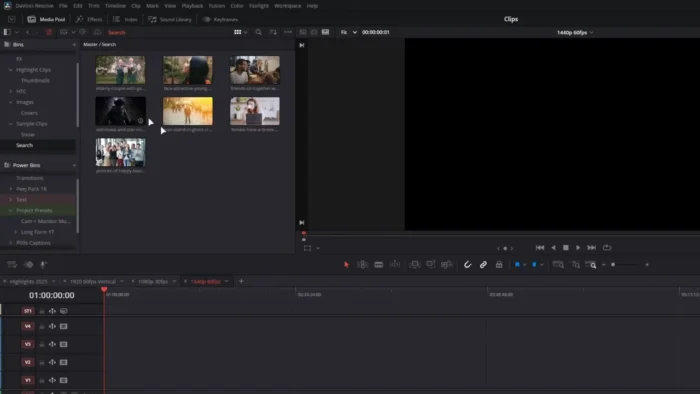
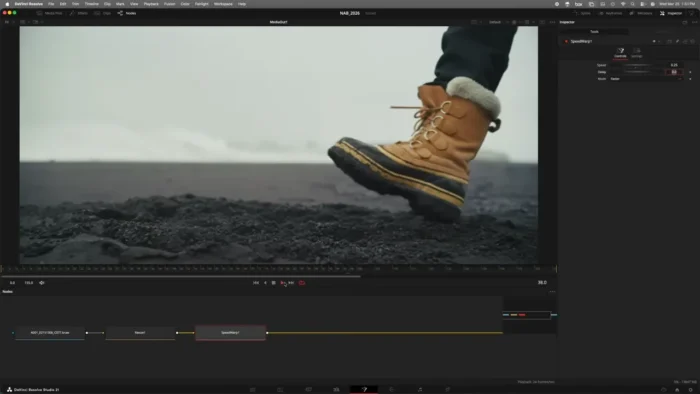
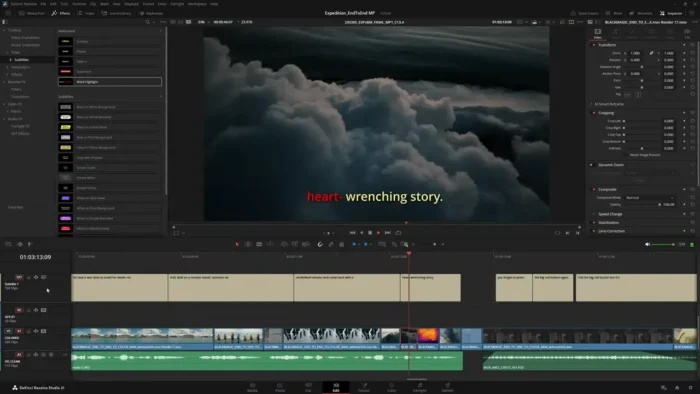
DaVinci Resolve is an all-in-one post-production application organized around four core pages: Edit, Color, Fusion (VFX/motion graphics), and Fairlight (audio).
- Purpose: Complete post-production — editing, color grading, visual effects, and audio mixing — in one integrated app
- Main workflow: Import and edit footage on the Edit page → grade on the Color page → add effects via Fusion → mix audio in Fairlight → deliver
- Ideal users: Filmmakers, colorists, video editors, and content creators who want a unified pipeline instead of switching between separate apps
- Formats supported: Blackmagic RAW, ProRes, H.264, H.265, HDR, and Dolby Vision, across 4K, 6K, and 8K workflows
- Major strengths: Industry-leading node-based color grading combined with genuinely capable editing, VFX, and audio tools, plus a free version that’s actually usable for real projects
Key Features
- Node-Based Color Grading – Resolve’s color page uses a node system that lets you stack, combine, and isolate grading adjustments with a level of control most other editors’ built-in color tools simply don’t offer, which is why it remains the industry standard for professional colorists.
- Fairlight Audio Post-Production – A full audio mixing and mastering workspace lives inside the same app, so dialogue cleanup, music mixing, and final mastering don’t require exporting to a separate DAW.
- Fusion Visual Effects & Motion Graphics – Node-based compositing and VFX tools handle everything from simple title animations to complex multi-layer composites without leaving the timeline.
- AI-Powered Magic Mask – Automatically selects a person or object across a moving shot for targeted color or effects adjustments, cutting down tedious manual rotoscoping.
- Smart Reframe – Automatically reframes footage for different aspect ratios, useful for quickly repurposing a widescreen edit into vertical formats for social media.
- Multicam Editing with Synchronization – Sync and cut between multiple camera angles automatically based on audio or timecode, streamlining interview and live-event editing.
- Optical Flow Retiming – Produces smooth slow-motion or speed-ramped footage using motion-estimation algorithms, rather than simple frame duplication that looks choppy.
- Advanced Object Tracking – Track a moving object through a shot to attach effects, blurs, or graphics that follow it precisely across frames.
- GPU-Accelerated Performance – Takes advantage of your GPU for real-time playback and rendering, which matters a lot for 4K and 8K timelines on Windows systems with a capable graphics card.
- Professional HDR & Dolby Vision Support – Grade and deliver HDR content correctly for modern streaming platforms, with proper metadata handling built in.
What’s New
Recent DaVinci Resolve updates have focused on both AI tooling and raw performance:
- Improved AI-powered editing features across the app
- Enhanced Magic Mask accuracy and processing speed
- Faster 4K and 8K playback with improved GPU utilization
- Improved color management and grading tools
- Better Fusion performance for motion graphics workflows
- Enhanced Fairlight audio processing tools
- Improved overall stability and support for modern camera formats
System Requirements
| Component | Minimum | Recommended |
|---|---|---|
| Operating System | Windows 10 or 11 (64-bit) | Latest Windows 11 update |
| Processor | Intel or AMD multi-core CPU | Modern multi-core Intel/AMD CPU |
| RAM | 16 GB | 32 GB or more for professional 4K/8K workflows |
| Graphics | Dedicated GPU with 4 GB+ VRAM | Higher VRAM GPU (8 GB+) for 8K and heavy Fusion work |
| Storage | Sufficient free space for installation and project files | Fast SSD/NVMe with generous space for media and cache |
Heavy Fusion compositing or multi-layer 8K timelines benefit substantially from RAM and GPU specs above the stated minimums.
How to Download and Install DaVinci Resolve on Windows
- Go to Blackmagic Design’s official website and select DaVinci Resolve (free) or DaVinci Resolve Studio.
- Download the Windows installer directly from the official download page.
- Run the downloaded installer file.
- Follow the on-screen installation instructions.
- Launch DaVinci Resolve once installation completes.
- If you purchased Resolve Studio, activate using your license key; the free version requires no activation.
Free vs Studio
| Feature | Free Version | Studio (Paid) |
|---|---|---|
| Editing, Color, Fusion, Fairlight pages | Yes | Yes |
| Resolution support | Up to certain limits | Full 4K/6K/8K support |
| Advanced noise reduction | No | Yes |
| Additional Fusion effects/tools | Limited | Full set |
| Multi-user collaboration (Blackmagic Cloud) | Limited | Yes |
| HDR grading tools | Limited | Full support |
The free version is genuinely capable and widely used for real projects — Studio is worth the one-time purchase specifically for higher-resolution work, advanced noise reduction, and full collaboration features.
Pros
- Combines editing, color, VFX, and audio in one genuinely capable application
- Industry-standard node-based color grading, used across film and television
- Free version is fully usable for real projects, not just a crippled trial
- One-time purchase for Studio rather than a recurring subscription
- Strong GPU-accelerated performance for smooth 4K/8K playback and rendering
- AI tools like Magic Mask and Smart Reframe save real time on repetitive tasks
Cons
- Steep learning curve given the sheer number of tools across four different pages
- Full 8K and heavy Fusion work demands serious hardware (RAM, GPU, storage)
- Studio’s most advanced features require a separate paid license on top of the free version
- Occasional compatibility gaps with newer camera formats until updates catch up
Why Download from WindowsTan?
We link directly to Blackmagic Design’s official installer, so what you get is exactly what Blackmagic distributes — no bundled software, no modified files, and a clean download experience backed by accurate, current information about both the free and Studio editions.
Frequently Asked Questions
Is DaVinci Resolve free for Windows? Yes, Blackmagic Design offers a free version with a substantial feature set. DaVinci Resolve Studio is a separate, paid one-time purchase for advanced features.
Does DaVinci Resolve support Windows 11? Yes, it runs on both Windows 10 and Windows 11 (64-bit).
Is there a subscription required? No — Resolve Studio uses a one-time purchase model, not a subscription, unlike many other professional creative apps.
What’s the difference between the free and Studio versions? Studio adds full resolution support beyond certain limits, advanced noise reduction, additional Fusion effects, full HDR grading tools, and multi-user collaboration through Blackmagic Cloud.
Does DaVinci Resolve support GPU acceleration? Yes, it relies heavily on GPU acceleration for real-time playback, color grading, and rendering performance.
Can I edit, grade, and mix audio all in the same app? Yes — the Edit, Color, Fusion, and Fairlight pages cover the entire post-production pipeline in one application.
Does it support HDR and Dolby Vision? Yes, including proper metadata handling for professional HDR and Dolby Vision delivery.
Is DaVinci Resolve suitable for beginners on Windows? It’s more approachable than it looks thanks to Cut and Edit page presets, but the full toolset — especially Fusion and advanced color grading — has a genuine learning curve for newcomers.
Final Verdict
DaVinci Resolve for Windows stands out by genuinely delivering on the all-in-one promise — editing, Hollywood-grade color grading, visual effects, and professional audio production all live in the same application, without the usual round-tripping between separate tools. The free version alone is capable enough for serious projects, which is rare among professional-grade software.
The learning curve is real given how much the app can do, and serious 8K or Fusion-heavy work demands solid hardware to match. But for anyone who wants a unified post-production pipeline without a subscription, DaVinci Resolve remains one of the strongest options available on Windows, whether you stick with the free version or upgrade to Studio.