

Windows 11 (version 24H2)
Download the later version Windows 11 26H2, released on September 2026.
Windows 11 (version 24H2), also known as the Windows 11 2024 Update, was released on October 1, 2024. It followed Windows 11 version 23H2 and introduced changes to security, networking, system components, hardware support, and selected AI features.
Windows 11 24H2 is now an earlier Windows 11 feature update rather than the newest release. It can still be relevant for users who specifically need the 24H2 release for compatibility, testing, virtual machines, or installation purposes.

Windows 11 24H2 Home, Pro, Enterprise & Education 64-bit ISO download and installation information.
Windowstan
In this guide, you can find an overview of Windows 11 24H2, its notable changes, supported editions, ISO information, and basic installation guidance.
Windows 11 24H2 Overview
Windows 11 version 24H2 is a major feature update built around the Windows 11 2024 release. Unlike regular monthly cumulative updates, a feature update introduces a new Windows release with changes to the operating system and its components.
The initial Windows 11 24H2 release uses the 26100 build series. Microsoft also introduced hardware-dependent features in this release, particularly for compatible Copilot+ PCs.
Windows 11 24H2 Release Information
| Version | Windows 11 24H2 |
| Also known as | Windows 11 2024 Update |
| Release date | October 1, 2024 |
| Initial build | 26100 |
| Previous feature update | Windows 11 23H2 |
| Architecture | 64-bit |
What’s New in Windows 11 24H2?
Windows 11 24H2 introduced a range of system and security changes. Some are aimed at general users, while others are primarily relevant to business environments or devices with newer hardware.
- SMB security improvements: Changes to SMB signing, encryption, auditing, and related security controls.
- Wi-Fi 7 support: Support for Wi-Fi 7 on compatible hardware and drivers.
- Bluetooth LE Audio: Expanded support for Bluetooth Low Energy Audio and compatible assistive listening devices.
- Sudo for Windows: A built-in sudo command for running elevated commands from a standard console.
- Windows Protected Print Mode: A modern printing mode designed around supported Mopria-certified printers.
- Security improvements: Updates to application control, authentication, local security, and other Windows security components.
- Energy-related APIs: New developer capabilities intended to help applications manage energy consumption.
- Checkpoint cumulative updates: A servicing approach designed to reduce the size of some cumulative update downloads by using previous checkpoints.
Copilot+ PC Features
Some features associated with Windows 11 24H2 require a compatible Copilot+ PC or other specific hardware. They are not available on every Windows 11 computer.
- Live Captions: Provides AI-powered captioning and translation capabilities on supported hardware.
- Windows Studio Effects: Provides supported AI camera and audio effects for video calls.
- Cocreator in Paint: Uses AI to assist with creating images from sketches and text prompts on supported devices.
- Auto Super Resolution: Uses AI-based processing to improve supported gaming experiences.
- AI features in Microsoft Photos: Adds AI-powered image-related capabilities on compatible devices and supported app versions.
Features Removed or Retired in 24H2
Windows 11 24H2 also removed or retired several older Windows components.
- WordPad: Removed from Windows 11 starting with version 24H2.
- Windows Mixed Reality: Removed starting with Windows 11 24H2.
- NTLMv1: Removed as Microsoft continues moving away from the older authentication protocol.
- AllJoyn: Microsoft’s AllJoyn implementation was retired.
Windows 11 24H2 Editions
Windows 11 24H2 was available in several editions for different types of users and organizations.
- Windows 11 Home: Designed primarily for personal and everyday use.
- Windows 11 Pro: Adds business, security, management, and virtualization features.
- Windows 11 Enterprise: Provides additional management and security capabilities for organizations.
- Windows 11 Education: Designed for educational institutions.
- Windows 11 Pro Education: Provides Pro-based features for educational environments.
- Windows 11 Pro for Workstations: Designed for high-performance workstations and specialized hardware.
Other specialized editions and servicing channels have different availability and support policies, so they should not be treated as identical to the standard Home, Pro, Enterprise, and Education releases.
How to Download Windows 11 24H2
If you specifically need Windows 11 24H2, an ISO image can be used to create installation media, install Windows in a virtual machine, or perform a supported installation or upgrade.
For the safest installation, obtain Windows installation media from Microsoft or another trusted source. Before installing, verify the version and build of the ISO rather than assuming that every Windows 11 ISO is 24H2.
Download Using the Media Creation Tool
Microsoft’s Media Creation Tool can be used to create Windows 11 installation media. Depending on Microsoft’s current download options, the tool may also provide an option to create or obtain installation media for Windows 11.
- Download the Windows 11 Media Creation Tool from Microsoft’s official download page.
- Run the tool and accept the applicable license terms.
- Select the appropriate language and Windows edition when prompted.
- Choose the option for creating installation media.
- Select a USB flash drive or ISO file according to your requirements.
- Allow the tool to complete the download and media creation process.
If you create a bootable USB drive, back up any important files stored on that USB first because creating installation media can erase its existing contents.
Windows 11 24H2 ISO
An ISO file is a single image containing the files required for Windows installation. You can keep the ISO for later use, mount it in Windows, use it with a virtual machine, or create bootable installation media.
- Keep the ISO as a backup installation image.
- Use the ISO to create bootable USB installation media.
- Mount the ISO in File Explorer when performing a supported upgrade.
- Use the ISO with compatible virtualization software.
If you are looking for the current Windows 11 release rather than specifically version 24H2, use the latest Windows 11 download page instead.
How to Install Windows 11 24H2
Windows 11 24H2 can be installed using compatible installation media. The exact screens and options may vary depending on the installation method, device, edition, and current Windows configuration.
Upgrade an Existing Windows Installation
- Back up important personal files before starting.
- Make sure the computer meets Windows 11 hardware requirements.
- Download or create compatible Windows 11 installation media.
- Start Windows Setup from Windows or boot from the installation media, depending on the installation method.
- Follow the setup instructions and select the appropriate option for keeping files and applications if performing an in-place upgrade.
- Allow Windows Setup to complete and restart the computer when required.
Clean Installation
A clean installation removes the existing Windows installation from the selected system partition. Because this can result in data loss, create a complete backup before proceeding.
- Create a bootable Windows 11 installation USB.
- Restart the computer and boot from the USB drive.
- Choose the required language, time, and keyboard settings.
- Select Install Windows and follow the on-screen instructions.
- Select the target drive and partition carefully.
- Continue with Windows Setup and complete the initial configuration after installation.
Boot menu keys vary by manufacturer, so there is no single key that works on every PC. Common keys include F12, F11, F9, Esc, and Del.
Windows 11 24H2 on a Virtual Machine
Windows 11 24H2 can also be installed in supported virtualization software such as VirtualBox or VMware. The virtual machine should be configured with the hardware features required by Windows 11, including appropriate firmware and security settings.
- Create a new virtual machine using compatible Windows 11 settings.
- Attach the Windows 11 24H2 ISO as the virtual optical drive.
- Start the virtual machine and boot from the ISO.
- Follow the normal Windows Setup process.
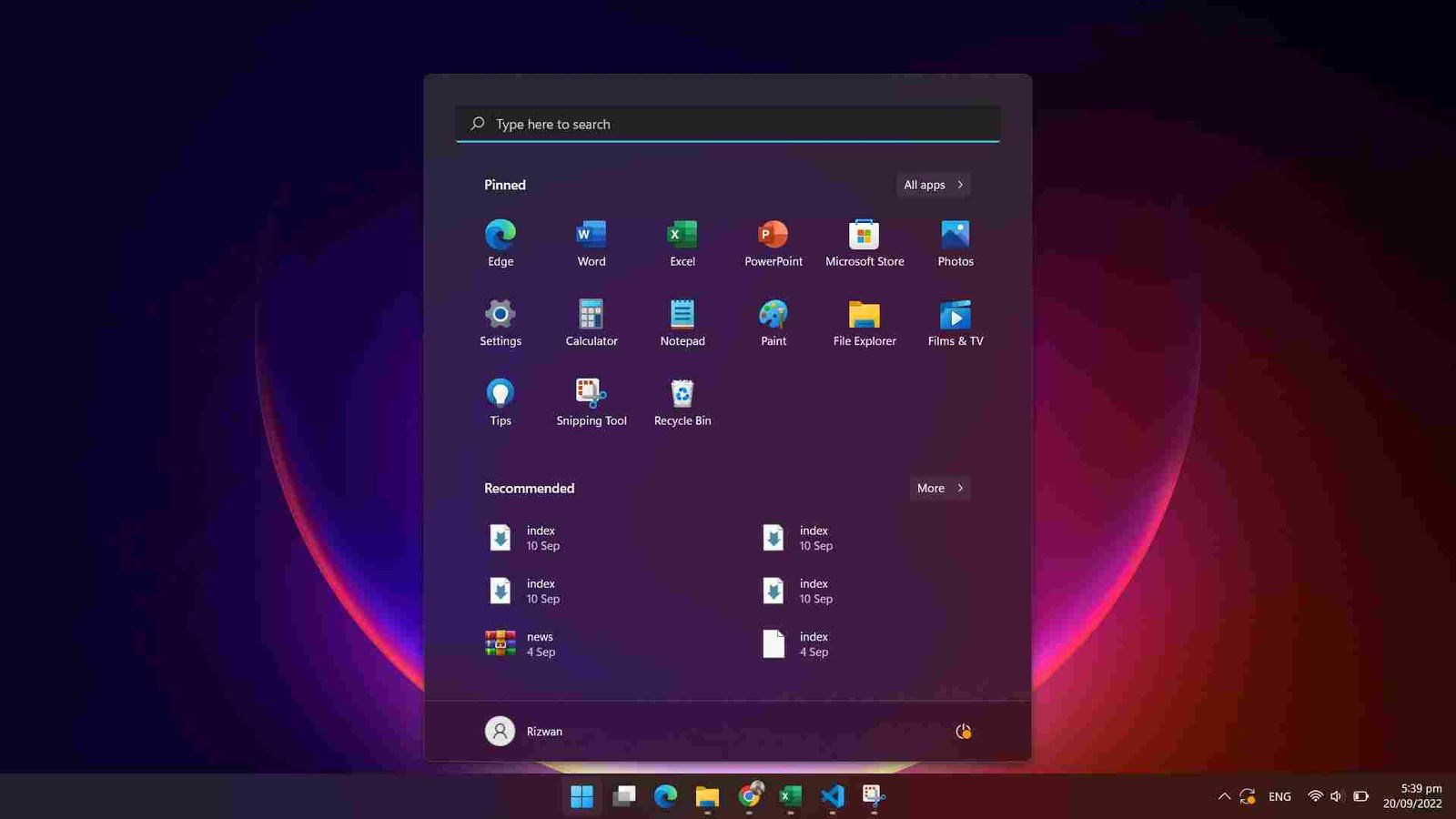
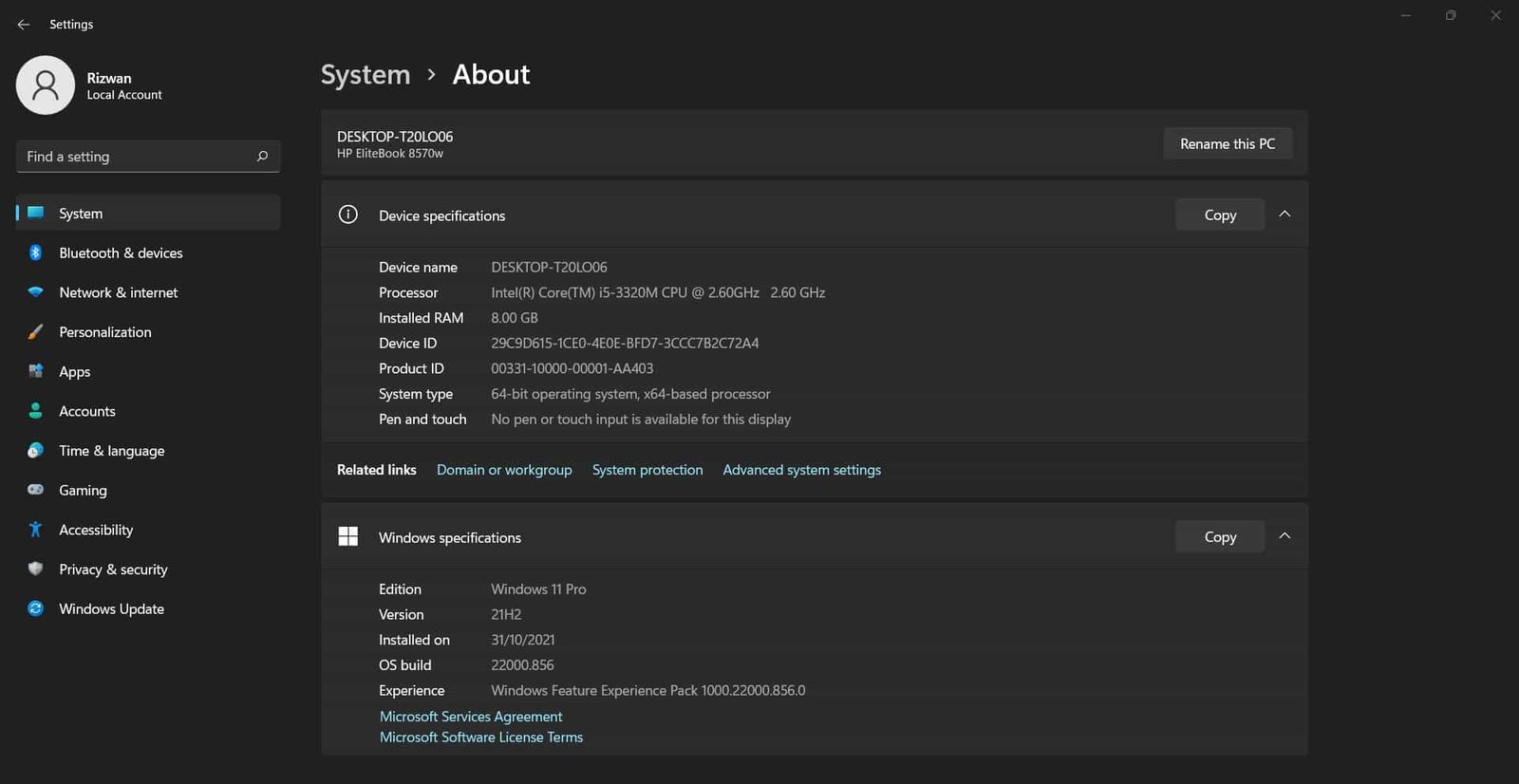
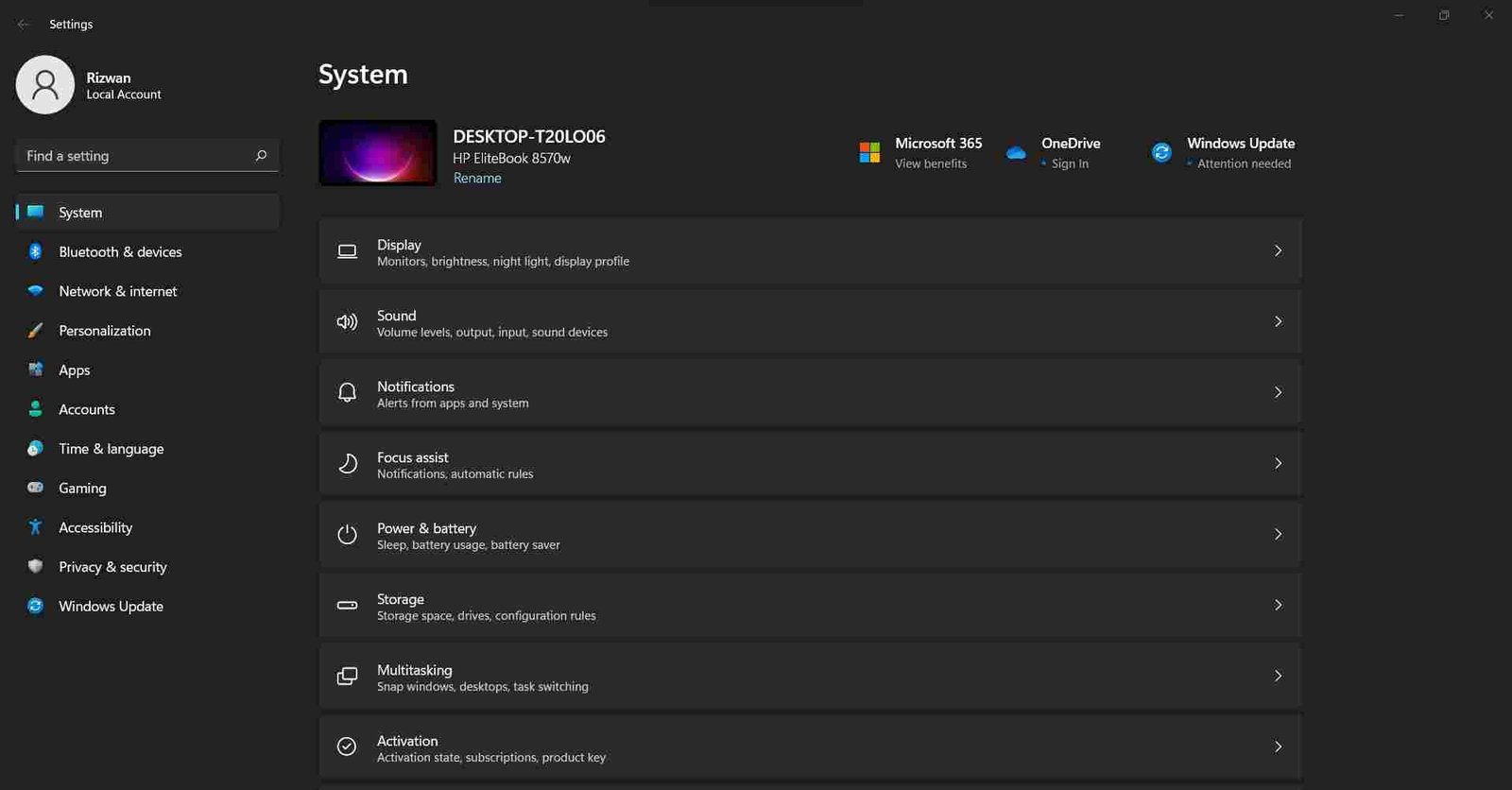
Windows 11 Screenshots
Windows 11 24H2 Support
Windows 11 feature updates have different support periods depending on the edition. Microsoft lists October 13, 2026 as the end date for Windows 11 Home and Pro version 24H2, while Enterprise and Education version 24H2 are supported until October 12, 2027.
Because 24H2 is no longer the newest Windows 11 feature update, users installing Windows today should generally check Microsoft’s current release information rather than choosing 24H2 solely because it is newer than 23H2.
Windows 11 24H2 FAQs
What is Windows 11 24H2?
Windows 11 24H2 is the Windows 11 2024 Update. It was released on October 1, 2024 and introduced changes to Windows security, networking, hardware support, system components, and selected AI features.
Is Windows 11 24H2 the latest version?
No. Newer Windows 11 feature updates have been released after 24H2. This page focuses specifically on version 24H2.
What build is Windows 11 24H2?
The initial Windows 11 24H2 release is based on build 26100. Later cumulative updates can change the full build number while the feature version remains 24H2.
Is Windows 11 24H2 still supported?
Yes. Home and Pro editions are scheduled to receive updates until October 13, 2026, while Enterprise and Education editions are scheduled to receive updates until October 12, 2027.
Can I install Windows 11 24H2 on any PC?
No. The computer must meet the applicable Windows 11 system requirements. Some individual 24H2 features also require specific hardware, drivers, or compatible devices.
Was WordPad removed in Windows 11 24H2?
Yes. WordPad was removed from Windows starting with version 24H2.
Can Windows 11 24H2 be installed in a virtual machine?
Yes, Windows 11 24H2 can be installed in supported virtual machine software when the virtual machine is configured with the required Windows 11 hardware and security features.
Download Windows 11 24H2 ISO
If you specifically need Windows 11 24H2, use the appropriate download option below. Verify the version before installation, as Windows download pages may provide a newer feature update instead of the older 24H2 release.
| Windows 11 Home | Download Windows 11 Home 24H2 ISO |
| Windows 11 Pro | Download Windows 11 Pro 24H2 ISO |
| Windows 11 Enterprise | Download Windows 11 Enterprise 24H2 ISO |
| Windows 11 Education | Download Windows 11 Education 24H2 ISO |
Important: Windows 11 24H2 is an earlier feature update. If you simply want to install Windows 11 on a new PC, check the latest Windows 11 release instead of using an older version unnecessarily.