

Windows 11 (version 25H2)
Download the later version Windows 11 26H2, released on September 2026.
Windows 11 (version 25H2), also known as the Windows 11 2025 Update, was released on September 30, 2025. It is the Windows 11 feature update for the 2025 release cycle and follows version 24H2. Microsoft describes 25H2 as a feature update that includes the features and fixes delivered through Windows 11 24H2 and subsequent updates. Devices upgrading from 24H2 use a small enablement package to activate features already present on the system.
Windows 11 (25H2) – September 2025 first look:

Windows 11 25H2 (September 2025 Update) Home, Pro, Enterprise & Education 64-bit ISO Download.
windowstan.com
Upgrade to Windows 11 25H2, also referred to as the Windows 11 2025 Update, using Windows Update, Microsoft’s installation tools, or an ISO image. Because 25H2 is based on the same servicing branch as Windows 11 24H2, upgrading from 24H2 is generally delivered through an enablement package rather than a complete operating-system replacement.
What’s New in Windows 11, Version 25H2
🔍 Windows 11 25H2: Key Features & Improvements
Windows 11 version 25H2 is a feature update that builds on Windows 11 24H2. Microsoft notes that many capabilities were delivered through continuous innovation updates during the 24H2 lifecycle and are enabled or activated as part of 25H2. This means 25H2 should not be treated as a completely separate Windows codebase or a full operating-system replacement for devices already running 24H2.
For devices already running Windows 11 24H2 with the required updates installed, Microsoft uses an enablement package to activate the 25H2 feature set. Windows 10 devices and older Windows 11 versions can use the normal Windows upgrade and deployment methods when the device meets the applicable requirements.
🌟 Key Features and Improvements
🧭 Start Menu Improvements
- Microsoft continues to refine the Windows 11 Start menu with improved customization and layout options.
- Users can control the visibility and presentation of areas such as Pinned and Recent items through Start menu settings.
- Start menu improvements have been delivered through Windows 11’s continuous innovation process and should not all be considered features first introduced exclusively with 25H2.
📱 Phone and Device Integration
- Phone Link provides integration between compatible Android phones and Windows PCs, including access to supported messages, photos, notifications, and other phone features.
- Available Phone Link features depend on the phone model, operating-system version, permissions, account configuration, and Microsoft’s current feature support.
- Phone Link should not be described as a 25H2-exclusive feature or as requiring no Windows account in every configuration.
🖥️ Widgets and Lock Screen Improvements
- Windows 11 continues to receive improvements to Widgets and the lock-screen widget experience.
- Microsoft has introduced more control over which widgets are displayed on the lock screen.
- Widget availability and default behavior can change through Windows updates, so specific widget availability should not be presented as a permanent 25H2-only feature.
⚡ Performance, Energy and Reliability
- Windows 11 includes ongoing improvements to power management, performance, reliability, and diagnostics.
- These improvements are delivered through cumulative and continuous innovation updates and should not be described as a new 25H2-only CPU throttling system.
- Microsoft also continues to improve Windows diagnostics and feedback mechanisms, but there is no basis for describing all performance slowdowns as automatically logged into a special 25H2 local log.
🗂️ File Explorer & Windows Search
- Windows 11 25H2 includes improvements delivered through the Windows 11 continuous innovation model, including updates to Windows Search and File Explorer.
- Some AI-related File Explorer capabilities are available on eligible devices and configurations, including supported Copilot+ PCs.
- File history, cloud-file metadata, and organizational collaboration information can vary depending on the service and account being used.
🧠 AI & Copilot+ PC Features
Some Windows 11 features associated with 25H2 are available only on Copilot+ PCs. A Copilot+ PC is a specific class of Windows 11 device equipped with a sufficiently capable NPU. These features are therefore not available on every computer running Windows 11 25H2.
- Click to Do: Uses local AI processing on supported Copilot+ PCs to identify text and images on the screen and offer context-sensitive actions.
- Recall: A Copilot+ PC feature that can help users find previously viewed content using locally stored and analyzed snapshots, subject to Microsoft’s availability and configuration requirements.
- Improved Windows Search: Supported Copilot+ PCs can use semantic indexing to improve searches for files and other content.
- Other AI features may depend on the device’s NPU, supported language, Windows edition, account, region, and rollout status.
🛠️ Quick Machine Recovery
- Quick Machine Recovery is a documented Windows 11 25H2 recovery capability designed to help recover devices from certain critical boot failures.
- It can use Windows Recovery Environment and network connectivity to obtain recovery information and help repair supported boot problems.
- Organizations can configure and manage the feature using supported Windows management tools and policies.
🛡️ Security and Management Improvements
- Windows 11 25H2 includes security and management capabilities delivered through the Windows 11 servicing and continuous innovation model.
- Some capabilities are primarily intended for enterprise and managed environments rather than being consumer-only features.
- Security features and policies can vary according to Windows edition, hardware, organization policies, and management configuration.
⚙️ Other Improvements
- Windows 11 continues to receive accessibility, language, voice-access, input, taskbar, sharing, and user-interface improvements through regular updates.
- Some features are introduced gradually through controlled feature rollouts and may not appear on every compatible PC at the same time.
- Gamepad and accessibility improvements are also delivered through ongoing Windows updates, rather than necessarily being exclusive to 25H2.
🔄 Upgrade and Recovery
- Devices running Windows 11 24H2 can move to 25H2 through the enablement-package mechanism when the applicable prerequisites are met.
- Windows Update can offer 25H2 when Microsoft determines that the device is eligible and no applicable safeguard hold is blocking the update.
- Do not treat uninstalling the 25H2 enablement package as the normal Windows rollback method. Windows’ supported recovery options should be used according to the applicable installation and recovery scenario.
- Windows Insider Program participation and stable-release deployment are separate processes and should not be presented as the same upgrade mechanism.
⚠️ Known Issues
Known issues change as Microsoft releases new cumulative updates. Therefore, an old static list should not be presented as a permanent list of Windows 11 25H2 problems.
- For example, Microsoft’s September 2026 documentation currently lists an issue affecting some USB Audio Class 1.0 devices, which may fail to start or produce audio after the September 2026 security update. Microsoft is investigating the issue.
- Other issues can be build-specific or limited to particular hardware, drivers, applications, or Windows configurations.
- Always check Microsoft’s Windows release health and update-history pages for the latest known issues before installing a major update.
Windows 11 Screenshots
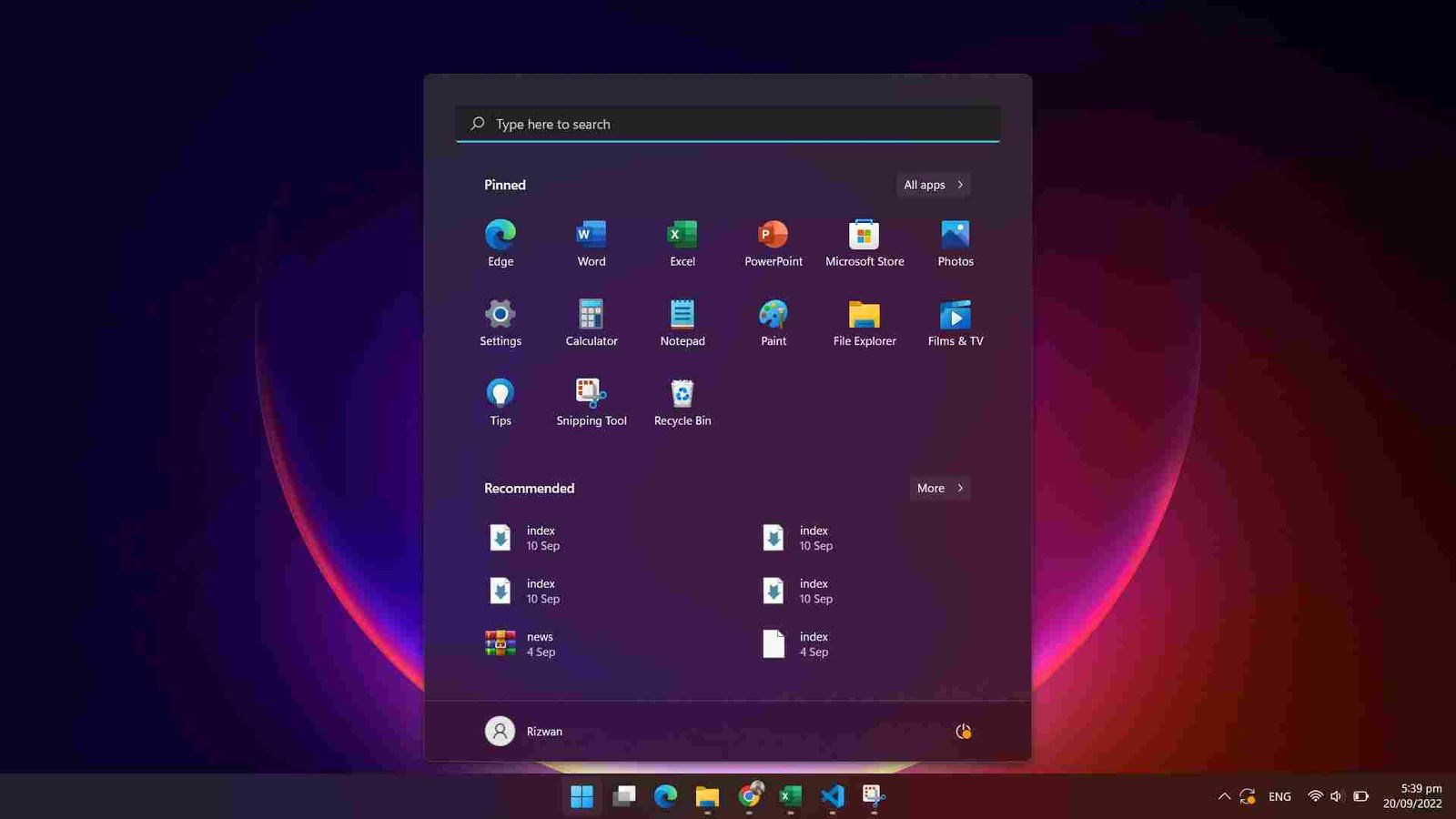
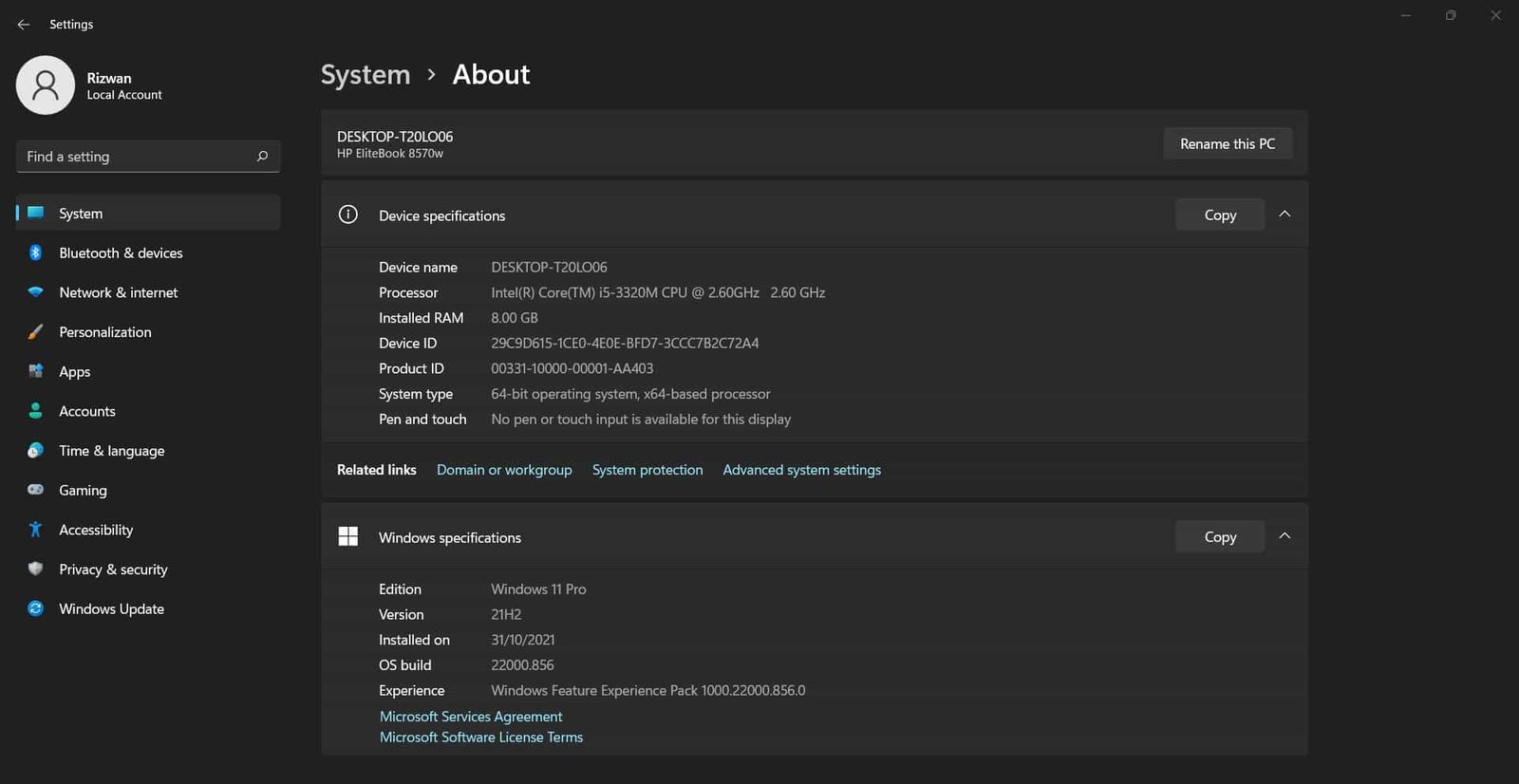
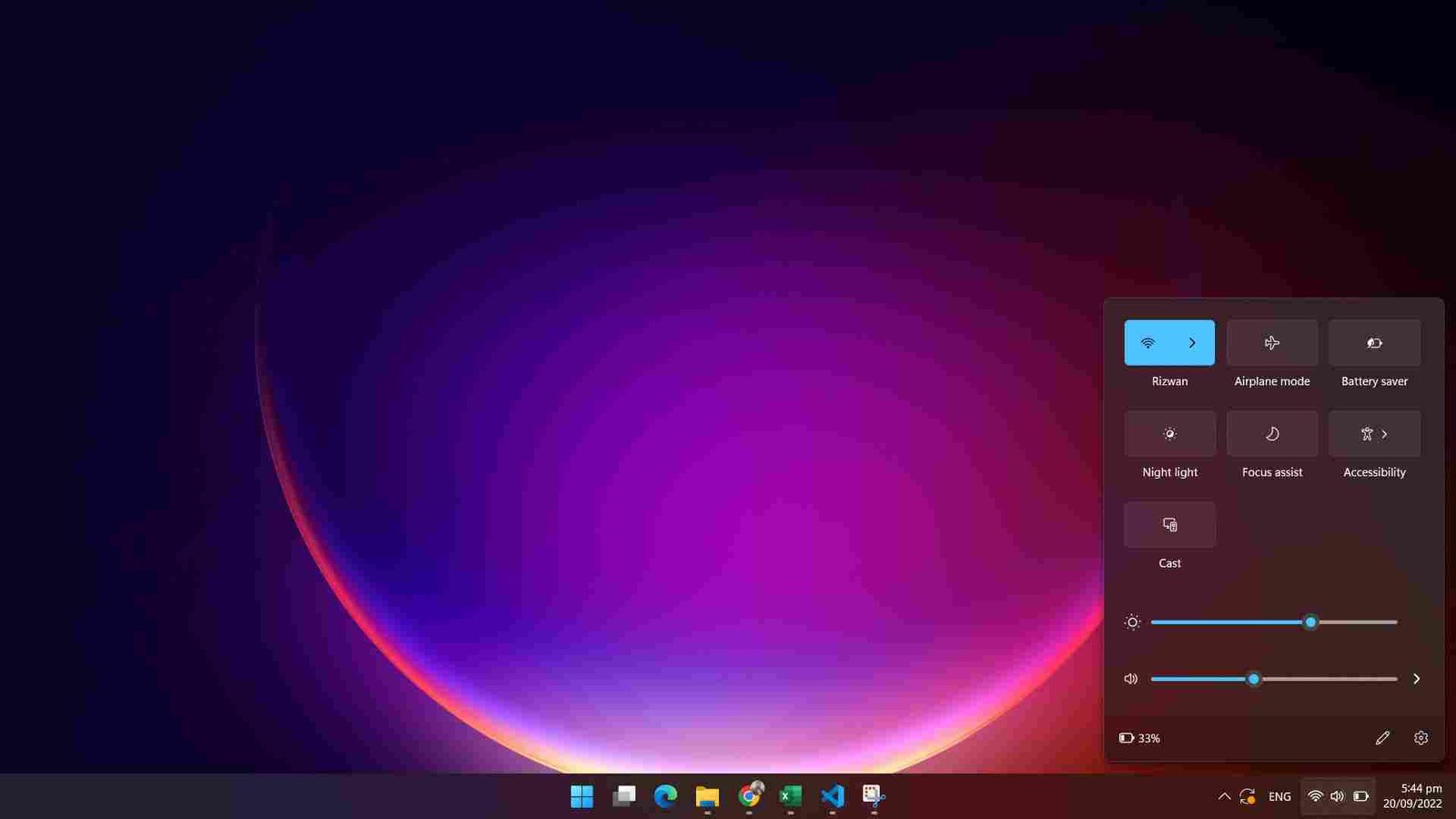
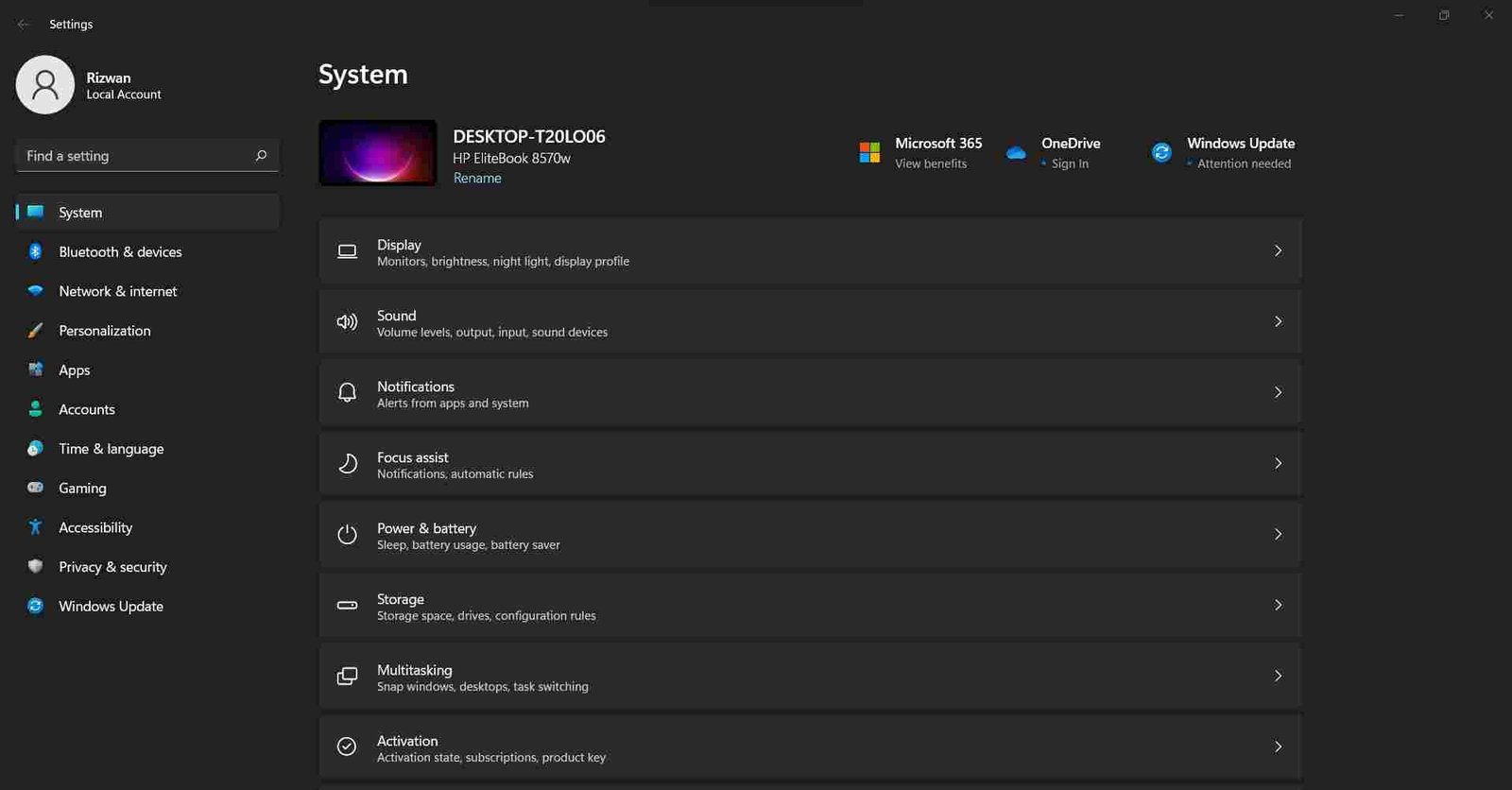
Windows 11 Editions
Windows 11 is available in several editions designed for different users and organizations. The exact editions available through a particular installation image, licensing program, or Microsoft distribution channel can vary.
- Windows 11 Home: Designed primarily for consumers and personal devices.
- Windows 11 Pro: Adds features intended for professionals, advanced users, and small businesses.
- Windows 11 Pro for Workstations: Designed for high-performance workstations and demanding workloads.
- Windows 11 Enterprise: Provides advanced security, management, and deployment capabilities for organizations.
- Windows 11 Education: Designed for educational institutions and managed academic environments.
- Windows 11 Pro Education: Provides education-focused functionality based on Windows 11 Pro.
- Windows 11 SE: A specialized education edition. Microsoft states that Windows 11 version 24H2 was the last supported Windows 11 release for the SE edition, so Windows 11 SE should not be presented as a 25H2 edition.
Windows 11 Enterprise LTSC is handled through Microsoft’s Long-Term Servicing Channel and follows a different lifecycle from the regular annual Windows client releases. It should therefore not be described as an edition that Microsoft may simply skip or discontinue with every annual version.
How to Download Windows 11 25H2
The official Microsoft Windows 11 download page currently identifies Windows 11 2025 Update, version 25H2 as the current release. Microsoft provides the Windows 11 Installation Assistant, Media Creation Tool, and ISO download options through its official download infrastructure.
An ISO file contains the installation files used to create bootable installation media, install Windows in a virtual machine, or perform an in-place upgrade by mounting the image in File Explorer.
In this post, you’ll learn how to obtain Windows 11 version 25H2 using several supported methods.
- Update Windows through Windows Update.
- Upgrade or install Windows using Microsoft’s Installation Assistant.
- Create installation media or an ISO using Microsoft’s Media Creation Tool.
- Download and use a Windows 11 ISO image.
Here’s how to use each method:
1. Update Windows 11 via Windows Update
Running Windows 11 does not automatically guarantee that 25H2 will immediately be offered. Microsoft uses eligibility checks and safeguard holds to manage the rollout.
- Open the Settings app.
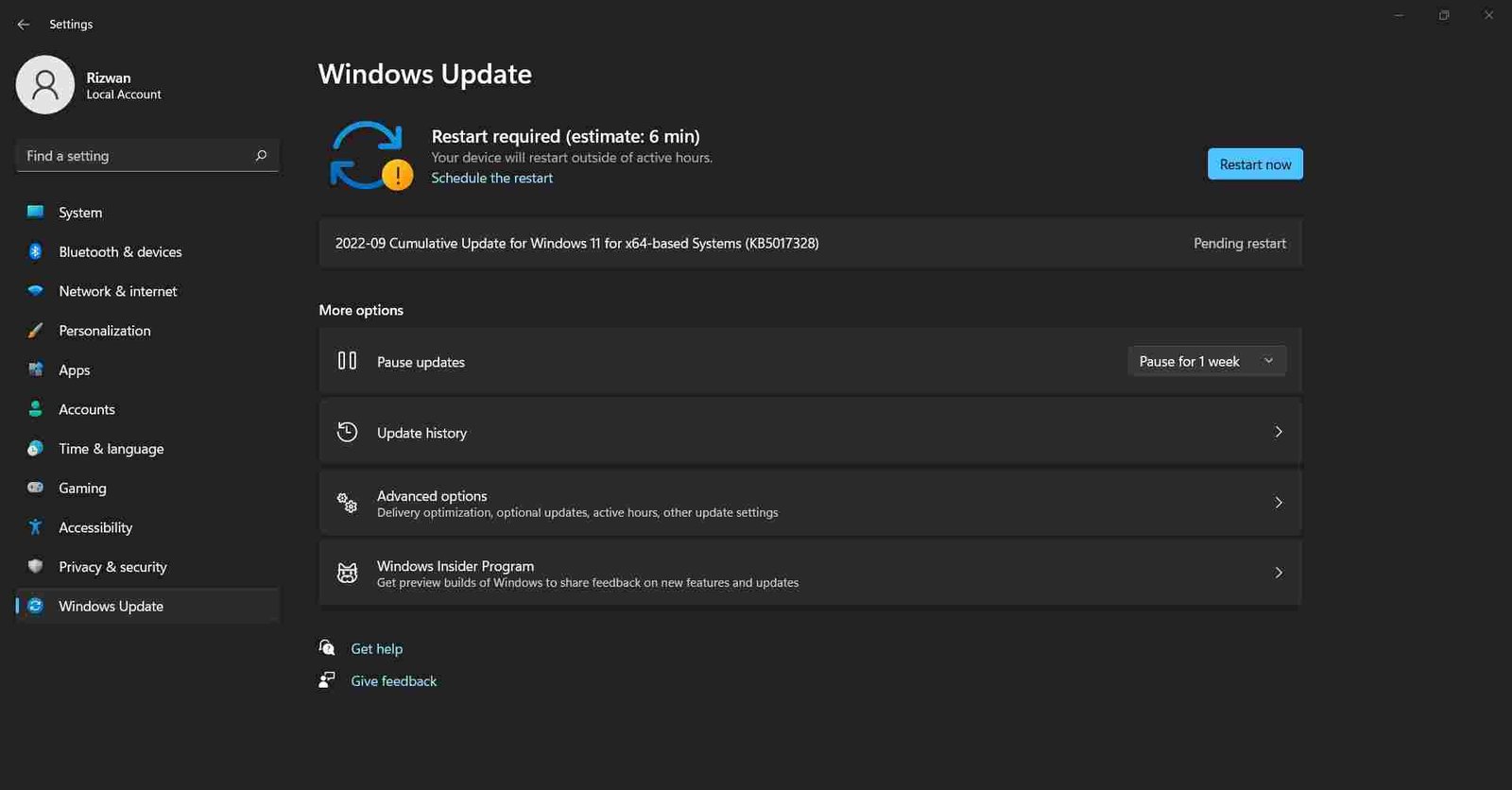
- Go to Windows Update.
- Select Check for updates.
- If Windows 11 version 25H2 is offered for your device, follow the on-screen instructions to download and install it.
- Restart the computer when Windows requests a restart.
After the restart, type winver into the Run dialog or Windows Search to check the installed Windows version and OS build.
2. Upgrade from Windows 10
Windows 10 devices can be upgraded to Windows 11 when they meet Microsoft’s hardware and software requirements. For a direct Windows Update upgrade, the PC must be running Windows 10 version 2004 or later and meet the applicable Windows 11 requirements.
- Open the Settings app.
- Go to Update & Security > Windows Update.
- Select Check for updates.
- If Windows 11 is offered for your PC, review the available upgrade information.
- Select Download and install if the upgrade is offered.
- Restart the computer when prompted and allow Windows Setup to complete.
If Windows 11 is not offered, the device may not yet be eligible, may have a compatibility issue, or may be subject to a safeguard hold.
Download via Windows 11 Media Creation Tool
The Windows 11 Media Creation Tool is Microsoft’s utility for creating Windows 11 installation media and downloading an ISO image.
The tool can be used to create a bootable USB drive or download an ISO file that can later be mounted, archived, or used to create installation media.
If you create installation media directly, use a USB flash drive with sufficient capacity. Microsoft commonly specifies an 8 GB or larger USB drive for Windows installation media. Creating the media can erase existing data on the USB drive, so back up anything important first.
- Download the Windows 11 Media Creation Tool from Microsoft’s official Windows 11 download page.
- Launch the tool and accept the applicable license terms.
- Choose the appropriate language and edition options when prompted.
- Select ISO file if you want to save an ISO image.
- Choose a location with sufficient free storage space and allow the tool to download the ISO.
- When the process finishes, close the tool or use the downloaded ISO to create installation media.
After downloading the ISO, you can mount it for an in-place upgrade or use a suitable tool such as Rufus to create bootable USB installation media.
Upgrade Using Windows 11 Installation Assistant
Microsoft’s Windows 11 Installation Assistant is designed to help upgrade a compatible PC to Windows 11. Microsoft currently provides it through the official Windows 11 download page.
The Installation Assistant requires an internet connection and has specific hardware and software requirements. Microsoft states that the current Installation Assistant is designed for PCs using compatible x64 processors and does not run on Arm-based PCs.
- Download the Windows 11 Installation Assistant from Microsoft’s official Windows 11 download page.
- Run the tool and allow it to check the PC.
- Follow the on-screen instructions and accept the applicable terms.
- Allow the Windows 11 installation files to download and install.
- Restart the PC when prompted.
You do not need to install the PC Health Check app as a mandatory prerequisite for every Installation Assistant run. PC Health Check can instead be used separately to check whether a PC meets Windows 11 compatibility requirements.
You can confirm the installed Windows version by typing winver in Windows Search or the Run dialog.
Download Windows 11 ISO (Disc Image)
A Windows 11 ISO is useful for clean installations, in-place upgrades, virtual machines, backup purposes, and creating bootable installation media.
- Save the ISO file for later use.
- Use the ISO to create bootable USB installation media.
- Mount the ISO in File Explorer to start an in-place upgrade.
- Use the ISO with supported virtualization software.
Microsoft provides Windows 11 ISO downloads through its official software-download infrastructure. Windowstan’s Windows 11 download page can also provide links and information for the available Windows 11 ISO releases.
Download Windows 11 25H2 ISO (Full Version)
The Windows 11 25H2 ISO is a 64-bit installation image. Edition availability depends on the ISO and Microsoft’s licensing and installation process. A single Windows installation image can contain multiple editions, with the installed edition determined by the product key, digital license, or edition selected during setup.
For the Windows 11 2025 Update (version 25H2), use the appropriate 64-bit ISO download link provided on this page.
Note: Always verify the version and build of an ISO before using it if you specifically need Windows 11 version 25H2. A generic “latest Windows 11 ISO” link may point to a newer or different release in the future.
How to Install Windows 11 from USB
After creating a Windows 11 bootable USB using Rufus, Microsoft’s Media Creation Tool, or another suitable utility, you can use the USB drive to perform a Windows installation.
Important: A clean installation can erase data from the selected drive or partitions. Back up important files before deleting or formatting partitions.
Insert the Windows 11 installation USB into the PC, restart the computer, and open the system’s boot menu. The boot-menu key varies by manufacturer; common keys include F12, F9, Esc, or another manufacturer-specific key.
- Open the computer’s boot menu using the key specified by the PC or motherboard manufacturer.
- Select the USB installation drive.
- Windows Setup will load from the USB drive.
Prepare Your Computer for Windows 11 Installation
Windows Setup will guide you through the installation process. The exact screens can vary depending on the installation method, Windows edition, hardware, and current Windows version.
- Choose the appropriate language, time and currency format, and keyboard/input method.
- Select Next.
- Select Install now.
- If prompted for a product key, enter a valid key or choose the available option to continue without entering one. Skipping the key does not automatically activate Windows.
- Select the appropriate Windows edition if Windows Setup asks you to choose one.
- Accept the applicable Microsoft Software License Terms.
- Choose the appropriate installation type. An upgrade preserves supported files, apps, and settings, while a Custom installation is normally used for a clean installation.
- For a clean installation, carefully select the target drive or partition.
- Do not delete or format partitions unless you are certain that you no longer need the data stored on them.
Windows 11 Setup: File Copying and Installation
Windows Setup will copy the required files, install Windows components, and restart the computer several times. Installation time varies according to the PC’s hardware, storage speed, installation method, and available updates.
Do not turn off the computer while Windows Setup is installing unless the system specifically instructs you to do so.
After installation finishes, Windows will start the initial setup process, commonly called the Out-of-Box Experience (OOBE).
Windows 11 Basic Configuration After Setup
During the first-use setup, Windows 11 will guide you through several configuration screens. The exact options depend on the Windows edition, region, device configuration, network connection, and Microsoft account requirements.
- Select your country or region.
- Choose your keyboard layout and add additional layouts if needed.
- Connect to an available network when required.
- Sign in with a Microsoft account when required by your Windows edition or setup configuration.
- Review privacy, location, diagnostic, and personalization settings.
- Create or configure your Windows sign-in method, such as Windows Hello, when available.
- Allow Windows to complete the final configuration and load the desktop.
Windows 11 Home and Windows 11 Pro for personal use require internet connectivity and a Microsoft account during initial device setup according to Microsoft’s current requirements. Other editions and managed environments can have different setup requirements.
How to Install Windows 11 on Virtual Machines
Windows 11 can be installed in supported virtual-machine environments such as VirtualBox and VMware. A Windows 11 virtual machine should be configured with the virtual hardware required by Windows 11, including UEFI, Secure Boot support, and TPM 2.0 where applicable.
How to Install Windows 11 on VirtualBox
- Download a Windows 11 25H2 ISO image.
- Install and launch a current supported version of VirtualBox.
- Create a new virtual machine and select Windows 11 or the appropriate 64-bit Windows configuration.
- Configure sufficient virtual CPU, memory, and storage resources.
- Enable the virtual machine’s UEFI/EFI, Secure Boot, and TPM 2.0 features when supported by your VirtualBox version and host configuration.
- Attach the Windows 11 ISO to the virtual optical drive and start the virtual machine.
- Continue through the Windows 11 Setup and OOBE screens.
How to Install Windows 11 on VMware
- Download the Windows 11 25H2 ISO image.
- Install and launch a current supported version of VMware software.
- Create a new virtual machine and select the Windows 11 guest operating system option when available.
- Configure sufficient CPU, memory, and storage resources.
- Enable UEFI, Secure Boot, and a virtual TPM according to the VMware product and version you are using.
- Attach the Windows 11 ISO and start the virtual machine.
- Continue with Windows 11 Setup and the initial configuration process.
Virtual-machine configuration options vary between product versions, so the exact names and locations of UEFI, Secure Boot, and virtual TPM settings can differ.
Learn more about installing Windows 11 in this guide.
Windows 11 System Requirements
Windows 11 version 25H2 uses the Windows 11 hardware requirements. The following are Microsoft’s core minimum requirements:
- Processor: 1 GHz or faster with 2 or more cores on a compatible 64-bit processor or system on a chip (SoC).
- Memory: 4 GB RAM.
- Storage: 64 GB or larger storage device.
- System firmware: UEFI and Secure Boot capable.
- TPM: Trusted Platform Module (TPM) version 2.0.
- Graphics: Compatible with DirectX 12 or later with a WDDM 2.0 driver.
- Display: High-definition 720p display greater than 9 inches diagonally, with 8 bits per color channel.
- Internet and account: Internet connectivity is required for updates and some features. Windows 11 Home and Windows 11 Pro for personal use require internet connectivity and a Microsoft account during initial setup.
Meeting the minimum hardware specifications does not guarantee that every Windows 11 feature will be available. Some features require additional hardware, such as a compatible NPU, biometric sensor, Wi-Fi adapter, or other specific components.
Windows 11 25H2 FAQs
Here are answers to some common questions about Windows 11 version 25H2.
What is Windows 11 Version 25H2?
Windows 11 version 25H2, also known as the Windows 11 2025 Update, is Microsoft’s Windows 11 feature update for the 2025 release cycle. It builds on version 24H2 and includes features and fixes delivered through previous Windows 11 updates. For devices already running 24H2, Microsoft uses an enablement package to activate the 25H2 feature set.
How Can I Get Windows 11 25H2?
- Windows Update, when the update is offered to the device.
- Windows 11 Installation Assistant for compatible supported PCs.
- Media Creation Tool for creating installation media or downloading an ISO.
- Windows 11 ISO from Microsoft’s official software-download infrastructure.
- Enterprise and managed environments can also receive 25H2 through supported deployment and management channels such as Windows Server Update Services and Windows Update client policies.
What Are Some Features Associated With Windows 11 25H2?
Microsoft’s 25H2 documentation includes features and improvements delivered through the Windows 11 continuous innovation process. Examples include Quick Machine Recovery and several capabilities for eligible Copilot+ PCs. Some features were already introduced during the 24H2 lifecycle and are activated or enabled as part of the 25H2 release.
- Quick Machine Recovery: Helps supported systems recover from certain critical boot failures.
- Click to Do: An AI-assisted feature available on supported Copilot+ PCs.
- Recall: A Copilot+ PC feature that can search locally stored snapshots, subject to availability and configuration.
- Improved Windows Search: Provides enhanced search capabilities on supported hardware and configurations.
Features such as LAPS improvements, Personal Data Encryption, Windows Protected Print Mode, App Control for Business, Wi-Fi 7 support, Bluetooth LE Audio, Rust-related Windows components, and SHA-3 support should not all be described as newly introduced by 25H2. Many were delivered during the Windows 11 24H2 lifecycle and are part of the broader Windows 11 feature set.
Are There Any Known Issues With Windows 11 25H2?
Known issues can change with every cumulative update. Microsoft currently maintains the official Windows 11 25H2 update history and release-health documentation. For example, Microsoft’s September 2026 documentation identifies a known issue affecting some USB Audio Class 1.0 devices after the September 2026 security update. Check Microsoft’s latest release-health information before installing an update.
How Long Will Windows 11 25H2 Be Supported?
For the regular Windows 11 client editions, Microsoft provides different servicing periods. Windows 11 Home, Pro, Pro Education, and Pro for Workstations version 25H2 are supported through October 12, 2027, while Enterprise and Education editions are supported through October 10, 2028, according to Microsoft’s current Windows release information.
Is Windows 11 25H2 the Same as Windows 11 Build 25H2?
No. 25H2 is a Windows version designation, not an OS build number. Windows 11 version 25H2 uses OS build 26200 as its base build family. Individual cumulative updates increase the build number; for example, Microsoft’s September 2026 security update lists OS build 26200.9445 for Windows 11 25H2.
Download Windows 11 25H2 ISO (Full Version)
| Windows 11 Home | Free download Windows 11 Home ISO |
| Windows 11 Pro | Free download Windows 11 Pro ISO |
| Windows 11 Enterprise | Free download Windows 11 Enterprise ISO |
| Windows 11 Education | Free download Windows 11 Education ISO |
Windows 11 25H2 64-bit ISO
Microsoft’s official Windows 11 download page currently identifies version 25H2 as the Windows 11 2025 Update. The exact ISO file size can change depending on the ISO build, language, edition, and Microsoft media revisions, so a fixed file-size claim should only be published after verifying the specific file linked on this page.
Current 25H2 base build: 26200. Individual cumulative updates use higher build numbers.