

Windows 11 (version 26H2)
Links expire: 2026-10-21T09:01:34.5081774Z UTC
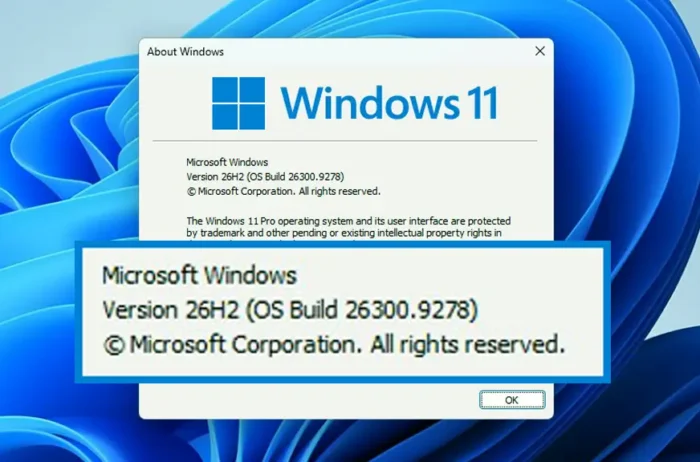
Waiting for the Windows 11 26H2 ISO download? Windows 11 26H2 is now available, giving users a convenient way to install the latest version of Windows 11 from scratch or upgrade an existing PC.
The easiest option is to download the ISO from Microsoft’s official Windows 11 download page. After downloading the ISO file, you can mount it directly in Windows, create a bootable USB drive, or use it to install Windows 11 26H2 on a supported PC.
Windows 11 26H2 ISO Download
You can download the Windows 11 26H2 ISO and use it for a clean installation or upgrade.
Before downloading:
- Make sure your PC meets the Windows 11 hardware requirements.
- Keep at least 64 GB of available storage.
- Back up important files before starting an installation.
- Use a reliable internet connection for the download.
- Download the ISO from an official source to avoid modified or unsafe installation files.
Once the ISO is downloaded, right-click the file and select Mount if you’re already running Windows. You can then open the mounted drive and run setup.exe to begin the installation.
For a clean installation, you can create a bootable USB drive and start the PC from the USB device.
What Is Windows 11 26H2?
Windows 11 26H2 is the latest major Windows 11 release. It brings a combination of new features, usability improvements, AI-powered experiences, accessibility updates, security enhancements, and performance improvements.
The update also continues Microsoft’s approach of delivering some Windows features through regular updates instead of waiting for a single large feature release.
What’s New in Windows 11 26H2?
Windows 11 26H2 includes improvements across several parts of the operating system.
File Explorer Improvements
File Explorer gets a number of usability improvements, including better handling of file information, navigation, thumbnails, and tabs. The overall experience is designed to make everyday file management quicker and easier.
Start Menu and Taskbar
Microsoft has continued refining the Start menu and taskbar. Improvements include better reliability, customization options, navigation, and support for different screen sizes and device types.
AI Features
Windows 11 26H2 expands Microsoft’s AI-focused features on supported PCs. Some experiences require compatible hardware, particularly Copilot+ PCs, so not every AI feature is available on every Windows 11 computer.
Better Windows Search
Search continues to receive improvements aimed at making it easier to find apps, files, settings, and other information directly from Windows.
Gaming Improvements
Windows 11 26H2 includes improvements for PC gaming, including a more streamlined gaming experience and updates designed for users who play with controllers and other gaming accessories.
Windows Update Improvements
Windows Update has been refined to make the update process more convenient. Microsoft is also working to reduce unnecessary restarts by coordinating certain updates where possible.
Accessibility
The update includes several accessibility improvements covering features such as Magnifier, Voice Access, voice input, screen-reader experiences, and touch controls.
These changes make Windows easier to use for people with different accessibility needs.
Windows Hello
Windows Hello receives additional support for secure sign-in hardware, including supported external fingerprint sensors. This can make secure biometric sign-in available on more types of Windows 11 PCs.
Touchpad Improvements
Precision touchpads get additional controls for scrolling and zooming. Users can adjust how quickly scrolling responds and use accelerated scrolling for navigating longer pages and documents.
Widgets and Lock Screen
Windows 11 continues to refine Widgets and the Lock screen experience. Microsoft has also adjusted the default widget experience and notification behavior to make these areas less distracting.
Power and Battery
Power settings have received reliability improvements, including better handling of settings across different power plans and additional control over energy-saving behavior.
Security and Reliability
As with other major Windows releases, 26H2 includes security updates, bug fixes, and reliability improvements designed to keep supported systems protected and stable.
Windows 11 26H2 System Requirements
Windows 11 26H2 requires compatible hardware. The basic requirements include:
- A supported 64-bit processor
- At least 4 GB of RAM
- At least 64 GB of storage
- UEFI firmware with Secure Boot capability
- TPM 2.0
- A DirectX 12-compatible graphics processor with a WDDM 2.0 driver
- A high-definition display larger than 9 inches
Some newer Windows 11 features, especially certain AI capabilities, require additional hardware.
How to Install Windows 11 26H2 From ISO
After downloading the Windows 11 26H2 ISO, you have several installation options.
Upgrade From Windows
If you’re already using Windows 10 or Windows 11, mount the ISO and open setup.exe. Follow the installation instructions and choose whether you want to keep your files and apps.
Clean Install
For a fresh installation, create a bootable USB drive using the Windows 11 26H2 ISO. Restart your PC, boot from the USB drive, and follow Windows Setup.
A clean installation removes the existing Windows installation, so make sure important files are backed up first.
Install in a Virtual Machine
The ISO can also be used to install Windows 11 26H2 in a virtual machine for testing or development.
Windows 11 26H2 ISO: 64-Bit Version
Windows 11 26H2 is designed for modern 64-bit PCs. Before starting the download, check your processor and system compatibility.
If your computer does not meet Microsoft’s Windows 11 requirements, forcing the installation can lead to compatibility, update, or security problems.
Final Thoughts
The Windows 11 26H2 ISO is useful if you want to perform a clean installation, upgrade a compatible PC, create installation media, or set up Windows in a virtual machine.
For the safest installation, use the official ISO and verify that your computer meets the Windows 11 requirements before getting started. If you are upgrading an existing PC, backing up your important files first can also save you from problems if something goes wrong during installation.