

Content Highlights
Windows 10 Pro ISO Free Download (32-Bit / 64-Bit) — Official Bootable Image
Download the official Windows 10 Pro ISO in both 64-bit and 32-bit versions — a reliable choice for professionals, IT admins, and small businesses. You’ll also find direct links to the latest Windows 10 Home ISO below. Every file here is a full bootable disc image, ready to burn to DVD or write to a USB flash drive with tools like Rufus.
⬇ Download Windows 10 Pro (22H2) — 64-bit ISO (5.69 GB)
⬇ Download Windows 10 Pro (22H2) — 32-bit ISO (4.00 GB)

Why Choose Windows 10 Pro?
Windows 10 Pro is the flagship edition of Windows 10, built specifically for professionals, small businesses, and power users — carrying the same “Pro” legacy as Windows 7 Professional and Windows XP Professional before it.
If you’re unsure which edition to download, Windows 10 Pro is the safest choice: it includes everything in Windows 10 Home, plus advanced networking, security, and management tools that Home simply doesn’t offer.
Top Features You Get With Windows 10 Pro
Remote Desktop
Access and control your PC from anywhere. This is one of the most requested features by everyday users — and it’s exclusive to Pro editions.
Client Hyper-V
Run virtual machines natively with Microsoft’s built-in Hyper-V — no need for third-party software like VirtualBox to run other operating systems alongside Windows.
Enterprise Mode Internet Explorer (EMIE)
Many business applications were built for older versions of Internet Explorer. Instead of forcing a risky upgrade, EMIE lets modern IE load pages using an older engine — keeping legacy apps working while staying secure.
Domain Join
Connect your PC to a Windows Domain — the backbone of business networks — to manage access to shared drives, printers, and other resources.
Group Policy
Centrally manage password rules, app installation permissions, and network access across every device on your network.
Windows Store for Business
Buy and manage apps in bulk for your whole organization from one dashboard.
Assigned Access
Turn any PC into a locked-down “kiosk” that only runs one app — perfect for public terminals or shared devices.
Windows Update for Business
Take full control of when and how updates roll out across your organization.
Dynamic Provisioning
Skip the manual setup. Load a configuration profile onto a USB drive, plug it into a new machine, and it configures itself automatically.
Windows 10 Pro ISO — Full Feature List
Familiar, Refined, and Reliable
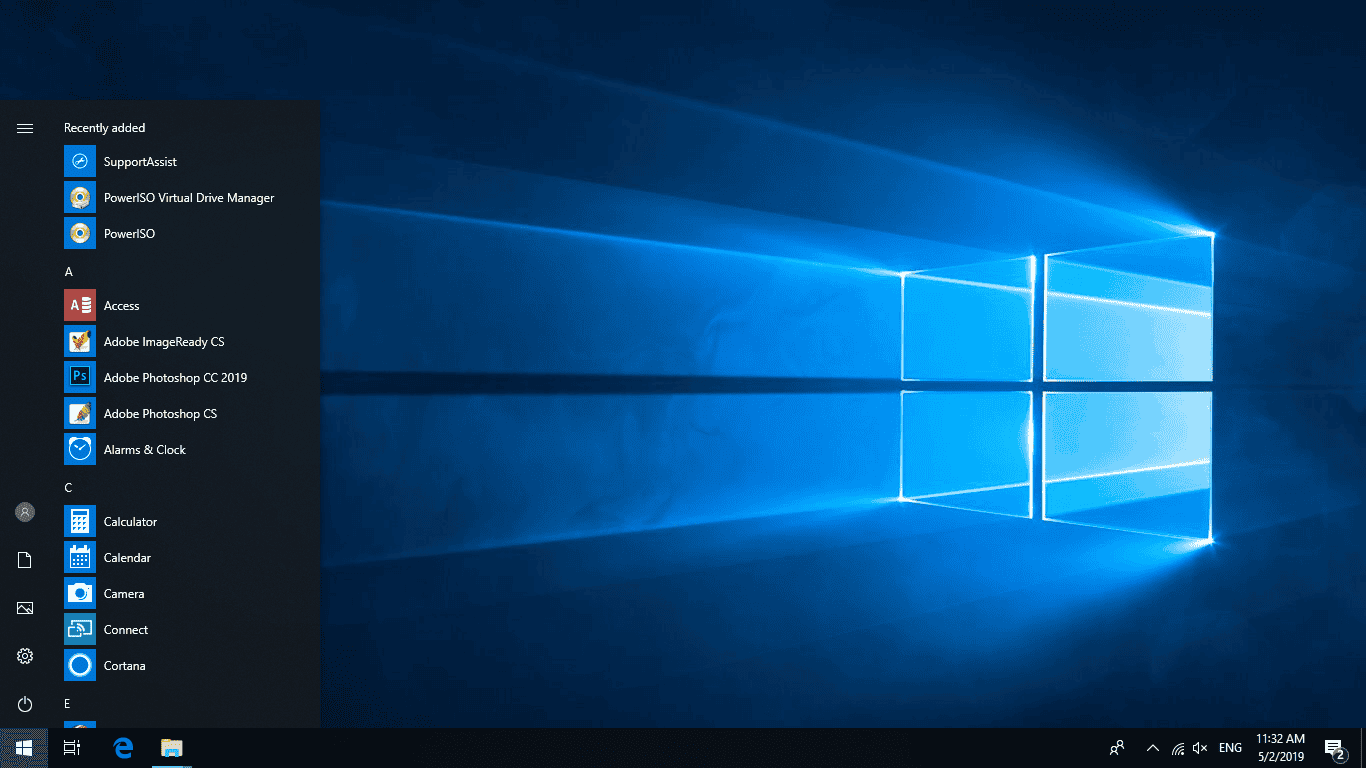
- Customizable Start Menu
- Windows Defender & Windows Firewall
- Fast startup with Hiberboot and InstantGo
- TPM support
- Battery Saver
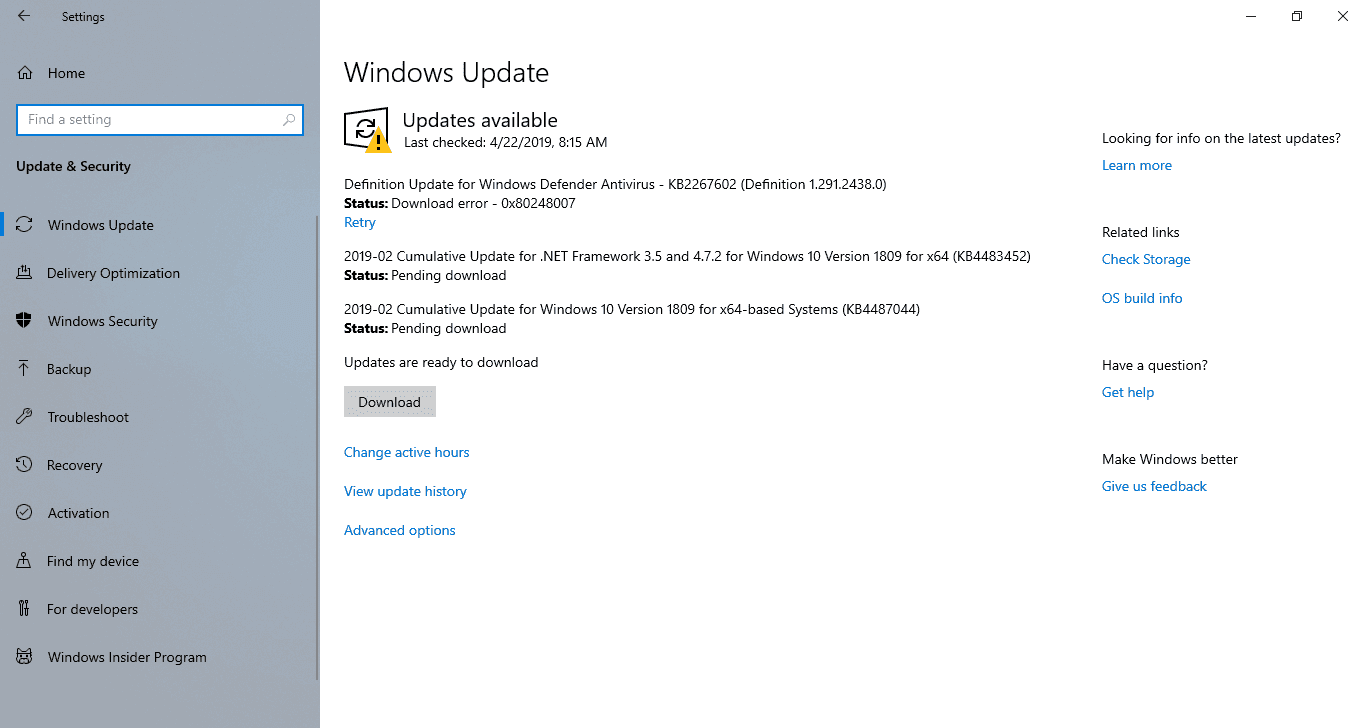
- Windows Update
Cortana
- Natural voice or text commands
- Smart, personalized suggestions
- Reminders
- Search your web, device, and cloud in one place
- Hands-free “Hey Cortana” activation
Windows Hello
- Built-in fingerprint recognition
- Built-in facial and iris recognition
- Enterprise-grade biometric security
Multitasking, Redefined
- Virtual desktops
- Snap Assist (up to 4 apps per screen)
- Snap across multiple monitors
Continuum
- Switch seamlessly between PC and tablet mode
Microsoft Edge
- Distraction-free reading view
- Built-in inking support
- Cortana integration
Business-Class Tools Included in Windows 10 Pro
Core Business Features
- Domain Join
- Group Policy Management
- Enterprise Mode Internet Explorer (EMIE)
- Assigned Access 8.1
- Remote Desktop
- Client Hyper-V
Management & Deployment
- Easy upgrade from Home to Education edition
- Easy upgrade from Pro to Enterprise edition
- Side-loading of line-of-business apps
- Mobile device management
- Azure Active Directory join with single sign-on to cloud apps
- Windows Store for Business
Security
- Microsoft Passport
- Device Encryption
- Enterprise Data Protection
- BitLocker
Windows as a Service
- Windows Update
- Windows Update for Business
- Current Branch for Business
Windows 10 Pro vs. Windows 10 Home: What’s the Difference?
Both editions run on the same core operating system, but Pro is built for people who need more control, more security, and more flexibility. Here’s a full side-by-side breakdown:
- Remote Desktop — Only Pro lets you access your PC remotely from another device.
- BitLocker — Pro includes built-in drive encryption for extra data protection; Home does not.
- Hyper-V — Pro lets you run multiple operating systems on one machine using native virtualization; Home does not.
- Group Policy Editor — Pro gives IT admins centralized control over multiple PCs; Home does not.
- Assigned Access — Pro can lock a device to a single app, ideal for kiosks; Home cannot.
- Windows Update for Business — Only Pro lets admins manage the update rollout schedule.
- Windows Hello — Available on both Pro and Home.
- Cortana — Available on both editions.
- Microsoft Edge — Available on both editions.
- Price — Pro typically costs more, reflecting its business and enterprise focus.
- Windows Sandbox — Pro lets you run untrusted software in an isolated environment; Home does not.
- Windows Subsystem for Linux (WSL) — Only available on Pro.
- Language packs — Pro supports multiple installed languages; Home supports only one at a time.
- Update controls — Pro allows deferring updates; Home has limited options.
- Cloud integration — Pro supports Azure Active Directory; Home does not.
- Remote Business Data Removal — Pro can wipe business data remotely without touching personal files; Home cannot.
- Windows To Go — Pro lets you boot Windows from a USB drive; Home does not.
- Windows AutoPilot — Pro supports pre-configured, IT-ready device deployment; Home does not.
Bottom line: Windows 10 Pro is the right choice if you need Remote Desktop, BitLocker, Hyper-V, Group Policy, or any business-grade management tool. If you just need a solid, straightforward operating system for everyday home use, Windows 10 Home covers the basics at a lower price.
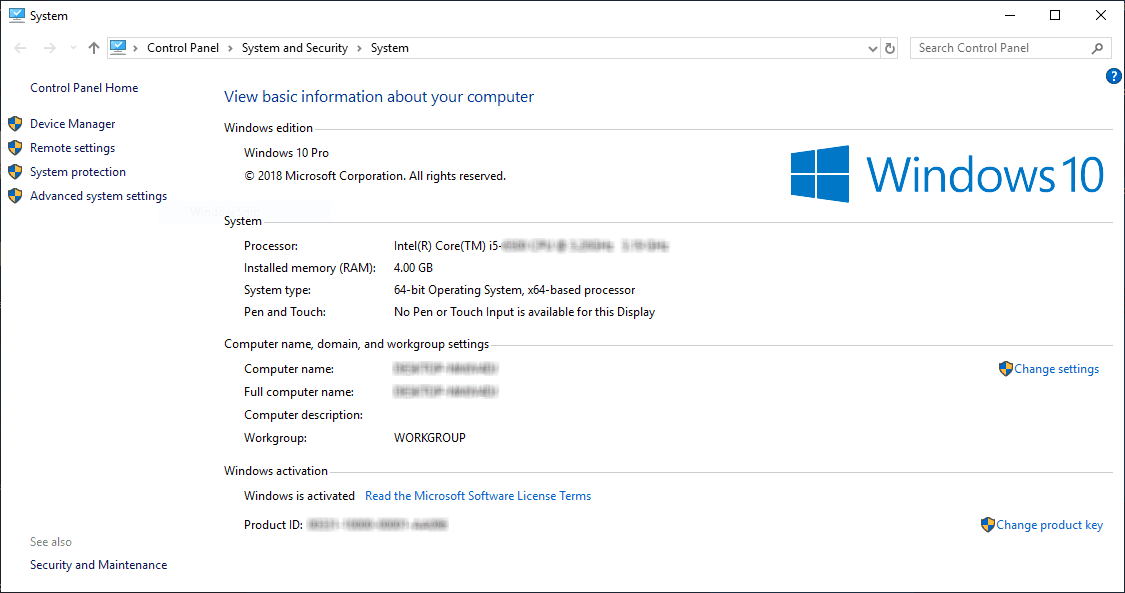
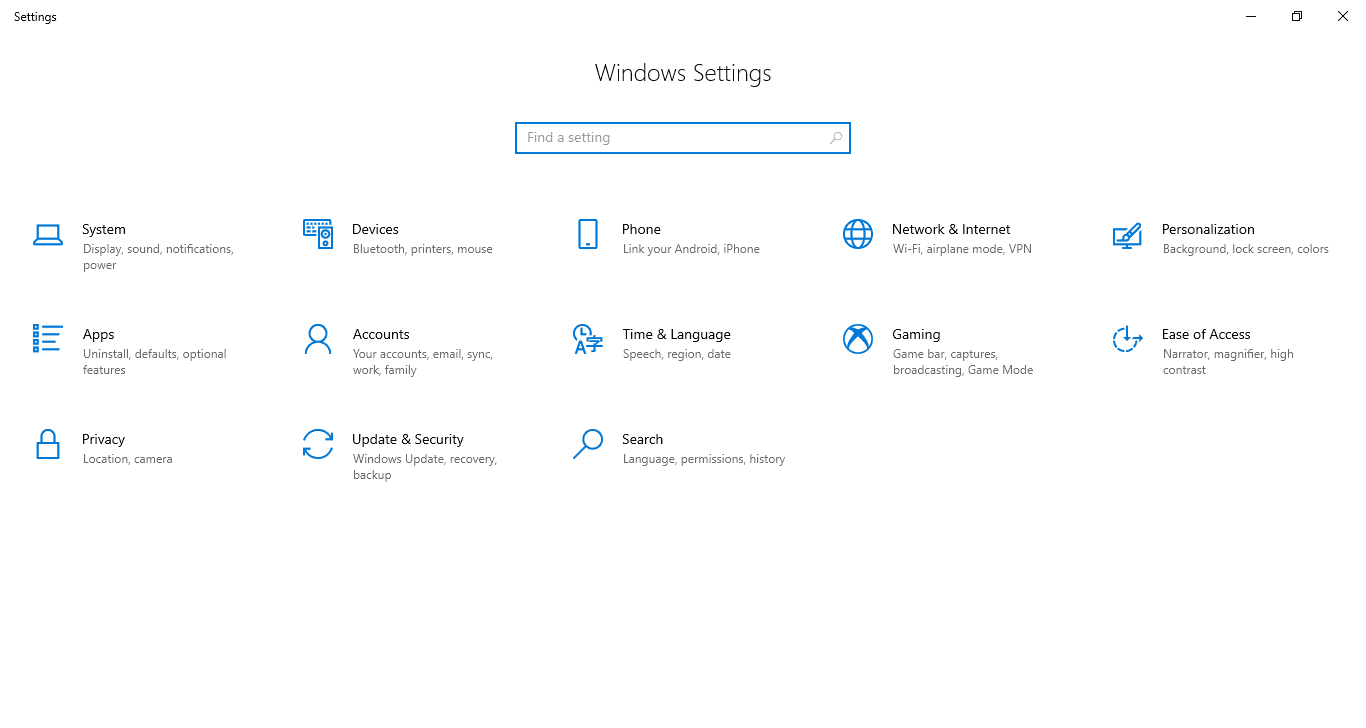
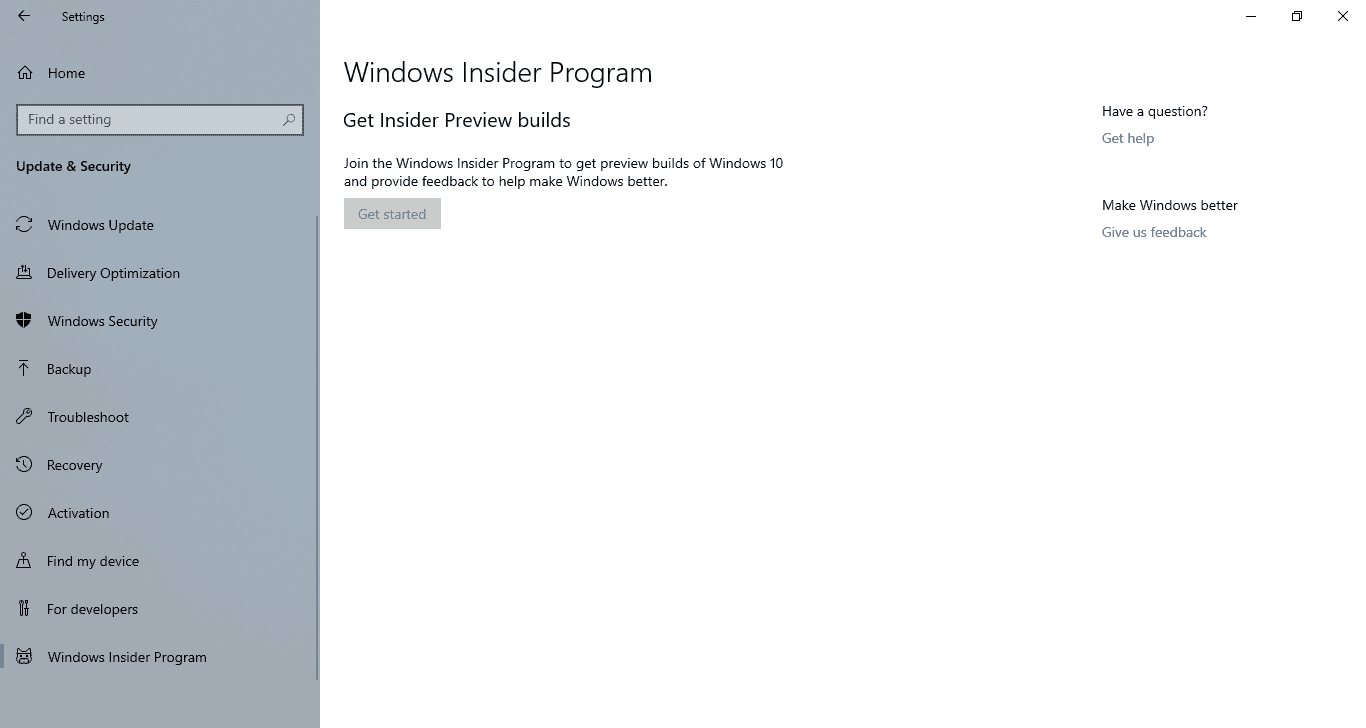
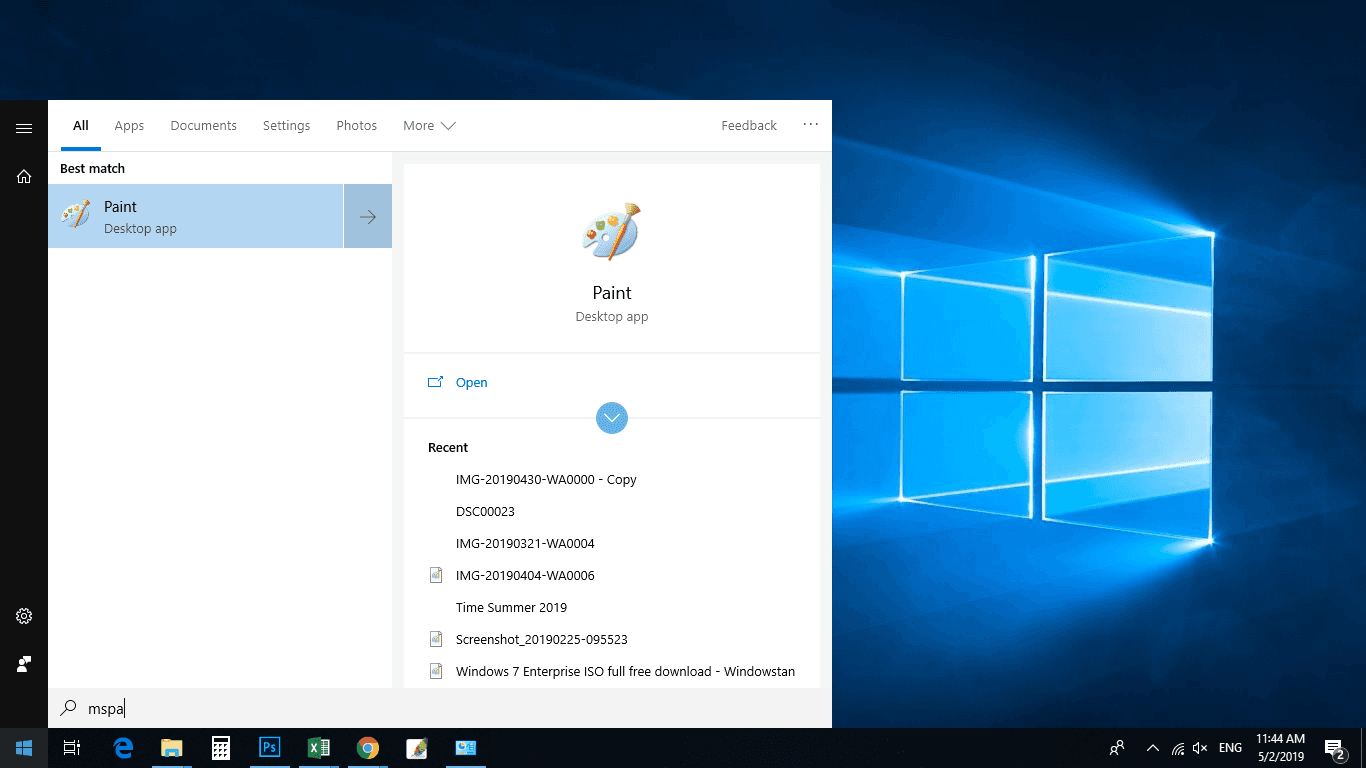
Windows 10 Professional Screenshots
3 Ways to Get the Latest Windows 10 Pro Update
There are three reliable ways to update or install Windows 10 Pro. Pick the one that fits your situation:
- Download via the Windows 10 Media Creation Tool
- Upgrade using the Windows 10 Update Assistant
- Download the Windows 10 ISO directly (bootable disc image) — recommended
Option 1: Windows 10 Media Creation Tool
Microsoft’s Media Creation Tool lets you upgrade your current installation in place, keeping your apps, files, and settings intact. It can also generate an ISO file or a bootable USB/DVD for you.
If you’re building a USB or DVD directly (instead of downloading the Windows 10 ISO separately), you’ll need a USB drive with at least 8 GB of free space. Back up anything on it first — the entire drive will be erased during the process.
Download the Windows 10 Media Creation Tool →
Option 2: Windows 10 Update Assistant
The Windows 10 Update Assistant is the simplest way to jump straight to the latest version. It requires a stable internet connection throughout — if the connection drops mid-download, the process restarts.
It walks you through everything step by step. Once the download begins, you can minimize it and keep working; it’ll notify you when your PC is ready to restart and finish the upgrade.
Download the Windows 10 Update Assistant →
Option 3: Download the Windows 10 Pro ISO Directly (Recommended)
This is the fastest and most flexible method. With a downloaded ISO file, you can:
- Save it for future reinstalls — no need to redownload
- Reuse it across multiple computers
- Create as many bootable USB/DVD copies as you need
- Mount it directly for a quick in-place upgrade
Skip the extra download step of the Media Creation Tool — grab the latest Windows 10 ISO directly from Windowstan using the links below.
Download Windows 10 (All Editions)
Choose your edition below. Note: these links always point to the latest available version of Windows 10, not necessarily the version referenced elsewhere on this page.
| Windows 10 Home | ⬇ Download Windows 10 Home ISO | |||
| Windows 10 Pro | ⬇ Download Windows 10 Pro ISO | |||
| Windows 10 Enterprise | ⬇ Download Windows 10 Enterprise ISO | |||
| Windows 10 Education | ⬇ Download Windows 10 Education ISO | |||
How to Install Windows 10 Pro from USB or DVD
Once you’ve created a bootable USB using Rufus or a similar tool, you’re ready to install. Make sure your installation USB or DVD is ready, then:
- Insert the USB drive and restart your computer.
- Press the boot menu key (commonly F9, F12, or Esc depending on your PC) and select the USB drive.
- Press any key when prompted to boot from the drive.
- Wait for installation files to load — the Windows 10 Setup screen will appear shortly.
Step 1: Prepare for Installation
- Choose your language, time, currency format, and keyboard layout.
- Click Next.
- Click Install Now to begin.
- Accept the license terms, then click Next.
- Choose Upgrade to keep your files, or Custom (advanced) for a clean install.
- Select the drive to install Windows 10 on — usually your existing system drive.
- Format the drive if needed, or click Next to auto-format. Confirm when prompted.
Step 2: File Copying & Installation
Setup will now copy files, install features and updates, and restart your PC automatically. This typically takes 10–30 minutes. Windows will then boot for the first time and finish configuring registry files and services before restarting once more.
At this point, the core installation is complete — but a few setup steps remain.
Step 3: Basic Configuration (First Boot)
After the final restart, Windows will check your display and prepare your PC for first use. You’ll be asked to:
- Enter a user name and computer name.
- Set a login password (optional — you can leave this blank and click Next).
- Enter your Windows 10 product key (optional — you can skip this and add it later, or install without a key).
- Choose an update setting: Recommended settings (install everything), Important updates only (security/critical updates), or Ask me later.
- Set your time zone — this is usually detected automatically.
- Select a network type — most home users should choose Home Network.
Windows will then prepare your desktop automatically. In a few seconds, your fresh Windows 10 installation will be ready to use.
Installing Windows 10 Pro on a Virtual Machine
Want to run Windows 10 inside VirtualBox or VMware instead of on real hardware? Here’s a quick guide for both.
Install Windows 10 on VirtualBox
- Download and install VirtualBox if you haven’t already.
- Download the Windows 10 ISO from the download section above.
- Open VirtualBox and create a new virtual machine.
- Select the Windows 10 ISO and accept the default settings.
- Start the VM and follow the standard Windows 10 setup steps above.
Install Windows 10 on VMware
- Download and install VMware Player if you haven’t already.
- Download the Windows 10 ISO from the download section above.
- Open VMware and create a new virtual machine.
- Select the Windows 10 ISO and accept the default settings.
- Start the VM and follow the standard Windows 10 setup steps above.
See our full step-by-step Windows 10 installation guide →
Frequently Asked Questions
Where can I download the Windows 10 Pro 64-bit ISO?
Right here on this page — use the download links at the top or in the direct-download table above.
Which Windows 10 edition should I choose?
It depends on your needs. Windows 10 Pro is the most complete edition, with no feature restrictions — a safe default if you’re not sure.
How do I get a genuine, full Windows 10 ISO?
Just click any download link on this page to get started.
How do I get official support for Windows 10 Pro?
Visit the official Microsoft Windows support site for direct assistance.
How do I start the download?
Click any of the download buttons or links above — your download will begin immediately.
See more answers in our full Windows 10 FAQ →
Windows 10 Pro ISO — Direct Download Links
Below is the complete, up-to-date list of downloadable Windows 10 ISO packages. Click a version to see its details, or use the direct download link to get started right away.
Note: each ISO is a multi-edition image — during installation, you can choose Windows 10 Pro or any other included edition.