
Adobe Acrobat Reader 2026 for Mac
Adobe Acrobat Reader 2026 Free Download for Mac
If you’ve ever needed to open a PDF, sign a form, or leave comments on a document without printing it out, chances are Adobe Acrobat Reader was the app that got it done. It’s the free, standard tool for viewing and interacting with PDF files on Mac, built by the company that created the PDF format itself — which means compatibility issues are rare, even with complex forms or heavily formatted documents.
Reader is aimed at everyday PDF tasks: reading, annotating, filling out forms, and adding a signature. For anyone who needs to actually edit PDF text, rearrange pages, or convert files at a professional level, Adobe also offers Acrobat Pro as a paid upgrade. But for the vast majority of people who just need a dependable way to work with PDFs day to day, Reader covers it, and it’s free to download and use.
Overview
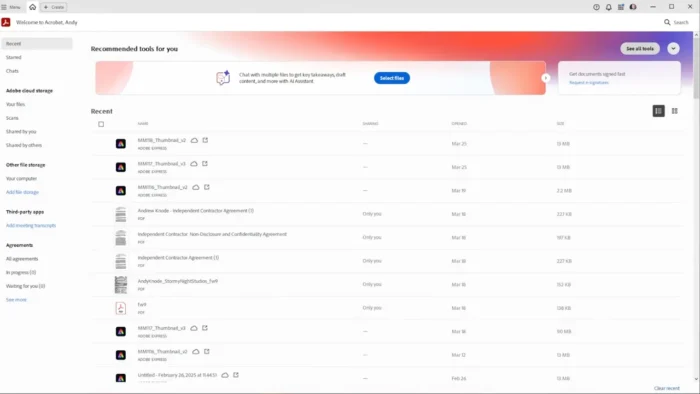
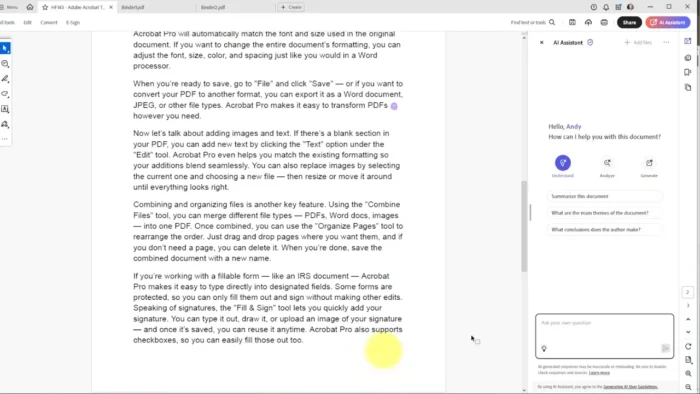
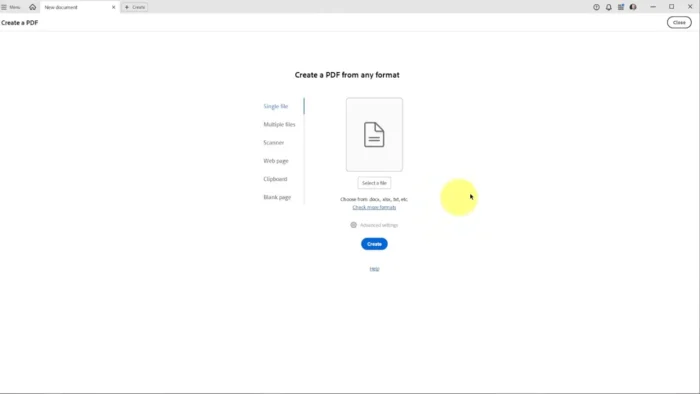
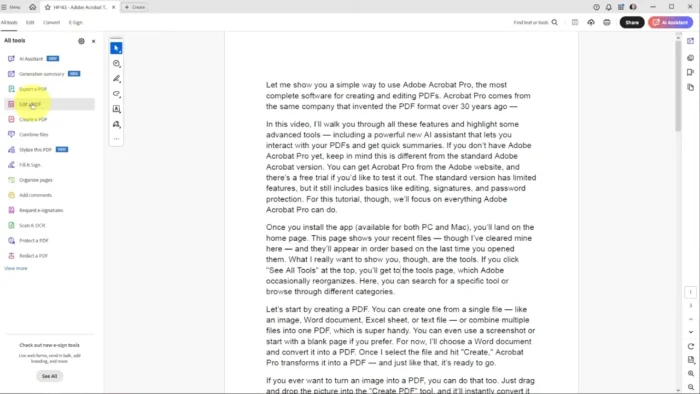
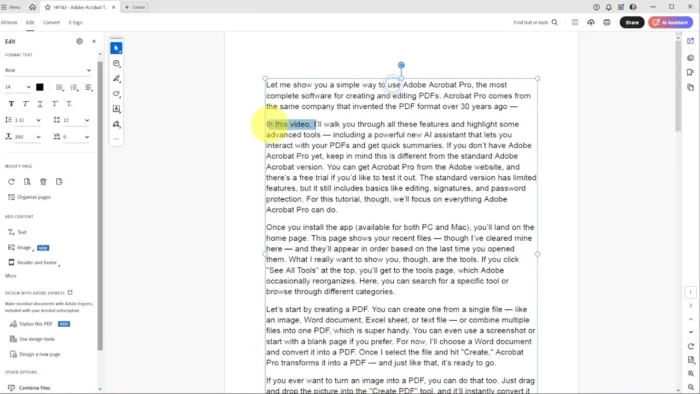
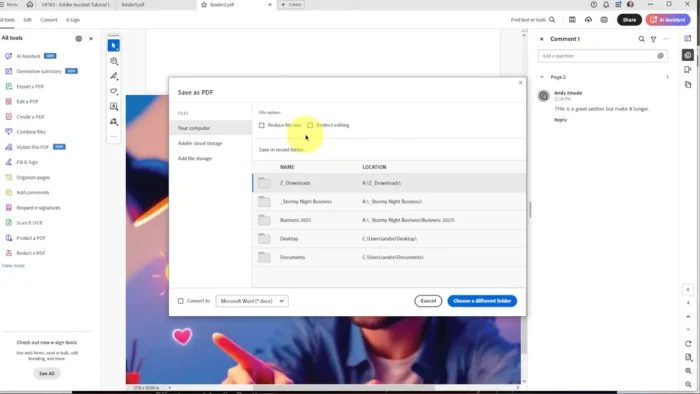
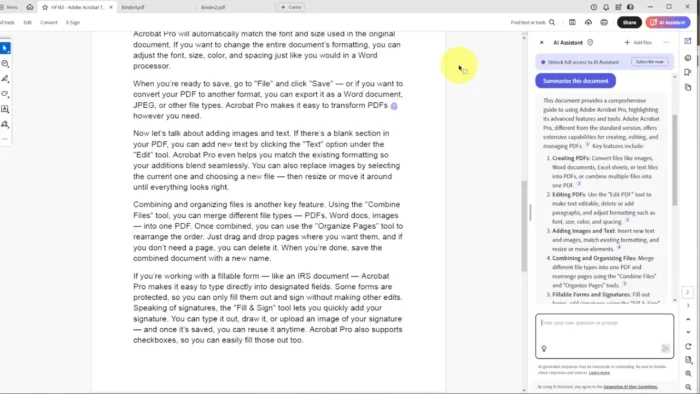
Acrobat Reader is a PDF viewing and light-editing application, distinct from Acrobat Pro, which adds full document editing, conversion, and advanced collaboration tools on top of what Reader offers for free.
- Purpose: View, annotate, fill, and sign PDF documents
- Main workflow: Open a PDF → read/navigate → annotate or fill forms → sign or share
- Ideal users: Students, professionals, businesses, and anyone who regularly reads or fills out PDF documents
- File format: PDF (Portable Document Format), including complex forms and tagged/accessible PDFs
- Major strengths: Free to use, reliable rendering of complex PDFs, and genuinely useful fill-and-sign tools that remove the need to print
Key Features
- Smooth PDF Navigation – Multiple zoom levels, page thumbnails, bookmarks, and full-screen reading mode make even lengthy reports or manuals easy to work through without losing your place.
- In-Document Search – Find specific text instantly across long documents, which matters a lot when you’re digging through a 100-page manual or contract for one clause.
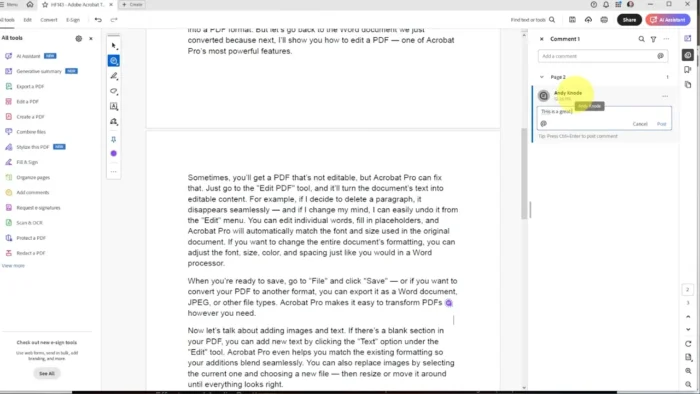
- Annotation and Markup Tools – Highlight text, add sticky notes, underline, strikethrough, or freehand-draw directly on a PDF, making document review genuinely collaborative instead of relying on separate email chains.
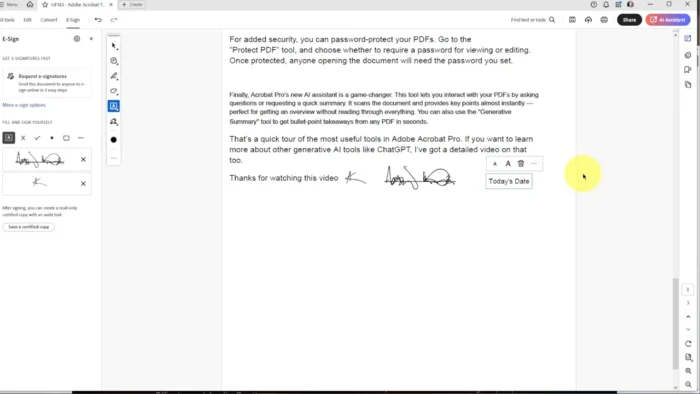
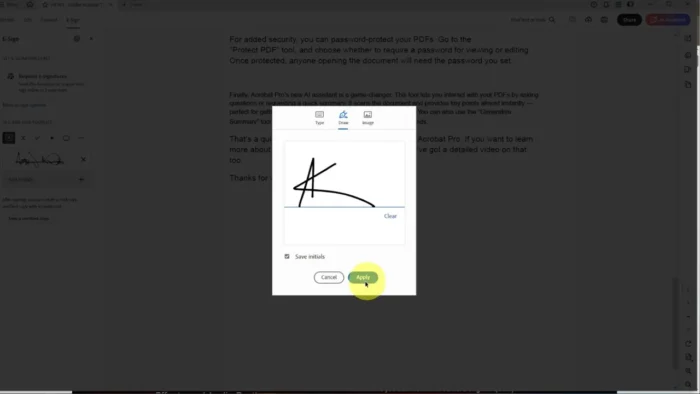
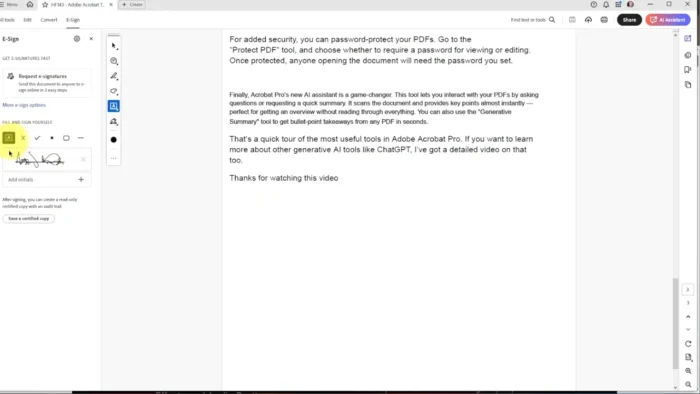
- Fill and Sign – Complete interactive PDF forms and add a legally recognizable electronic signature or initials without printing, signing by hand, and scanning back in.
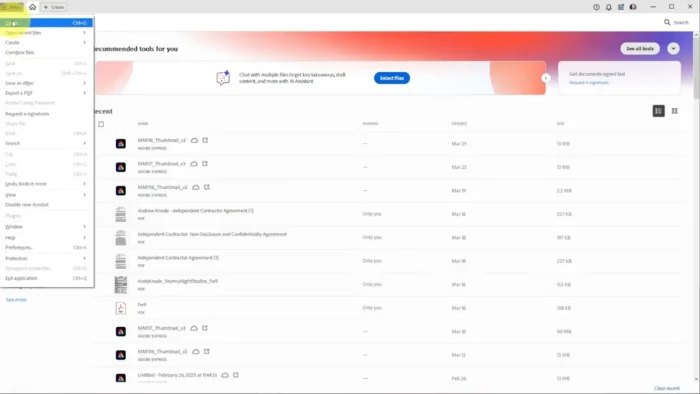
- Multi-Tab Document Support – Work across several open PDFs at once, useful when cross-referencing a form against a set of instructions.
- Cloud Document Sync – Access recently opened files, track version history, and pick up a document on a different device without emailing files back and forth.
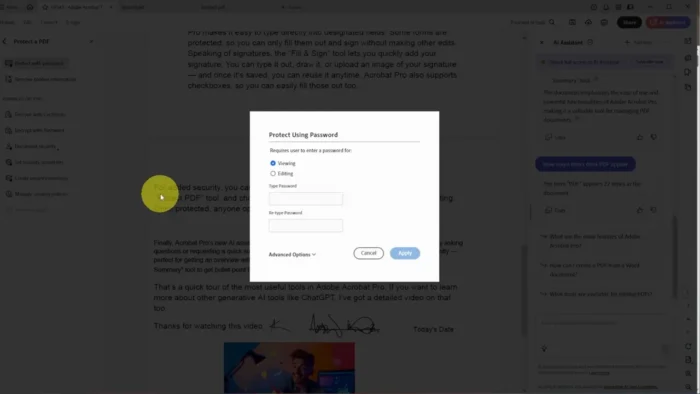
- Password Protection & Permission Controls – View and respect document security settings, so sensitive PDFs stay protected against unauthorized edits or copying.
- Accessibility Support – Screen reader compatibility, read-aloud functionality, and keyboard navigation make PDFs usable for a much wider range of readers.
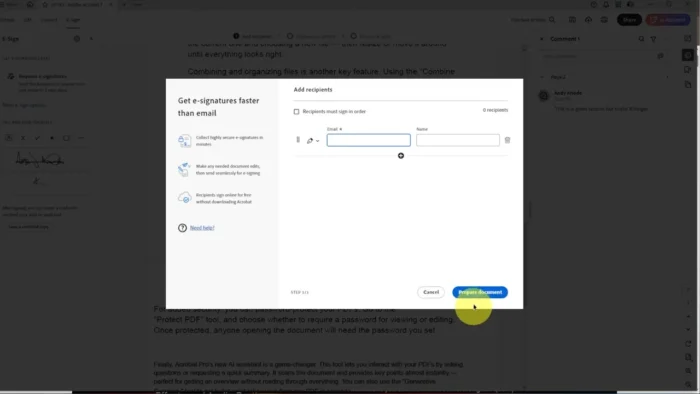
- Comment Review and Replies – Threaded discussions on annotations make it easier for teams to review a document together without losing track of who said what.
- Cross-Platform Compatibility – Files render consistently whether opened on Mac, Windows, or mobile, so formatting doesn’t break when a document changes hands.
What’s New
Recent Acrobat Reader updates have focused on speed and reliability rather than adding entirely new tools:
- Faster application startup
- Improved PDF rendering, especially on image-heavy or complex documents
- Better handling of large, multi-hundred-page documents
- Enhanced in-document search performance
- Increased application stability with ongoing bug fixes
- Continued optimization for Apple Silicon Macs
For the full list of changes in your installed version, check Help > About Acrobat Reader inside the app.
System Requirements
| Component | Minimum | Recommended |
|---|---|---|
| Operating System | macOS 10.14 or later (check current release notes) | Latest macOS release |
| Processor | Intel or Apple Silicon | Apple M-series chip |
| RAM | 2 GB | 8 GB or more for large documents |
| Display | 1024 × 768 | 1920 × 1080 or higher |
| Internet | Required for activation, updates, and cloud services | Required for collaboration features |
Requirements can shift slightly between releases, so it’s worth confirming the exact specs for your version on Adobe’s official system requirements page.
How to Install
- Go to Adobe’s official Acrobat Reader download page.
- Click Download Acrobat Reader — this is Adobe’s official, direct installer for macOS.
- Once downloaded, open the installer package and follow the on-screen prompts.
- Allow the installer to complete, then launch Acrobat Reader from Launchpad or your Applications folder.
- Sign in with a free Adobe ID to enable cloud sync and collaboration features (optional for basic PDF viewing).
Acrobat Reader itself is free with no subscription required. If you want to unlock Acrobat Pro’s advanced editing and conversion tools, you can upgrade from within the app or through Adobe’s official pricing page.
Pros
- Completely free for core PDF viewing, annotation, and form-filling
- Extremely reliable rendering, since it’s built by the company behind the PDF format
- Genuinely useful fill-and-sign tools that cut out printing and scanning
- Strong accessibility support, including screen readers and read-aloud
- Cloud sync keeps recent files accessible across devices
- Regular performance updates rather than feature bloat
Cons
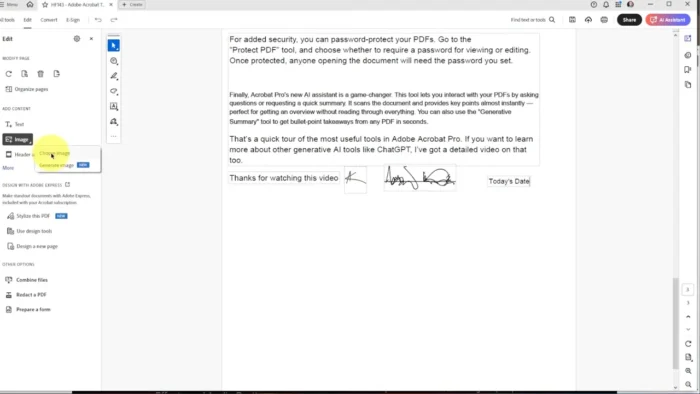
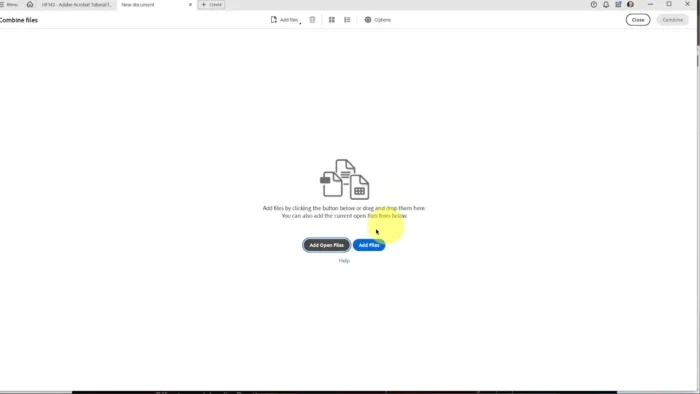
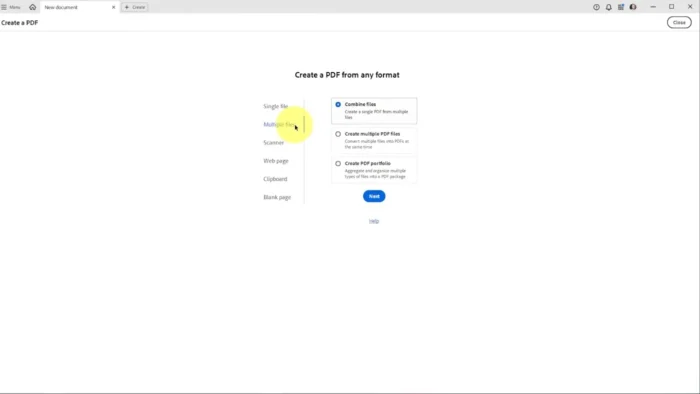
- Advanced editing (rearranging pages, editing text/images, converting formats) requires upgrading to Acrobat Pro
- Some collaboration and cloud features need an internet connection
- Occasional prompts to upgrade to Pro can feel intrusive to some users
- Larger install size than some lightweight, single-purpose PDF viewers
Frequently Asked Questions
Is Adobe Acrobat Reader free? Yes, Acrobat Reader is completely free to download and use for viewing, annotating, filling, and signing PDFs.
Does Acrobat Reader support macOS on Apple Silicon? Yes, it’s optimized for both Apple Silicon and Intel-based Macs.
Do I need an internet connection to use it? Only for activation, updates, and cloud-based collaboration features. Reading and annotating downloaded PDFs works offline.
Can I sign documents electronically with Acrobat Reader? Yes, Fill and Sign lets you complete forms and add an electronic signature without printing.
What’s the difference between Acrobat Reader and Acrobat Pro? Reader covers viewing, annotating, filling, and signing PDFs for free. Acrobat Pro adds full text/image editing, page rearranging, format conversion, and advanced collaboration tools, and requires a paid subscription.
Does Acrobat Reader support accessibility features? Yes, including screen reader compatibility, read-aloud functionality, and keyboard navigation.
Can I edit PDF text with Acrobat Reader? No — editing existing PDF text and images requires Acrobat Pro. Reader is focused on viewing, annotating, and form completion.
Is Acrobat Reader compatible with PDFs created on Windows? Yes, PDF is a cross-platform format, and Acrobat Reader renders documents consistently regardless of which platform created them.
Final Verdict
Adobe Acrobat Reader for Mac remains the most dependable free option for everyday PDF work — reading, annotating, filling out forms, and signing documents without printing a thing. Students, professionals, and businesses that need reliable PDF viewing and light collaboration will find everything they need here, at no cost.
If your workflow regularly involves editing PDF text, rearranging pages, or converting files between formats, Acrobat Pro is the natural next step. But for the core task most people actually need — opening and working with PDFs reliably — Acrobat Reader gets the job done, and it’s a safe, straightforward download directly from Adobe.