
Final Cut Pro 12.2 for Mac
Final Cut Pro for macOS Download (Latest Version) – Professional Video Editing Software
Ask a Mac-based video editor why they never left Final Cut Pro for Premiere Pro, and the answer usually comes down to one thing: it just feels built for the hardware it runs on. That’s because it is — Apple designed Final Cut Pro specifically for macOS and Apple Silicon, and the difference shows up in rendering speed, playback smoothness, and export times that competing cross-platform editors often can’t quite match on the same machine.
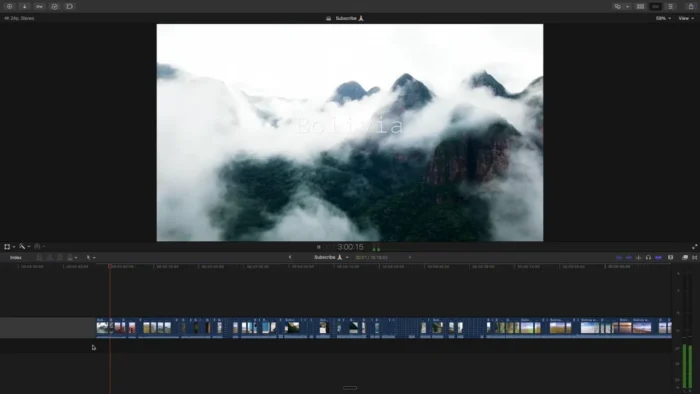
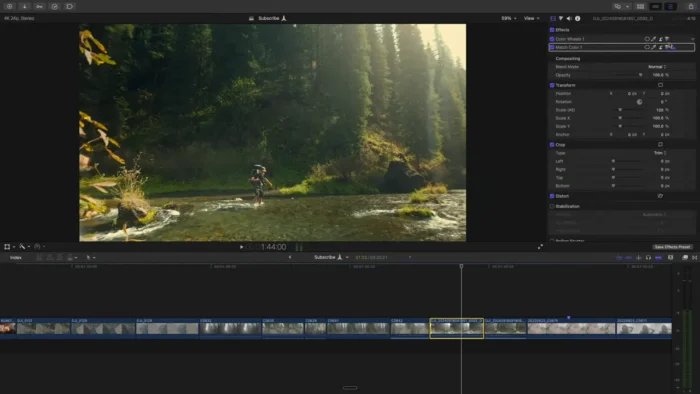
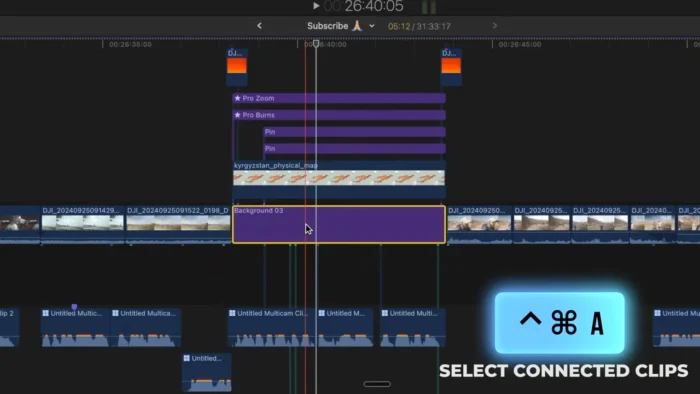
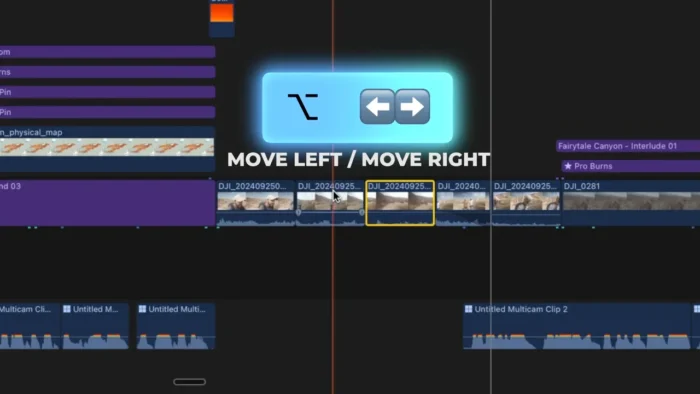
Beyond the performance angle, Final Cut Pro’s Magnetic Timeline changes how editing actually feels day to day — clips shift and reconnect automatically as you work, instead of leaving you to manually patch gaps or fix broken sync every time you insert something new. Combined with professional color grading, multicam support, and a genuinely capable AI toolset, it’s built to take a project from raw 4K or 8K footage all the way to a broadcast-ready export without leaving the app or fighting the software along the way.
Overview
Final Cut Pro is Apple’s professional, macOS-exclusive video editing application, built specifically around Apple hardware for maximum editing and rendering performance.
- Purpose: Professional video editing, color grading, and audio post-production
- Main workflow: Import and organize media → edit on the Magnetic Timeline → color grade and mix audio → export
- Ideal users: Professional video editors, filmmakers, YouTube creators, documentary producers, and content production teams working within the Apple ecosystem
- Format support: ProRes, ProRes RAW, H.264, HEVC, HDR, and high-resolution 4K/8K workflows
- Major strength: Deep, genuine Apple Silicon optimization that delivers faster rendering and smoother playback than most cross-platform alternatives on the same hardware
Key Features
- Magnetic Timeline Editing – Clips automatically adjust around each other as you edit, maintaining sync across video, audio, titles, and effects without the manual gap-fixing that traditional timelines require, letting you focus on the edit itself rather than timeline mechanics.
- Professional Color Grading – Color wheels, curves, HDR support, and full grading controls give you cinema-level color control directly inside the app, without needing to round-trip footage to a separate color tool.
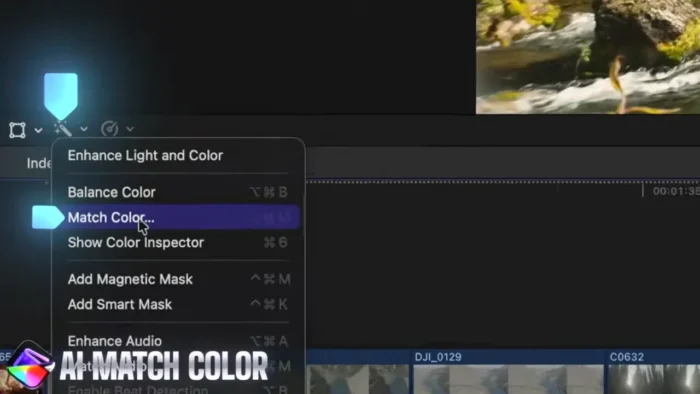
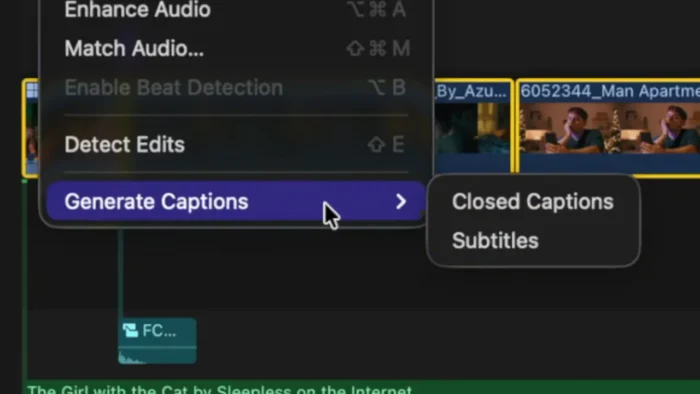
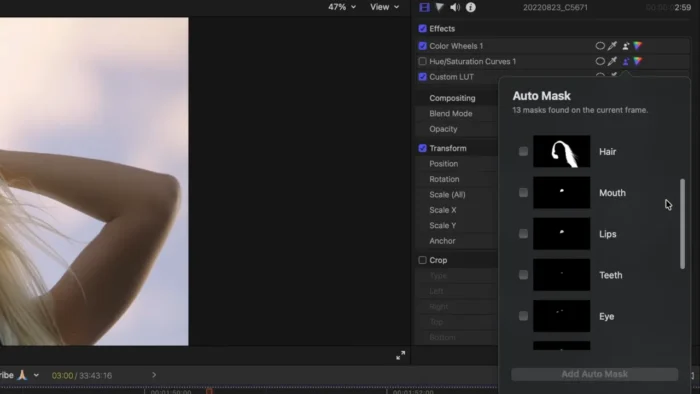
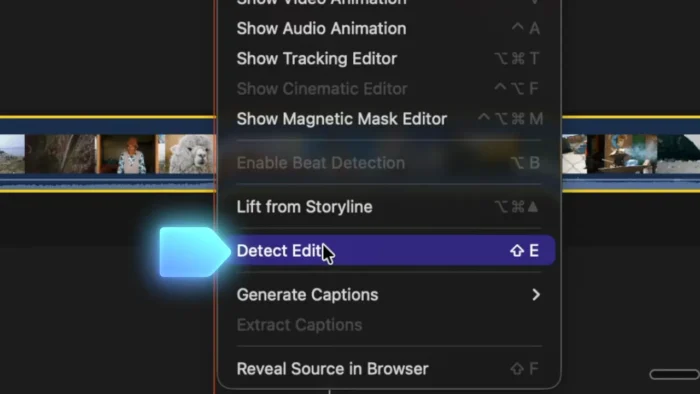
- AI-Powered Editing Tools – Automatic caption generation, object tracking, visual search, and workflow automation handle genuinely tedious tasks — like finding a specific shot in a huge media library — far faster than manual searching.
- Advanced Media Organization – Libraries, keywords, smart collections, and metadata-based tools keep large projects manageable, which matters enormously once a project grows past a few dozen clips.
- Multicam Editing – Automatic synchronization across multiple camera angles turns what used to be a manual, tedious sync process into something that happens almost instantly.
- HDR and ProRes Support – Native support for ProRes, ProRes RAW, HEVC, and HDR workflows means professional-grade footage doesn’t need conversion before editing.
- Motion Graphics and Effects – Built-in tools for animated titles, transitions, and custom visual elements, extendable further through a large ecosystem of third-party plugins.
- Professional Audio Editing – Integrated tools for dialogue, music, and effects, including noise reduction, waveform syncing, and multichannel editing support, covering serious audio post-production without leaving the app.
- 360° Video Editing – Support for immersive video workflows, letting editors work directly with 360-degree footage rather than needing separate specialized software.
- Apple Silicon-Optimized Performance – Rendering, playback, and export are all tuned to take full advantage of Apple Silicon and modern Mac hardware, which is where Final Cut Pro’s performance edge over cross-platform editors is most noticeable.
What’s New
Recent Final Cut Pro releases have focused on:
- AI-assisted workflow improvements, including caption generation and object tracking
- Performance optimization across editing, rendering, and export
- Enhanced color management tools
- Stability improvements and better compatibility with Apple Silicon Macs and current macOS releases
System Requirements
| Component | Requirement |
|---|---|
| Operating System | macOS 14.6 or later recommended |
| Processor | Apple Silicon Mac recommended; compatible Intel-based Macs with supported hardware |
| RAM | 8 GB minimum, 16 GB or more recommended for advanced editing and high-resolution projects |
| Graphics | Metal-compatible graphics support |
| Storage | Around 6.5 GB available storage space |
High-resolution 4K/8K projects and heavy color grading work benefit substantially from RAM above the stated minimum, and Apple Silicon hardware provides the strongest overall performance.
How to Install Final Cut Pro on macOS
- Download Final Cut Pro from the official Mac App Store.
- Open the application page and complete the purchase or trial process if available.
- Install Final Cut Pro on your Mac.
- Launch the application and complete the initial setup.
- Import your media files and begin editing your project.
Pros
- Excellent, genuinely noticeable performance on Apple Silicon Macs
- Magnetic Timeline meaningfully speeds up the editing process compared to traditional timelines
- Professional-grade color grading tools built directly into the app
- Advanced audio editing features cover real post-production needs
- Fast rendering and export performance, especially on modern Mac hardware
- Full support for high-resolution and professional formats like ProRes and HDR
- Large plugin and extension ecosystem for extending functionality
Cons
- Available exclusively for macOS — no cross-platform option
- Professional features have a real learning curve for editors new to the software
- Demanding, high-resolution projects require capable hardware to run smoothly
Final Cut Pro vs Other Video Editors
Final Cut Pro is built specifically for macOS users who want professional editing performance backed by deep Apple hardware integration — something cross-platform editors, by design, can’t fully replicate on any single platform. Compared with beginner-focused editors, it offers considerably more advanced tools for color grading, audio editing, and professional media organization, aimed squarely at editors who need real production-grade control rather than quick, simple edits.
Who Should Use Final Cut Pro?
- Professional video editors working primarily within the Apple ecosystem
- Filmmakers and documentary producers handling high-resolution footage
- YouTube creators who want fast rendering and a polished editing workflow
- Content production teams managing large, organized media libraries
- Social media video producers needing quick turnaround without sacrificing quality
Frequently Asked Questions
Is Final Cut Pro free? No, it’s a paid application available through the Mac App Store, typically with trial availability — check the App Store listing for current terms.
Does Final Cut Pro run natively on Apple Silicon Macs? Yes, it’s built specifically to take full advantage of Apple Silicon performance.
Can Final Cut Pro edit 4K and 8K video? Yes, it fully supports high-resolution workflows including 4K and 8K, along with HDR and ProRes formats.
Is Final Cut Pro available for Windows? No, it’s exclusively available for macOS.
Does Final Cut Pro support multicam editing? Yes, with automatic synchronization across multiple camera angles.
What is the Magnetic Timeline? A timeline system where clips automatically adjust around each other to maintain sync, reducing manual timeline management compared to traditional editors.
Does Final Cut Pro include AI-powered tools? Yes, including automatic caption generation, object tracking, and visual search to speed up editing tasks.
Is Final Cut Pro suitable for beginners? It’s more approachable than some professional NLEs, but the full depth of its color grading, audio, and organizational tools does require a learning period for newcomers.
Conclusion
Final Cut Pro remains one of the most capable video editing solutions available for Mac, and its deep integration with Apple Silicon genuinely translates into faster rendering, smoother playback, and quicker exports than many cross-platform alternatives running on the same hardware. Professional editors, filmmakers, and content creators working within the Apple ecosystem get real, measurable benefit from the Magnetic Timeline, professional color tools, and AI-assisted workflow features.
Editors who need cross-platform compatibility will need to look elsewhere, but for anyone committed to Mac as their editing platform, Final Cut Pro offers a fast, reliable, and genuinely professional editing experience suitable for everything from everyday online content to advanced film production.