

Adobe Lightroom Classic 2026 for Mac
Adobe Lightroom Classic Free Download for Mac
If your photo library has grown into thousands of RAW files scattered across folders, Adobe Lightroom Classic is probably the tool you’ve heard recommended more than any other. It’s built specifically for photographers who need to import, sort, edit, and export large volumes of images without losing track of anything — or damaging the original files in the process.
Wedding photographers juggling thousands of shots from a single event, landscape photographers stitching panoramas, and hobbyists who just want their photo library under control all end up here for the same reason: non-destructive editing paired with genuinely fast library management. On Mac, it also takes advantage of Apple Silicon performance, so even large catalogs stay responsive. Whether you’re editing a handful of portraits or managing a decade of travel photography, Lightroom Classic gives you the structure and tools to do it efficiently.
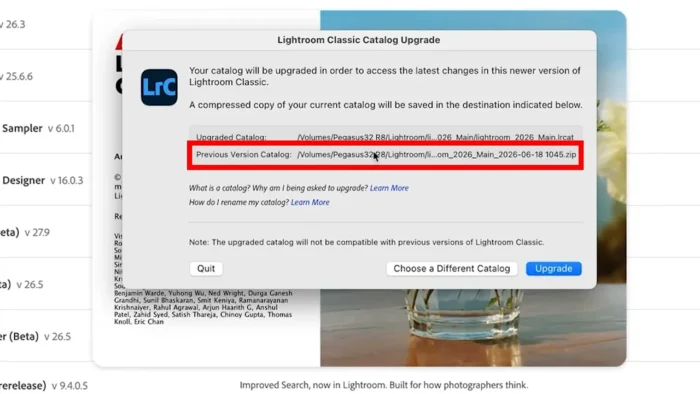
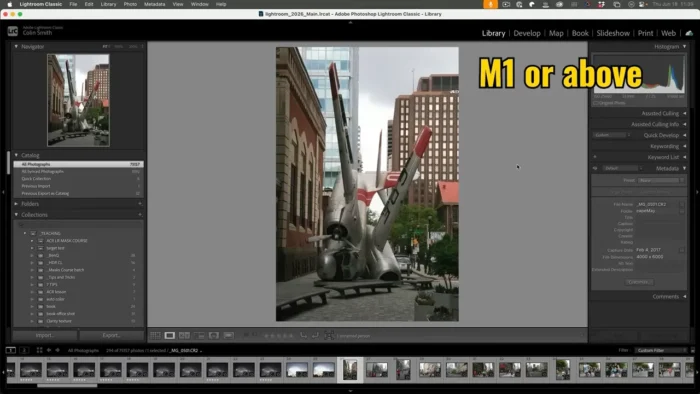
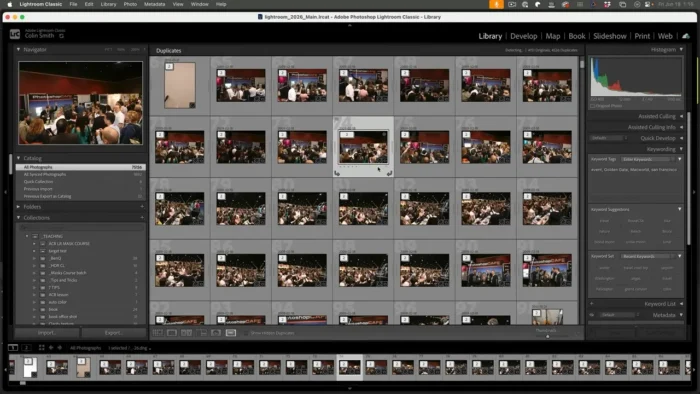
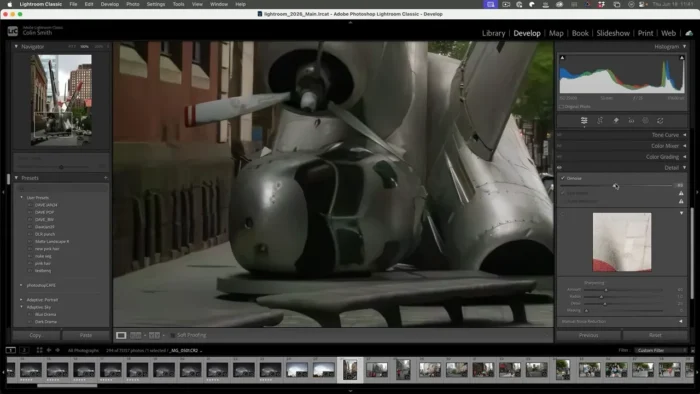
Overview
Lightroom Classic is a desktop photo editing and digital asset management app, distinct from the cloud-focused Lightroom (non-Classic), which prioritizes local library storage and deeper organizational control.
- Purpose: Import, organize, edit, and export photos at scale
- Main workflow: Import → organize with keywords/collections → non-destructive edit → batch process → export
- Ideal users: Professional and enthusiast photographers managing large image libraries
- File formats supported: RAW (camera-specific formats), JPEG, TIFF, PSD, HEIC
- Major strengths: Non-destructive editing, powerful catalog-based organization, and genuinely useful batch-processing tools for high-volume work
Key Features
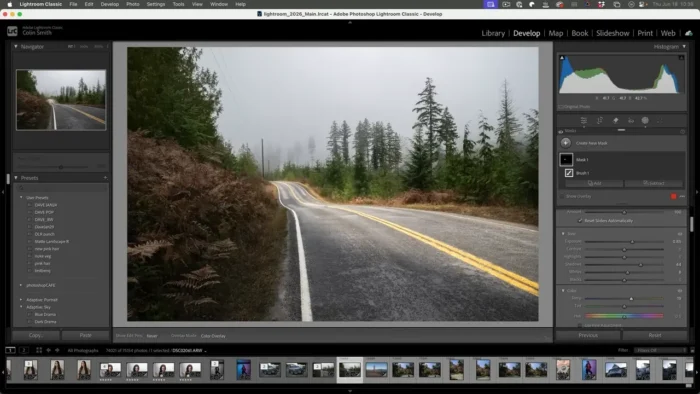
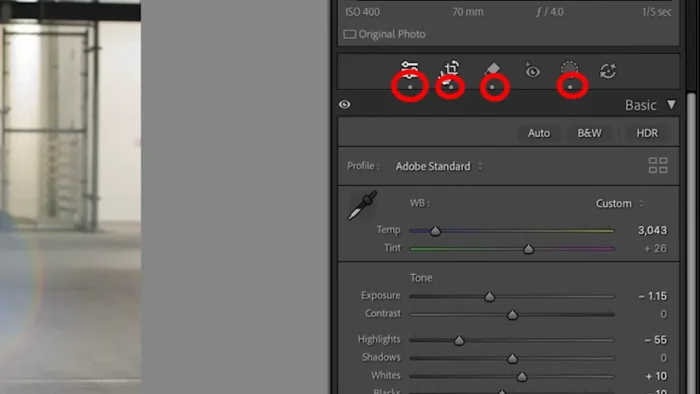
- Non-Destructive RAW Editing – Every adjustment (exposure, white balance, tone curves) is stored as an instruction, not applied to the pixel data, so you can always return to the original file. This matters most when a client asks for a different crop or mood months later.
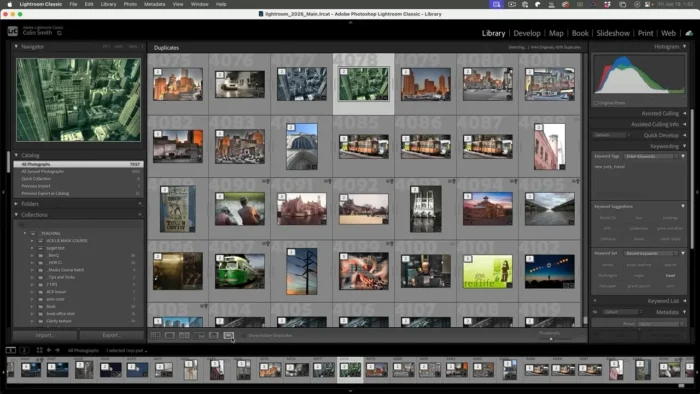
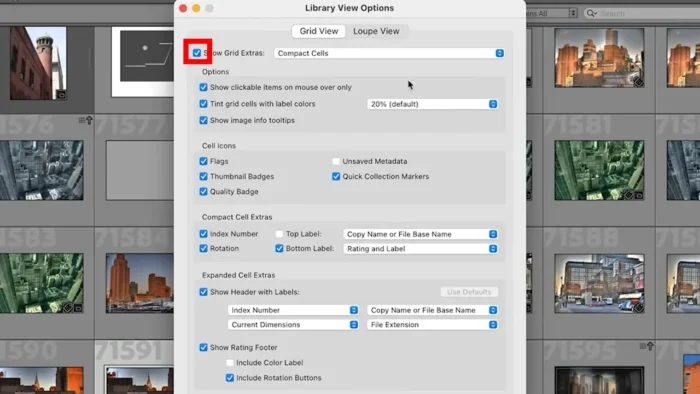
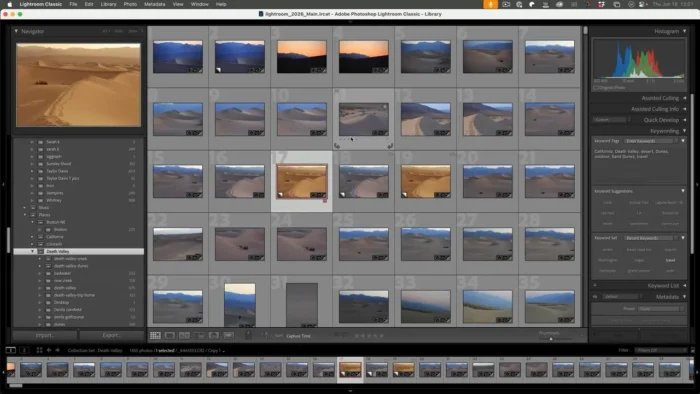
- Smart Collections & Metadata Tagging – Automatically group photos by criteria like rating, keyword, or camera settings, so a library of 50,000 images stays searchable instead of becoming an unmanageable folder dump.
- Batch Processing & Sync Settings – Apply one edit across hundreds of images from the same shoot, which is the single biggest time-saver for wedding and event photographers working under deadline.
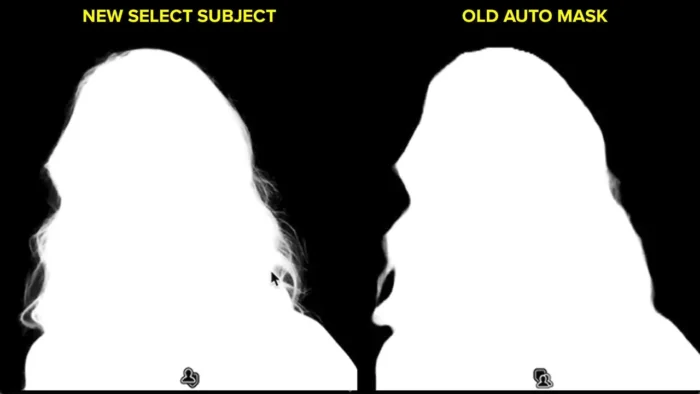
- Advanced Masking Tools – Brush, linear, radial, color range, and luminance range masks let you adjust a sky, a face, or a background independently, rather than applying one global edit to the whole frame.
- HDR Merge & Panorama Stitching – Combine multiple bracketed exposures or wide-angle shots into a single high-quality image directly inside the catalog, without needing separate software.
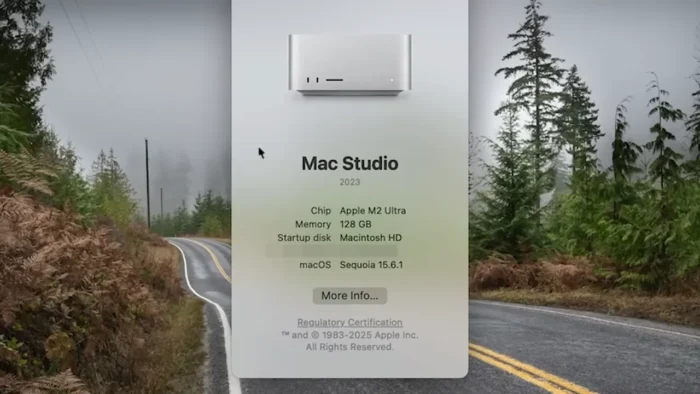
- GPU-Accelerated Performance – Editing sliders, previews, and module switching all lean on your Mac’s GPU, which is especially noticeable on Apple Silicon Macs where responsiveness stays smooth even with large RAW files.
- Virtual Copies – Create multiple edited versions of the same photo without duplicating the actual file, useful for testing different color grades or crops before committing.
- Lens & Chromatic Aberration Corrections – Automatically corrects distortion and color fringing based on your specific lens profile, which matters a lot for architecture and landscape work.
- Print, Book, and Web Gallery Modules – Build print layouts, photo books, and shareable web galleries without exporting to a separate design tool first.
- Fast Search and Filtering – Locate specific images across a massive catalog using keywords, star ratings, color labels, or camera metadata in seconds rather than scrolling.
What’s New
Recent Lightroom Classic updates have focused on tightening performance rather than adding flashy new modules:
- Faster image imports and preview generation
- Quicker library browsing on large catalogs
- Improved editing responsiveness, particularly on Apple Silicon Macs
- Smoother module switching (Library, Develop, Print, etc.)
- Continued expansion of supported camera and lens profiles
For the exact list of fixes and additions in your installed version, check Adobe’s official release notes inside the app under Help > About Lightroom Classic.
System Requirements
| Component | Minimum | Recommended |
|---|---|---|
| Operating System | macOS (check current release notes for exact minimum version) | Latest macOS release |
| Processor | Multi-core Intel or Apple Silicon | Apple M-series chip |
| RAM | 8 GB | 16 GB or more |
| Storage | Several GB free (SSD strongly preferred) | SSD with ample free space for catalog + previews |
| Graphics | Compatible GPU | Dedicated/Metal-capable GPU for accelerated editing |
| Internet | Required for installation and licensing | Required |
Requirements shift slightly between Lightroom Classic versions, so it’s worth double-checking Adobe’s current specs page for your exact release before installing.
How to Install
Lightroom Classic doesn’t ship as a standalone offline installer — it’s distributed and managed through the Adobe Creative Cloud desktop app, which is Adobe’s official installer for every Creative Cloud product.
- Visit Adobe’s official Lightroom Classic page and choose a free trial or subscription plan.
- Sign in with your Adobe ID, or create one if you don’t have an account yet.
- Download the Creative Cloud desktop app for macOS.
- Open the Creative Cloud app, go to the Apps tab, and click Install next to Lightroom Classic.
- Launch the app from Launchpad or your Applications folder once installation finishes.
A valid Adobe subscription (or active free trial) is required to use the software — there’s no perpetual license or portable version available.
Pros
- Genuinely fast, non-destructive editing that scales to large libraries
- Best-in-class organization tools for photographers managing thousands of images
- Batch editing saves enormous time on weddings, events, and commercial shoots
- GPU acceleration makes editing responsive even on big RAW files
- Deep integration with other Creative Cloud apps like Photoshop
- Regular updates with real performance improvements, not just cosmetic changes
Cons
- Subscription-only — no one-time purchase or perpetual license
- Can feel like overkill for casual users who just want quick single-photo edits
- Large catalogs demand solid storage and RAM to stay responsive
- Learning curve around catalog structure for photographers coming from simpler tools
Who Should Use Lightroom Classic?
- Wedding, portrait, and event photographers managing high shot volumes
- Landscape and travel photographers who need HDR merging and panorama stitching
- Content creators building a searchable archive of thousands of images
- Photography enthusiasts who’ve outgrown basic phone-editing apps
Who may not need it: casual users editing the occasional phone photo will likely find Lightroom Classic more tool than they need — a lighter mobile editor or Lightroom (non-Classic) may fit better.
Frequently Asked Questions
Is Lightroom Classic free? No, but Adobe offers a free trial so you can test the full feature set before subscribing.
Does Lightroom Classic support Apple Silicon Macs? Yes, it runs natively on Apple Silicon and generally performs faster than on comparable Intel Macs.
Is there an offline or portable installer? No. Lightroom Classic installs and updates exclusively through the Adobe Creative Cloud desktop app, and there’s no portable version.
Is an internet connection required? Yes, for installation, licensing checks, and updates. Editing itself can be done offline once installed.
Does it support GPU acceleration? Yes, compatible GPUs accelerate editing, previews, and rendering performance.
Can beginners use Lightroom Classic? Yes, though the catalog-based workflow takes some adjustment if you’re used to simpler photo apps. Adobe’s built-in tutorials help with the learning curve.
What’s the difference between Lightroom Classic and Lightroom (non-Classic)? Lightroom Classic stores your library locally with deeper organizational tools; Lightroom (non-Classic) is built around cloud storage and cross-device syncing.
Can I edit RAW files from any camera? Lightroom Classic supports RAW formats from most major camera manufacturers, with new lens and camera profiles added in regular updates.
Final Verdict
Adobe Lightroom Classic is the strongest option available for photographers who need serious organizational control alongside professional-grade editing — particularly anyone managing large shoots or a growing archive of images. Wedding, event, and commercial photographers will get the most value from its batch processing and catalog tools, while landscape and travel shooters benefit from its HDR and panorama features.
Casual users who edit the occasional photo may find it more software than they need, and the subscription-only model is worth factoring into your decision. But for photographers serious about workflow efficiency and non-destructive editing at scale, Lightroom Classic remains the industry benchmark on Mac, especially with Apple Silicon performance behind it.