

CapCut for Mac
CapCut for Mac Free Download (Latest 2026) – Professional AI Video Editor
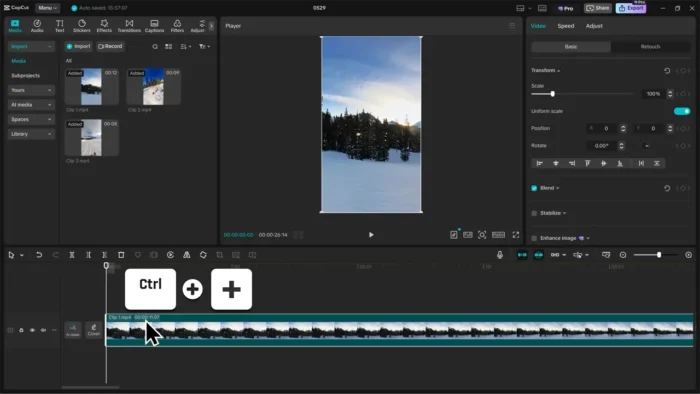
CapCut built its reputation on mobile, where it became the default editor for anyone making TikToks and Reels — but the Mac version is where it starts competing seriously with desktop editors like Premiere Pro and Final Cut, at least for social-first content. It combines a genuinely approachable drag-and-drop timeline with AI tools that used to require separate software: auto captions, background removal, and full AI video generation from a script or prompt.
That combination is exactly why it’s picked up so much traction beyond just TikTok creators. YouTubers, marketing teams, and small businesses use it for the same reason: professional-looking output without the learning curve of a traditional NLE. On Mac, it’s free to start with, exports up to 4K/60fps/HDR, and covers everything from a quick vertical clip to a fully layered multi-track edit — all without needing a second app for captions or a third for voiceovers.
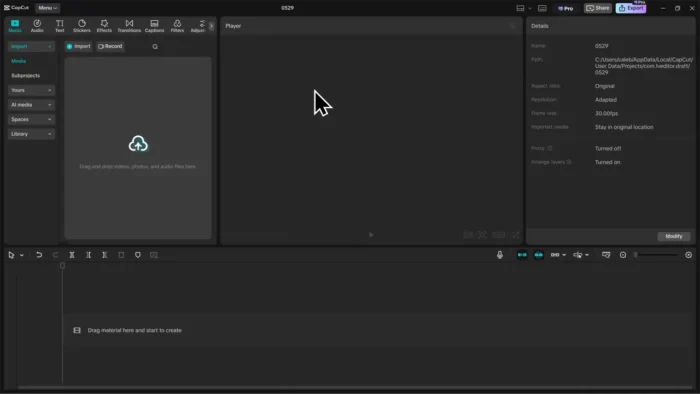
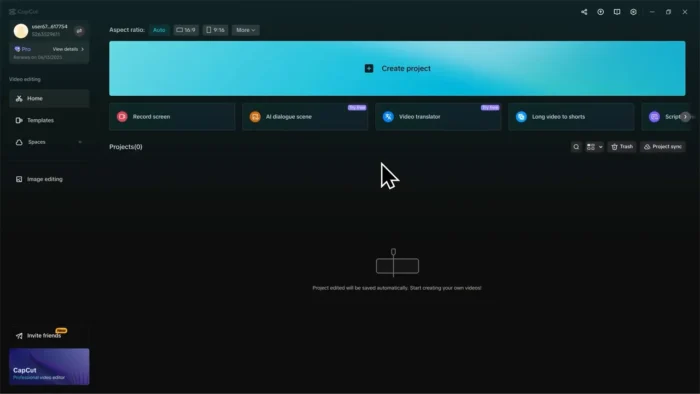
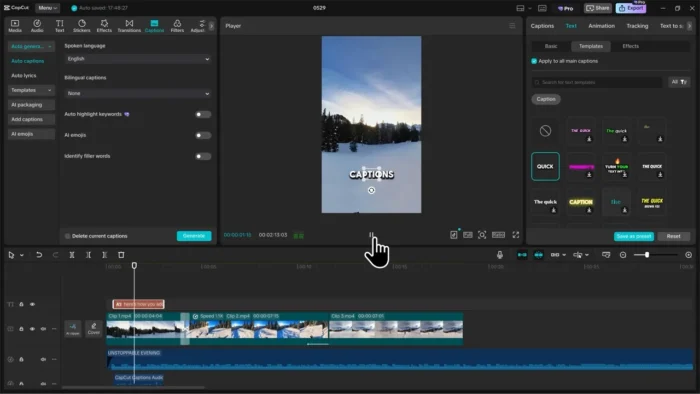
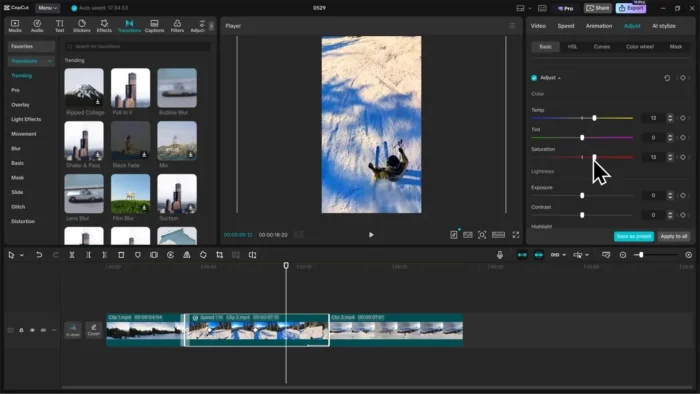
Overview
CapCut is an all-in-one video editor combining traditional timeline-based editing with AI-powered automation for tasks that used to require separate specialized tools.
- Purpose: Video editing for social media, YouTube, tutorials, and general content creation
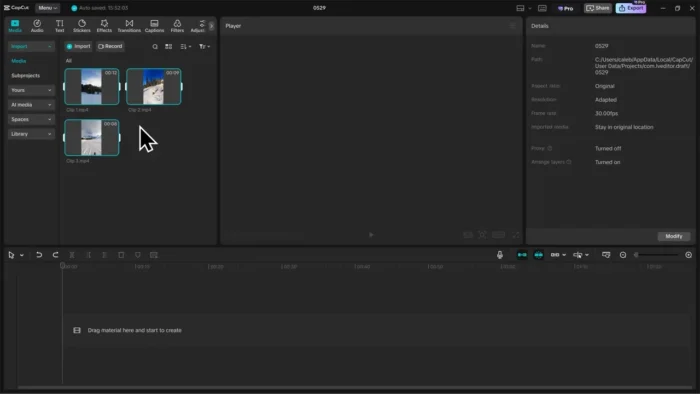
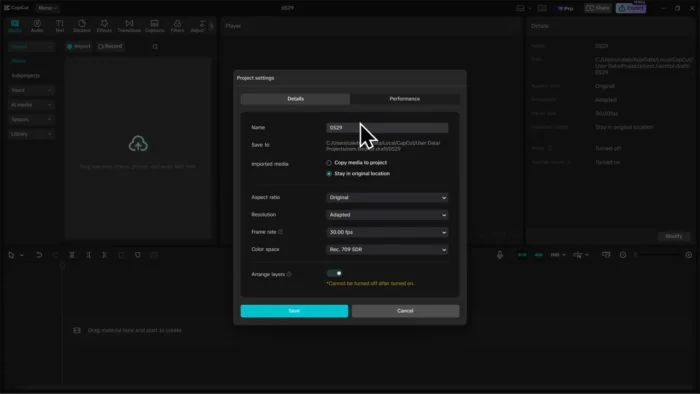
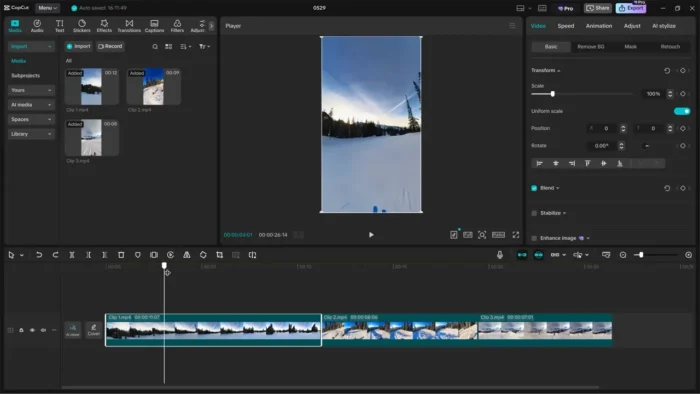
- Main workflow: Import clips → edit on a multi-layer timeline → apply AI tools (captions, background removal, etc.) → add effects/music → export
- Ideal users: Content creators, vloggers, marketing teams, small businesses, and beginners learning video editing
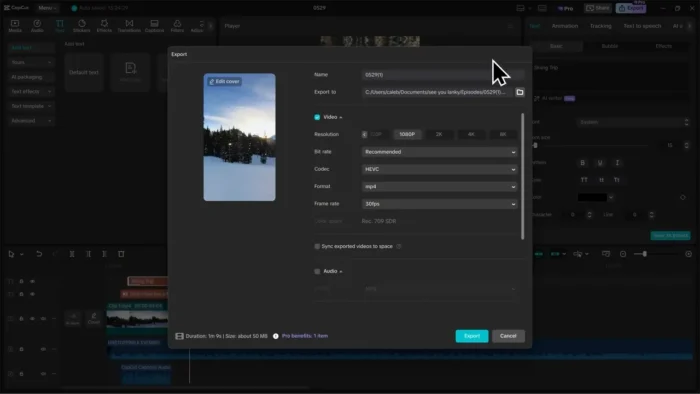
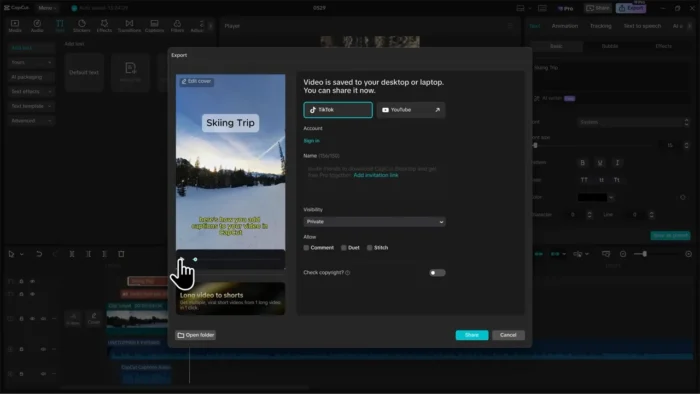
- Export support: HD, 4K, 60 FPS, and HDR output across multiple formats
- Major strength: AI features (auto captions, background removal, AI video generation) that replace tasks which would otherwise need separate apps entirely
Key Features
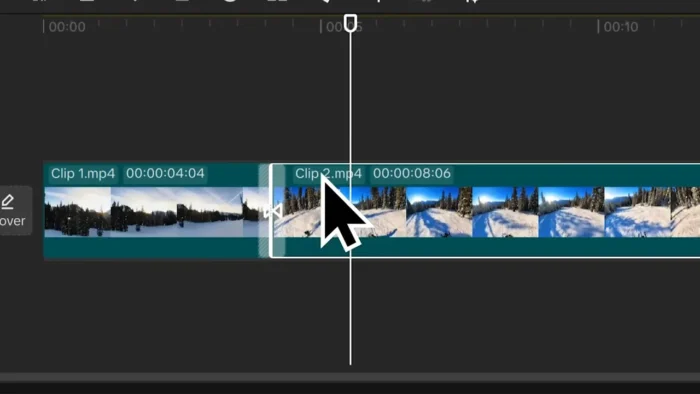
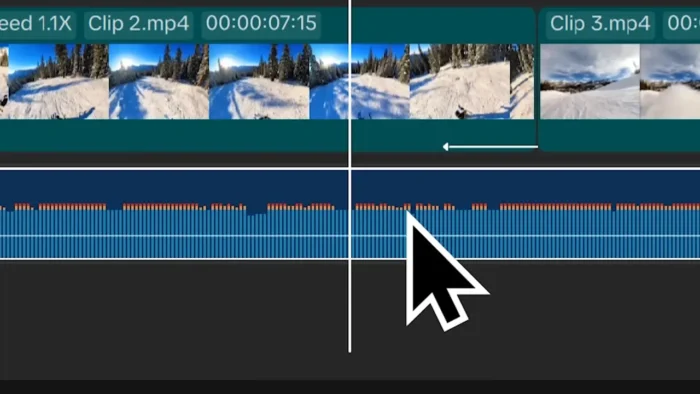
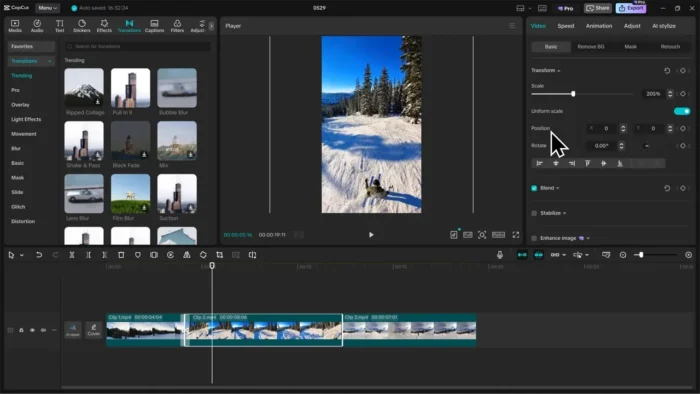
- Drag-and-Drop Timeline Editing – Trim, split, merge, and rearrange clips with a beginner-friendly interface that doesn’t require learning a traditional NLE’s command structure first.
- AI Video Maker – Generate a complete video from a script or text prompt, including scenes, timing, voiceover, music, and captions, useful for quickly producing draft content or filling out a content calendar fast.
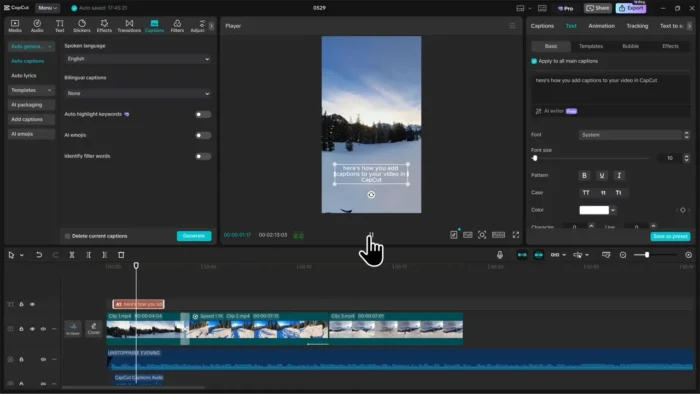
- Auto Captions – Automatically transcribes speech into styled subtitles with multi-language support, cutting out what’s traditionally one of the most tedious parts of social video editing.
- Background Removal – Strip out a video or image background without a green screen or complex keying setup, useful for product videos, tutorials, and presentations.
- Text-to-Speech – Convert written scripts into natural-sounding AI voiceovers across multiple voices and languages, removing the need for separate recording equipment or voice talent for many projects.
- AI Image Generator – Create thumbnails, concept art, or supporting visual assets directly inside the app instead of switching to a separate image tool mid-edit.
- Chroma Key – Standard green-screen removal for users who do have a physical green screen setup and want precise background replacement.
- Keyframe Animation – Control position, scale, rotation, and opacity over time for smooth custom animations, giving more advanced editors real creative control beyond the automated tools.
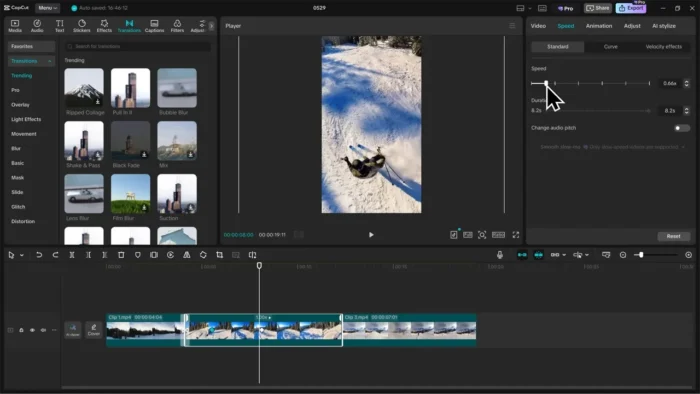
- Speed Control with Optical Flow – Create smooth slow-motion or speed-ramped footage using motion-estimation processing rather than choppy frame duplication.
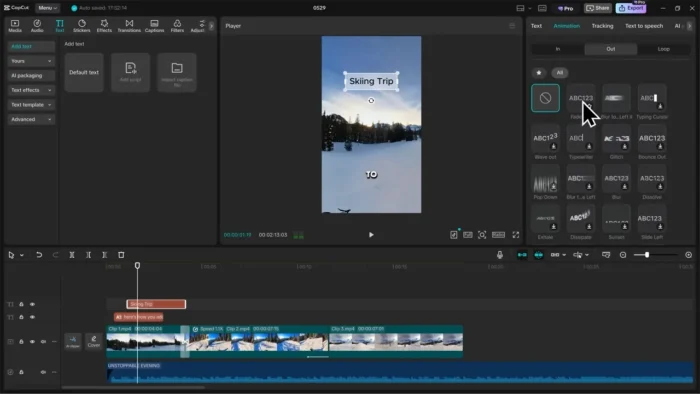
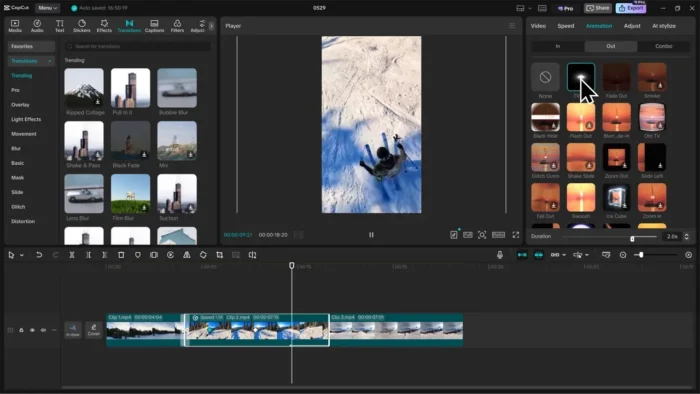
- Multi-Layer Timeline – Combine video, audio, text, and graphic layers together for more advanced, professional-feeling edits rather than a single flat video track.
Effects, Templates & Audio Tools
CapCut bundles a large creative resource library alongside its editing tools:
- Trending video effects and professional filters
- Stickers and animated text
- Social media-ready templates
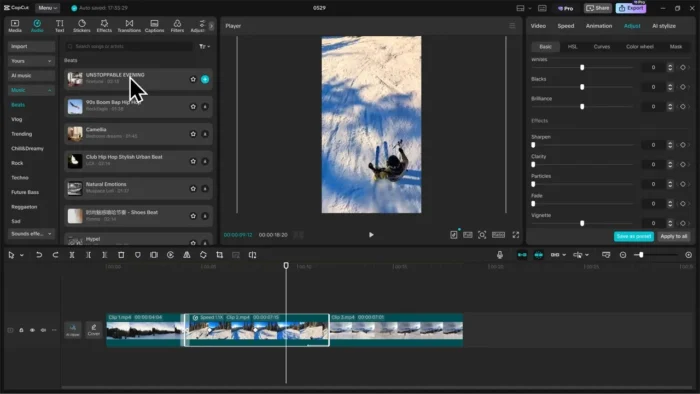
- Background music and sound effect library
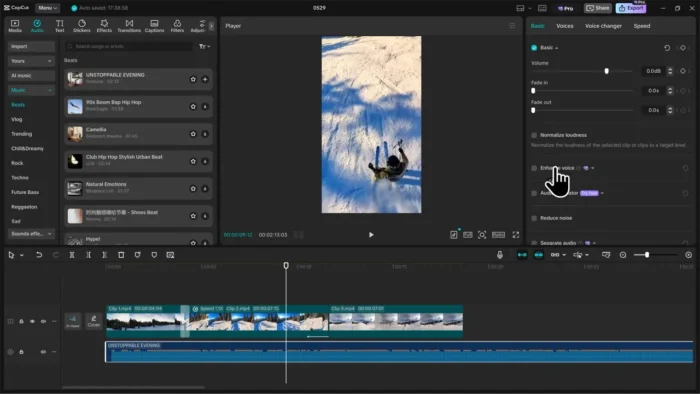
- Full audio editing: add music, extract audio from video, record voiceovers, adjust volume, apply effects
This library is a big part of why creators can put together modern, platform-ready content quickly rather than designing every element manually.
Export Options
- HD video export
- 4K resolution support
- 60 FPS output
- HDR video support
- Multiple video format options
System Requirements
| Component | Minimum | Recommended |
|---|---|---|
| Operating System | macOS 10.15 or later | Latest macOS release |
| Processor | Dual-core processor | Multi-core processor |
| RAM | 4 GB | 8 GB or more |
| Storage | 2 GB free space | More for large project libraries |
| Graphics | Integrated graphics supported | Dedicated GPU for advanced editing |
| Internet | Required for downloads, updates, and online AI features | Required |
Heavier AI features and advanced multi-layer projects benefit from more RAM and a dedicated GPU beyond the stated minimums.
How to Download CapCut for Mac
- Download CapCut for macOS from the official source.
- Open the downloaded installer file.
- Install CapCut into the Applications folder.
- Launch the application.
- Sign in or create an account.
- Start creating videos.
CapCut Free Version vs Pro Version
Free Version includes:
- Basic video editing
- Filters and effects
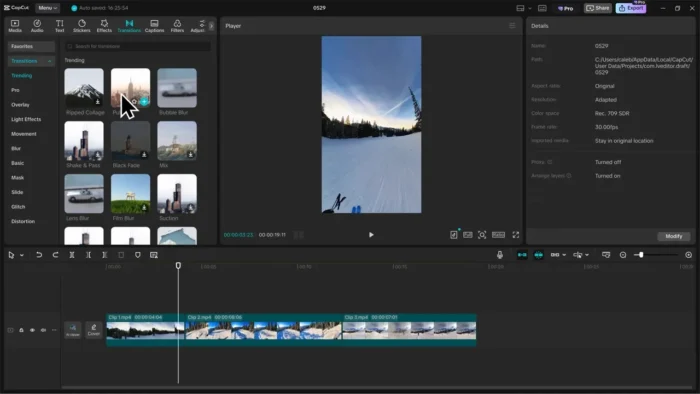
- Transitions
- Audio editing
- Templates
- Auto captions
CapCut Pro adds:
- Advanced AI tools
- Premium templates
- More creative assets
- Enhanced AI generation
- Additional export options
Pros
- Genuinely easy to learn for beginners without sacrificing capability for more advanced editors
- AI tools (captions, background removal, video generation) replace tasks that would otherwise need separate software
- Large, regularly updated effects, template, and music library
- Strong export options, including 4K, 60 FPS, and HDR
- Free version is a fully usable starting point, not just a crippled demo
- Multi-layer timeline supports genuinely advanced editing when needed
Cons
- Some AI and premium features require CapCut Pro
- Heavier AI processing depends on an internet connection
- Advanced multi-layer projects benefit from a dedicated GPU that lower-end Macs may lack
- Style leans toward social-media-first editing rather than long-form cinematic post-production
Who Should Use CapCut for Mac?
- YouTube and TikTok creators producing regular content
- Instagram Reels and short-form video makers
- Marketing professionals and small businesses creating promotional content
- Beginners learning video editing without wanting to start with a complex NLE
- Editors who want AI-assisted captions, voiceovers, and background removal built into one app
Frequently Asked Questions
Is CapCut free for Mac? Yes, a free version is available with core editing tools, effects, and auto captions. CapCut Pro unlocks additional premium AI tools and assets.
Does CapCut support 4K export? Yes, along with 60 FPS output and HDR video support.
Does CapCut require an internet connection? Yes, for downloads, updates, and to use online AI features like AI Video Maker and enhanced generation tools.
Can beginners use CapCut effectively? Yes, its drag-and-drop interface is specifically designed to be approachable for newcomers to video editing.
Does CapCut support auto-generated captions? Yes, with multi-language support and customizable caption styles.
What’s the difference between CapCut Free and Pro? Free covers core editing, effects, templates, and auto captions. Pro adds advanced AI tools, premium templates, more creative assets, and additional export options.
Can I remove video backgrounds without a green screen? Yes, CapCut’s background removal tool works without a physical green screen setup, in addition to traditional chroma key support for those who have one.
Is CapCut suitable for professional video editing? It’s strong for social media and content creation workflows specifically; long-form cinematic post-production may still be better served by a traditional NLE like Premiere Pro or Final Cut Pro.
Final Verdict
CapCut for Mac earns its growing reputation by making AI-assisted video editing genuinely accessible — auto captions, background removal, and full AI video generation all live inside one app that’s still easy to pick up as a beginner. YouTube creators, TikTok and Reels editors, and small businesses producing regular social content will get real value from its speed and built-in AI tools.
For long-form, cinema-style post-production, a traditional NLE may still serve better, but for fast-turnaround, platform-ready content — especially with the free version as a genuinely usable starting point — CapCut is one of the strongest and most approachable video editors available on macOS right now.