

Microsoft Office 2019 for Mac
Microsoft Office 2019 for Mac – Complete Productivity Suite Guide
For users who want the full Microsoft Office experience on Mac without signing up for an ongoing Microsoft 365 subscription, Office 2019 remains a genuine option — a one-time purchase that includes Word, Excel, PowerPoint, Outlook, and OneNote, built specifically to take advantage of macOS features like Retina display support and full-screen mode.
It’s aimed at students, professionals, and businesses who want the familiar Office toolset without recurring billing. This guide covers what’s actually included, how each app has been updated for macOS, system requirements, and the correct way to purchase and activate a legitimate copy.






Overview
Microsoft Office 2019 for Mac is a one-time-purchase productivity suite (not a subscription), bundling the core Office applications with macOS-specific design and performance improvements.
- Applications included: Word, Excel, PowerPoint, Outlook, OneNote
- Purpose: Document creation, spreadsheet analysis, presentation design, and email/calendar management
- Ideal users: Students, professionals, and businesses who prefer a one-time purchase over a Microsoft 365 subscription
- macOS integration: Retina display support, full-screen mode, and smoother overall macOS integration compared to earlier Office-for-Mac releases
Key Features by Application
Microsoft Word 2019
- Modern document design tools for professional formatting
- Smart Lookup for contextual research without leaving the document
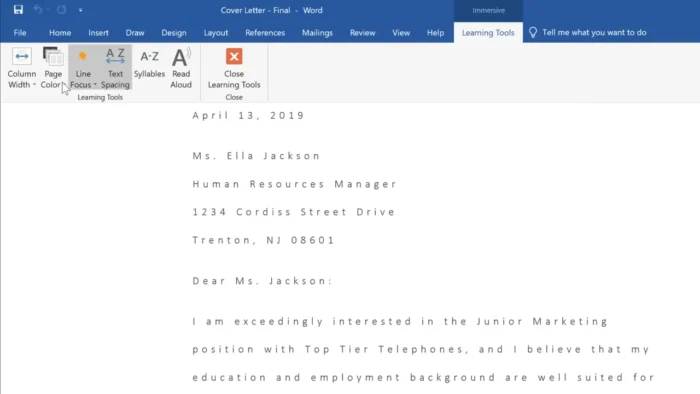
- Dark theme support for more comfortable extended editing sessions
- Built-in translation tools for multilingual documents
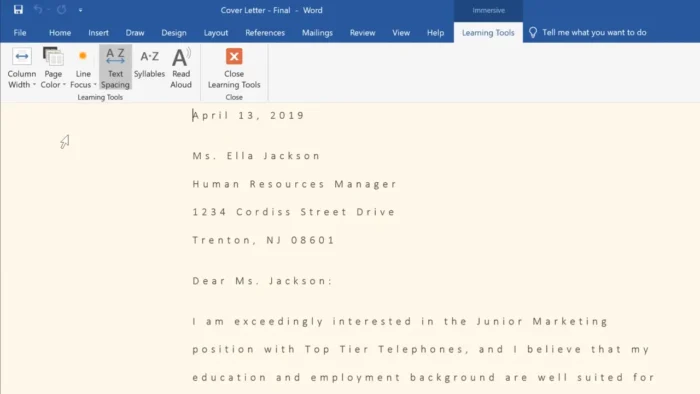
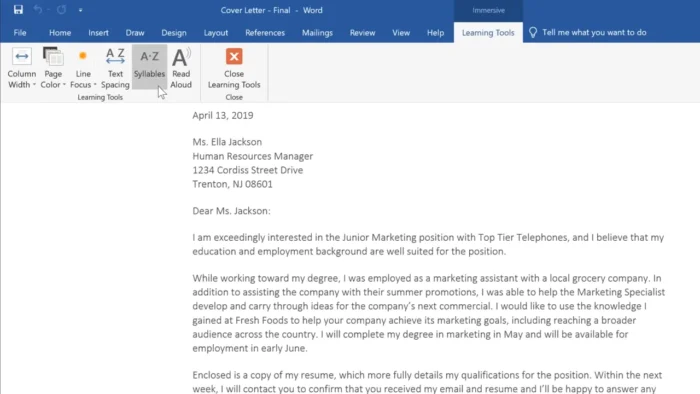
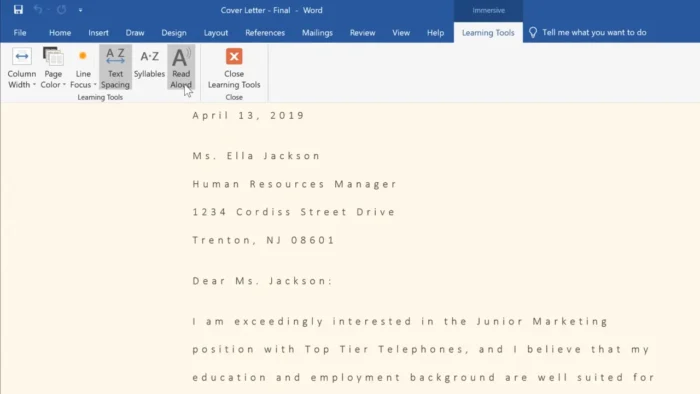
- Improved accessibility features
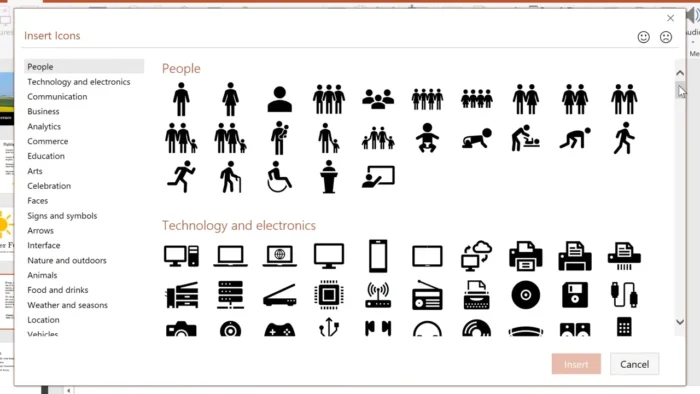
- Support for icons, SVG graphics, and 3D models directly in documents
Microsoft Excel 2019
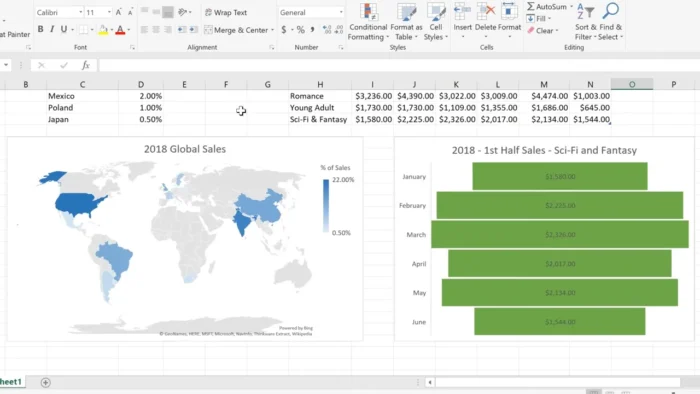
- Enhanced charts and formulas for deeper data analysis
- Analysis ToolPak support for statistical and engineering calculations
- Better data visualization tools
- Improved sharing options for collaborative spreadsheets
- New functions and general performance improvements over Office 2016
Microsoft PowerPoint 2019
- New slide transitions for more polished presentations
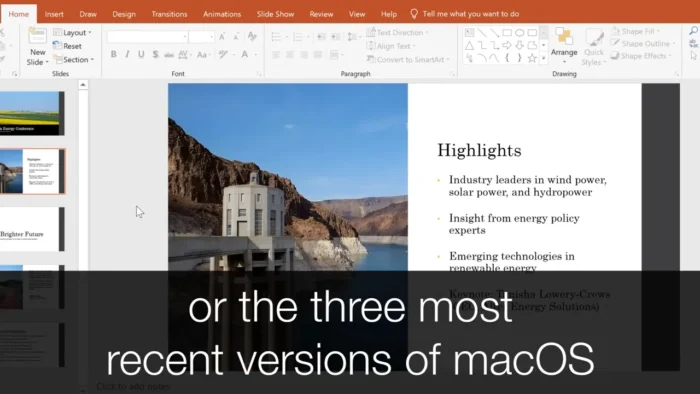
- 3D model support for more dynamic visual content
- SVG graphics support for crisp, scalable design elements
- Text highlighting tools for emphasis within slides
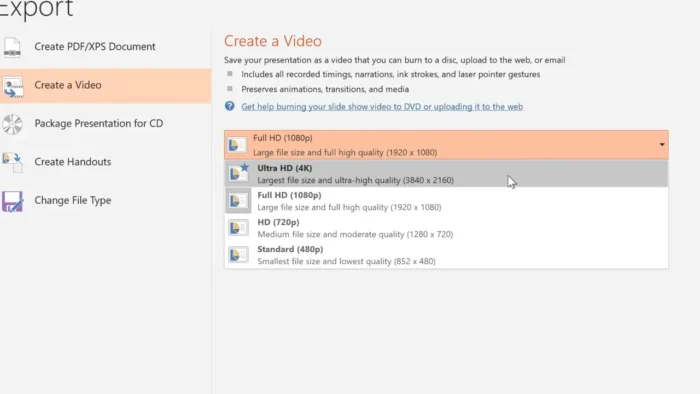
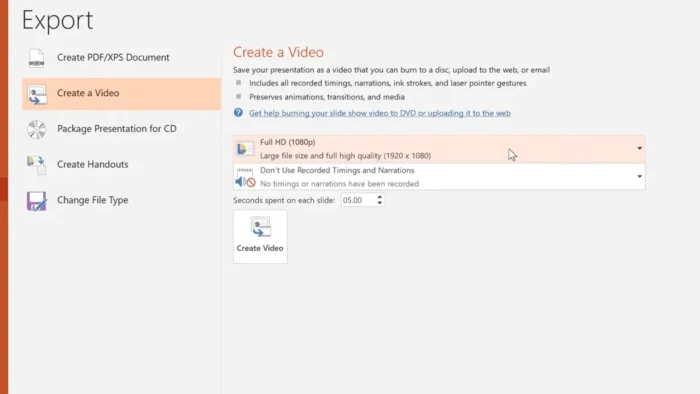
- 4K video export capability
- Improved presentation controls for live delivery
Microsoft Outlook 2019
- Multiple email account support in a single inbox view
- Improved inbox management tools
- Spam filtering
- Calendar organization tools
- Professional-grade email management features
Main Advantages
- Complete, familiar Office applications built specifically for Mac
- Professional document, spreadsheet, and presentation tools
- Improved collaboration features compared to older Office-for-Mac versions
- Optimized performance on macOS
- Full Retina display support
- The same core Microsoft Office experience users already know from Windows
Technical Details
| Detail | Information |
|---|---|
| Application Name | Microsoft Office 2019 for Mac |
| Platform | macOS |
| Architecture | 64-bit Intel processor |
| Language Support | Multilingual |
| Disk Space Required | Approximately 9 GB available storage |
| Licensing | One-time purchase (perpetual license, not a subscription) |
System Requirements
| Component | Minimum |
|---|---|
| Operating System | macOS 10.13 or later |
| Processor | 64-bit Intel processor |
| RAM | 1 GB minimum (more recommended for smoother multitasking) |
| Storage | 9 GB free disk space recommended |
How to Get Microsoft Office 2019 for Mac Legitimately
Office 2019 is sold directly by Microsoft as a one-time purchase, tied to a genuine product key and Microsoft account for activation — it isn’t distributed as a standalone installer file outside that process.
- Purchase Office 2019 for Mac (Home & Student or Home & Business, depending on your needs) from Microsoft’s official store or an authorized retailer.
- Sign in with or create a Microsoft account.
- Redeem your product key through your Microsoft account, which links the license to that account.
- Download the official installer directly from your Microsoft account’s Office setup page.
- Install the applications and activate by signing in with the same Microsoft account.
Because activation is tied to your Microsoft account and a genuine product key, this is also what protects you from the security risks that come with unlicensed “installer” files circulating outside Microsoft’s own channels — those versions typically can’t receive official security updates and carry real malware risk.
Applications Included
- Word
- Excel
- PowerPoint
- Outlook
- OneNote
Who Should Consider Office 2019 for Mac?
- Users who prefer a one-time purchase over an ongoing Microsoft 365 subscription
- Students and professionals who need the core Office apps without cloud-dependent features
- Small businesses standardizing on Office file formats without wanting recurring per-seat billing
- Anyone already comfortable with the traditional Office interface and workflow
Worth considering instead: if you need continuously updated features, 1TB of OneDrive storage, or access across multiple devices with the latest AI-assisted tools, Microsoft 365’s subscription model will serve you better than a one-time Office 2019 purchase, since Office 2019 won’t receive new feature updates going forward — only security patches for a defined support period.
Frequently Asked Questions
Is Microsoft Office 2019 for Mac a subscription? No, it’s a one-time purchase with a perpetual license, unlike Microsoft 365, which is subscription-based.
What applications are included? Word, Excel, PowerPoint, Outlook, and OneNote.
Does Office 2019 support Retina displays? Yes, along with full-screen mode and other macOS-specific interface improvements.
How do I activate Office 2019 for Mac? By purchasing a genuine license, redeeming the product key through a Microsoft account, and signing in during setup — this is required for the software to function and receive updates.
Will Office 2019 receive new features over time? No, it received security updates for a defined support period after release, but new features are reserved for Microsoft 365 subscribers.
Can I use Office 2019 without an internet connection? Yes, once installed and activated, the core applications work offline. An internet connection is needed for initial activation and periodic license verification.
Is Office 2019 for Mac compatible with files created in Office for Windows? Yes, file compatibility between Mac and Windows versions of Office is maintained across formats like .docx, .xlsx, and .pptx.
Should I choose Office 2019 or Microsoft 365? It depends on your needs — Office 2019 suits users who want a one-time purchase and don’t need ongoing feature updates or cloud storage, while Microsoft 365 suits users who want continuous updates, more storage, and multi-device flexibility.
Conclusion
Microsoft Office 2019 for Mac remains a solid option for users who want the genuine, full-featured Office experience without committing to a subscription — Word, Excel, PowerPoint, Outlook, and OneNote all received real macOS-specific improvements in this release, from Retina support to better collaboration tools.
The trade-off is that it won’t receive new features going forward the way Microsoft 365 does, so it’s best suited to users who specifically want a stable, one-time purchase rather than an evolving subscription service. Whichever you choose, activating through a genuine Microsoft account and product key is what keeps the software secure and properly updated over its supported lifetime.