

Content Highlights
Download Microsoft Office 2024 (Offline installer) IMG/ISO files for Windows version Free. Here you will get the Microsoft Office 2024 latest and updated version for Windows 11 and 10 (64-bit/32-bit).
Office 2024 Official ISO Downloads
Select the product and download the official Microsoft ISO file.
How can the ISO/IMG Files and Offline Installer for Office 2024 be downloaded?
The Offline Installer for Office 2024 and the ISO image for MS Office 2024 can be obtained in several ways. Let’s look at how to obtain an Office 2024 offline installer instead of a web-based installer.
| Windows | Version | Release Date | File Size | Download Link |
|---|---|---|---|---|
 Office 365 | Microsoft Office 365 | Updates regularly | Varies | Download 🡇 |
Office 2021 | Microsoft Office 2024 | October 1, 2024 | Varies | Download 🡇 |
Office 2021 | Microsoft Office 2021 | October 5, 2021 | Varies | Download 🡇 |
Office 2019 | Microsoft Office 2019 | September 24, 2018 | Varies | Download 🡇 |
Office 2016 | Microsoft Office 2016 | September 22, 2015 | Varies | Download 🡇 |
Office 2013 | Microsoft Office 2013 | January 29, 2013 | Varies | Download 🡇 |
 Office 2010 | Microsoft Office 2010 | June 15, 2010 | Varies | Download 🡇 |
 Office 2007 | Microsoft Office 2007 | January 30, 2007 | 562 MB | Download 🡇 |
 Office 2003 | Microsoft Office 2003 | August 19, 2003 | Expired | Download 🡇 |
 Office XP | Microsoft Office XP | May 31, 2001 | Expired | Download 🡇 |
 Office 2000 | Microsoft Office 2000 | June 7, 1999 | Expired | Download 🡇 |
 Office 97 | Microsoft Office 97 | November 19, 1996 | Expired | Download 🡇 |
 Office 95 | Microsoft Office 95 | August 24, 1995 | Expired | Download 🡇 |
Overview
Microsoft Office for Windows Description
Download the latest version of Microsoft Office for Windows 11 and Windows 10 (64 BIT/32 BIT) with the official direct download link with the offline installer standalone setup. This direct link allows high-speed, fastest full bandwidth download of Microsoft Office (64-bit & 32-bit).
Microsoft Office 2024 Free Download – Complete Review, Features & Technical Details
Microsoft Office 2024 is the latest edition of Microsoft’s productivity suite, designed to deliver improved performance, modern collaboration tools, and a smoother overall experience. This release includes the full set of essential Office applications—Word, Excel, PowerPoint, Outlook, Access, OneNote, and Publisher—along with enhanced cloud connectivity and updated security. Office 2024 is available as a one-time purchase and supports both 32-bit and 64-bit Windows architectures, making it a reliable choice for long-term use without subscription requirements.
Overview of Microsoft Office 2024
Office 2024 introduces upgraded features across all major apps, aiming to increase efficiency and streamline workflow. Word now offers improved writing assistance and refined document tools.
Excel delivers enhanced data analysis capabilities, including dynamic tables, smarter formulas, and improved handling of large datasets.
PowerPoint includes modern design templates, updated transitions, and better tools for building professional presentations.
Outlook features upgraded search and email management, making communication faster and more organized.
Access provides better database handling, while Publisher continues to support easy creation of marketing materials.
OneNote has improved synchronization and easier content search, allowing note-taking across all your devices.
The suite also comes with a redesigned Office theme featuring improved visual clarity and accessibility options for users with physical limitations.
Collaboration & Cloud Support
Office 2024 improves collaboration through tools such as OneDrive for Business and SharePoint, enabling secure cloud storage, file sharing, and synchronized workflows. With support for Microsoft Teams integration in certain editions, users can communicate and collaborate more efficiently. Real-time comment threads, version history, and task assignment simplify teamwork across Word, Excel, and PowerPoint.
Although this version does not include advanced real-time co-authoring found in Microsoft 365, it still supports shared file access and essential commenting tools. Offline work is fully supported, with automatic syncing when you reconnect.
AI and Productivity Enhancements
Depending on the edition, Office 2024 introduces AI-powered improvements across key applications. Word includes grammar suggestions and writing guidance. Excel benefits from automated predictions and advanced data automation. PowerPoint offers smart design suggestions for presentation layouts. Outlook includes more intelligent filtering and email-sorting features.
Some versions of Office 2024 also integrate Microsoft’s Copilot, a GPT-based AI assistant capable of generating content, analyzing data, summarizing text, and performing automated tasks across Word, Excel, and PowerPoint—helping users work faster and more efficiently.
What’s New in Microsoft Office 2024 & Office LTSC 2024
Microsoft Office 2024 and Office LTSC 2024 introduce a range of new features, performance improvements, and accessibility enhancements across the core Office apps like Word, Excel, PowerPoint, Outlook, OneNote, Access, and Visio. These updates focus on helping you work faster, collaborate more effectively, and enjoy a modern, cohesive experience.
1. A Fresh, Modern Default Office Theme
Office 2024 features a redesigned visual experience with a consistent look and feel throughout all apps. The updated interface uses Fluent Design principles to deliver a clean, intuitive experience, especially on Windows 11, while still looking great on Windows 10.
2. Better Accessibility Tools
Office LTSC 2024 includes improved accessibility features that make documents, spreadsheets, presentations, emails, and other content easier to create and consume for everyone.
3. Insert Pictures Directly from Your Phone
Now you can quickly insert images from your Android device straight into Word, Excel, or PowerPoint files — no manual file transfers required.
4. Support for OpenDocument Format (ODF) 1.4
Office 2024 now supports the ODF 1.4 standard, allowing better compatibility and features when working with ODF file types across Word, Excel, and PowerPoint.
5. Comment Reactions
You can now “Like” comments in Word and PowerPoint. This makes it easier to acknowledge feedback without typing a response.
6. Dynamic Arrays in Excel Charts
Excel 2024 lets charts automatically update to reflect dynamic arrays. This means charts adjust to show all relevant data as your array changes — useful for more responsive reports and dashboards.
7. New Excel Text & Array Functions
Excel gets 14 new functions designed to make it easier to work with text and arrays — helping you extract, reshape, combine, and manipulate data more efficiently.
8. IMAGE Function in Excel
You can now insert pictures directly into Excel cells using the IMAGE function or by copy-paste — and images will stay anchored properly even when sorting or filtering data.
9. Faster & More Stable Excel Workbooks
Excel 2024 includes performance optimizations that make opening and calculating workbooks faster and more reliable — especially when working with multiple files simultaneously.
10. Cameo for PowerPoint
With Cameo, you can embed your live camera feed directly into your PowerPoint slides. You can format your video feed just like any other object — including transitions and effects.
11. Recording Studio (PowerPoint)
PowerPoint now lets you record your voice, ink gestures, and video directly in the app and export the presentation as a video file — perfect for tutorials, lessons, or remote presentations.
12. Embedded Stream Videos
You can embed Microsoft Stream (on SharePoint) videos directly into your presentations — giving you richer storytelling and multimedia support.
13. Closed Captions Support
PowerPoint now supports closed captions and subtitles for both video and audio content — making presentations more accessible to broader audiences.
14. Improved Outlook Search & Meeting Options
Outlook 2024 delivers smarter search suggestions for emails, contacts, attachments, and calendar entries. It also provides more flexible meeting scheduling options — such as automatic adjustments that help create natural breaks between meetings.
15. Word Session Recovery
If Word closes unexpectedly before you save your work, the new session recovery feature reopens all documents you had open, allowing you to continue right where you left off.
16. OneNote Enhancements
OneNote LTSC 2024 includes improved inking support — including better pen responsiveness and customization options for ink color and size — making digital handwriting and drawing more natural and flexible.
17. Access Dataverse Connector
Office LTSC 2024 enhances Microsoft Access with a Dataverse Connector — enabling easier cloud integration, Teams connectivity, and mobile app capabilities for business solutions.
18. More Visio Shapes, Templates & Tools
Visio 2024 offers expanded libraries of shapes, stencils, and ready-made templates — including advanced network and Azure diagrams — helping you create richer, more detailed visual content.
📌 Key Note
Not all features apply to both consumer Office 2024 and Office LTSC 2024. Some improvements are exclusive to LTSC commercial versions. Also, if you already subscribe to Microsoft 365, you already have many of these capabilities — and more — through regular updates.
Learn more about Office 2024 new features from official page.
Key Features of Microsoft Office 2024
Key Features of Office 2024 Pro Plus
Beyond its core applications, Office 2024 Professional Plus offers a range of features designed to improve usability, security, and overall productivity.
AI-Powered Enhancements
Microsoft has integrated its latest Copilot AI capabilities into Office 2024. These tools help streamline repetitive tasks, summarize lengthy documents, and generate context-aware data visualizations.
Enhanced Security
Office 2024 includes upgraded security measures and compliance tools. Your documents and emails are safeguarded with enterprise-grade encryption and built-in malware protection.
Offline Access
As a one-time purchase, Office 2024 does not require a subscription. After installation, it operates fully offline—ideal for users who prefer a standalone experience without depending on cloud connectivity.
Cloud Compatibility
While Office 2024 works offline, it also provides optional integration with OneDrive, SharePoint, and Teams for those who want to collaborate and store files in the cloud.
Dark Mode and Accessibility
Office 2024 enhances its dark mode for a more comfortable viewing experience. It also improves accessibility features, including screen reader support and expanded keyboard shortcuts.
Here are more features in a highlight:
- Updated applications including Word, Excel, PowerPoint, Outlook, Access, Publisher, and OneNote
- Enhanced data analysis tools and dynamic tables in Excel
- Improved writing assistance and grammar suggestions in Word
- Modern templates, transitions, and design tools in PowerPoint
- Faster, more efficient search and email management in Outlook
- Cloud storage support through OneDrive and SharePoint
- Improved collaboration with integrated comments, mentions, and version history
- Microsoft Teams integration in supported editions
- Stronger encryption and updated security features
- Enhanced accessibility tools and streamlined interface
- Offline functionality with automatic sync
- Real-time autosave in supported configurations
- Advanced database tools in Access and design templates in Publisher
Included Applications
What’s Included in Microsoft Office 2024 Professional Plus?
Microsoft Office 2024 Professional Plus is the most comprehensive edition of the Office 2024 suite. It offers all core Office applications along with advanced tools designed for businesses, analysts, and power users. Here’s an overview of what it includes:
Microsoft Teams (Local Integration)
While still primarily cloud-based, Microsoft Office 2024 Professional Plus includes enhanced integration with Teams, providing built-in chat and video call features within Word, Excel, and PowerPoint.
Microsoft Word 2024
The updated Word delivers enhanced AI-powered writing assistance, improved grammar correction, and refined document styling. Real-time co-authoring and synchronized in-document comments make collaboration smoother and more efficient.
Microsoft Excel 2024
Excel 2024 elevates data analysis with smarter charting options, expanded formula capabilities, and more powerful pivot table features. Power Query and Power Pivot are now more intuitive, allowing for easier management of large datasets.
Microsoft PowerPoint 2024
Create more dynamic presentations with upgraded animation tools, intelligent slide suggestions, and built-in design recommendations. PowerPoint 2024 also introduces 3D transitions, enhanced audio editing, and improved integration with Microsoft Stream.
Microsoft Outlook 2024
Outlook 2024 features a modern, streamlined interface. Email organization is faster with smarter categorization, customizable rules, and better calendar integration. Users also benefit from improved offline functionality and syncing.
Microsoft Access 2024
Access 2024 offers refined database templates, quicker performance, and expanded integration with Microsoft Dataverse. It’s ideal for building and managing business applications or handling large data sets.
Microsoft Publisher 2024
Publisher remains a dependable desktop publishing solution, now with a more user-friendly experience. Updated templates and improved drag-and-drop functionality make it easier to create professional flyers, brochures, and other marketing materials.
Technical Setup Details
- Full Software Name: Microsoft Office 2024
- Setup File Name: varies by edition (e.g., Microsoft_Office_v2409_Build_18014.20000.rar)
- Setup Size: 5.1 GB – 9 GB
- Setup Type: Full standalone offline installer
- Compatibility: Windows 10, Windows 11, Windows Server 2022/2025
- Architecture: 32-bit (x86) and 64-bit (x64)
- License: One-time purchase (trial period available in some editions)
System Requirements
- Processor: 1.1 GHz or faster, dual-core
- RAM: 4 GB minimum
- Storage: 4 GB available disk space
- Display: 1280×768 resolution
- Graphics: Direct3D 9.1 or higher with WDDM 1.3 driver
- Browser: Latest Edge, Chrome, or Firefox
- .NET Framework: Requires .NET 3.5 or 4.6+ for some features
- Internet: Required for installation, activation, and updates
How to Install Microsoft Office 2024 (Step-by-Step Guide)
Step 1: Download and Mount the ISO File
First, download the Microsoft Office 2024 ISO file. Once the download is complete, double-click the ISO file to run it.
This ISO file will be mounted as a virtual DVD drive, and Windows will automatically show its contents.
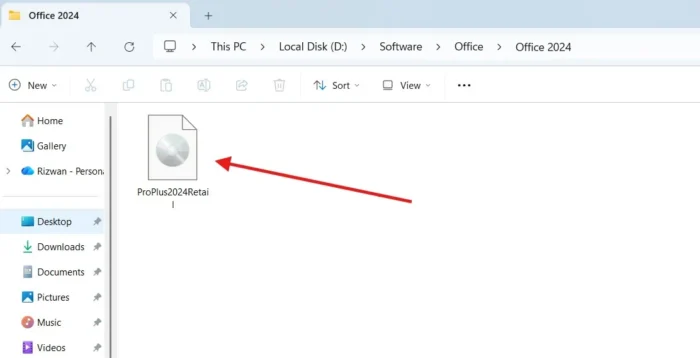
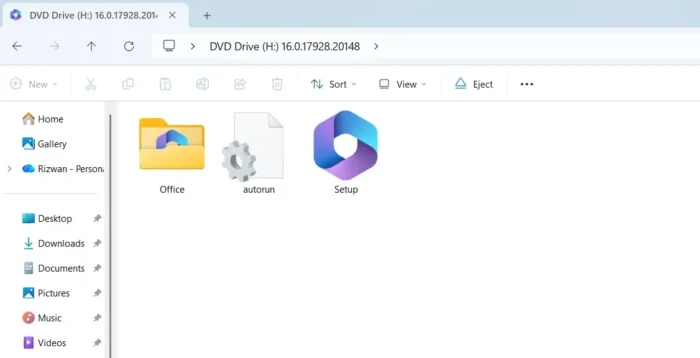
Step 2: View the ISO Contents
After mounting the ISO, you will see:
- One folder named Office
- Two files: Autorun and Setup
Step 3: Open the Setup File
Right-click on the Setup file and select Open from the menu.
Alternatively, you can simply double-click the Setup file to start the installation.
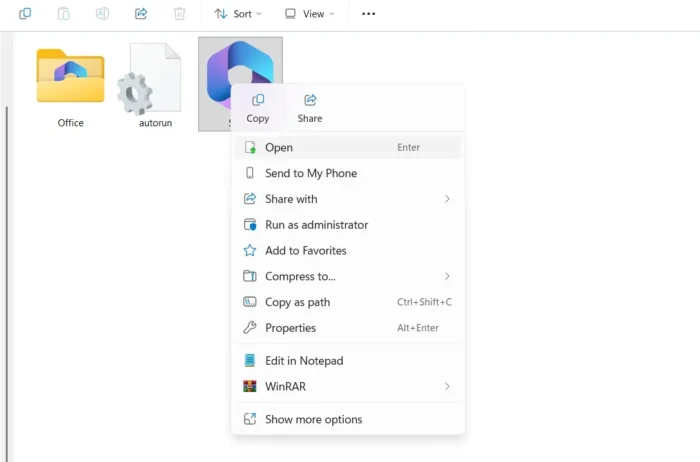
Accept the authentication box if appears.
Step 4: Office 2024 Installation Starts
The Microsoft Office 2024 installer will now launch.
Microsoft has designed this as an automated installer. It is not a fully silent installer because it remains visible, but it works as an unattended installer, meaning no manual input is required during installation.
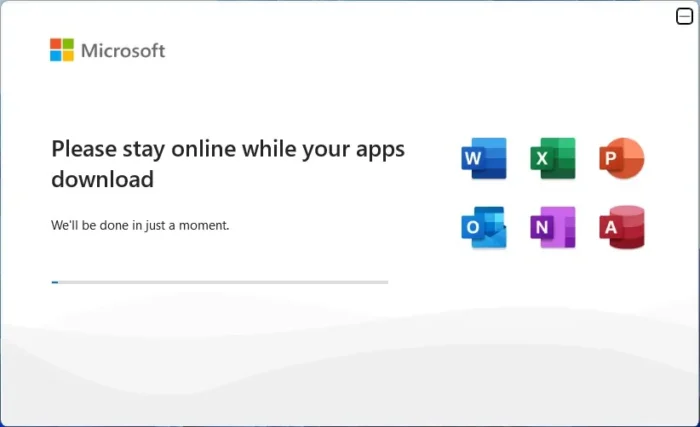

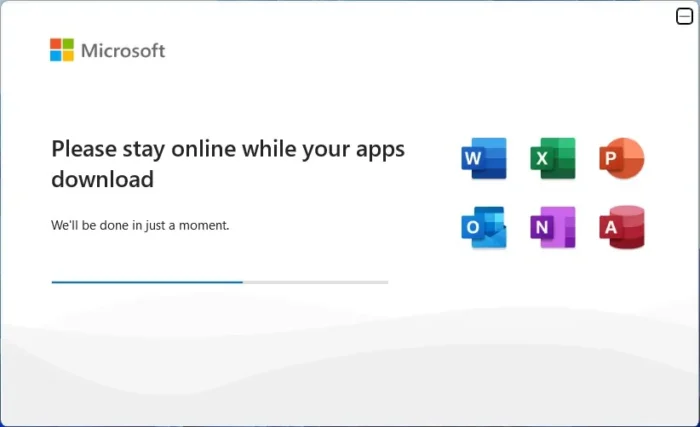
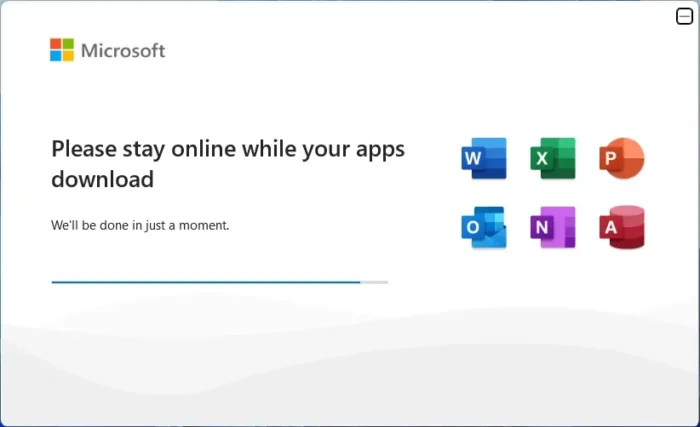
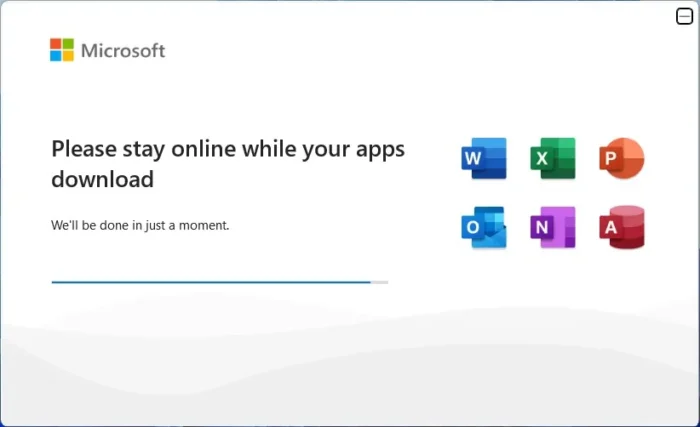
Please wait for a few minutes while the installation completes. You can see the installation progress on the progress bar. During this time, you may continue working on other tasks or simply wait until it finishes.
Step 5: Installation Completed
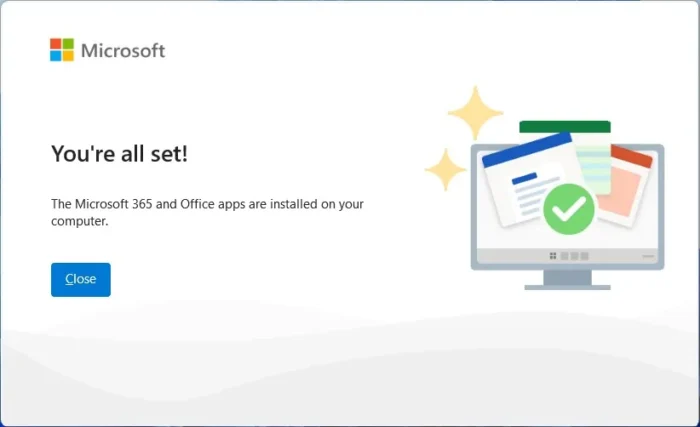
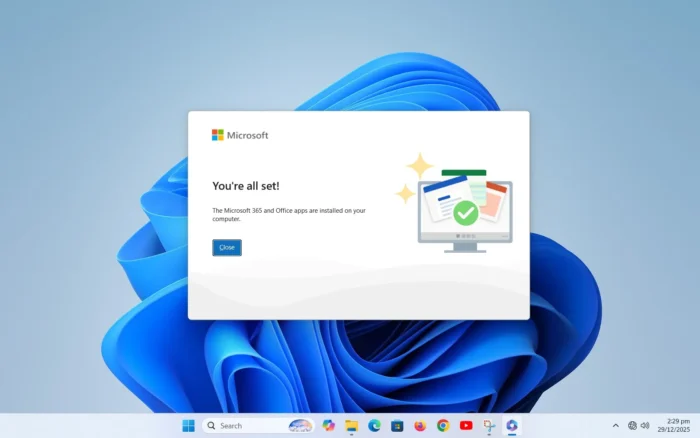
Once the installation is complete, a confirmation message box will appear.
Click the Close button to finish the installer process.
Step 6: Office Apps in Start Menu
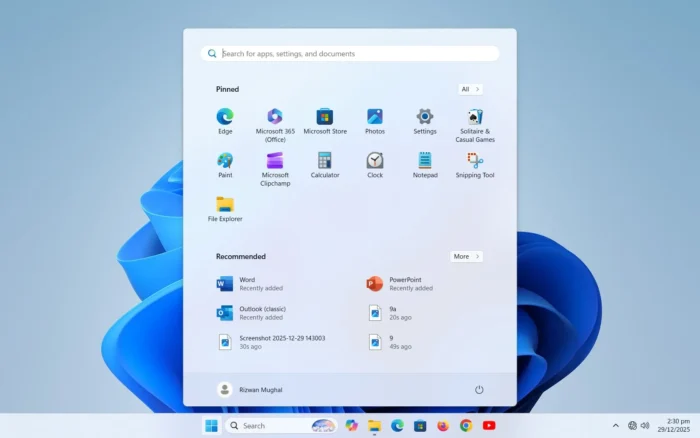
After installation, some Microsoft Office apps will appear in the Start Menu.
Not all apps may be visible immediately, which is normal.
Step 7: Search for Missing Apps
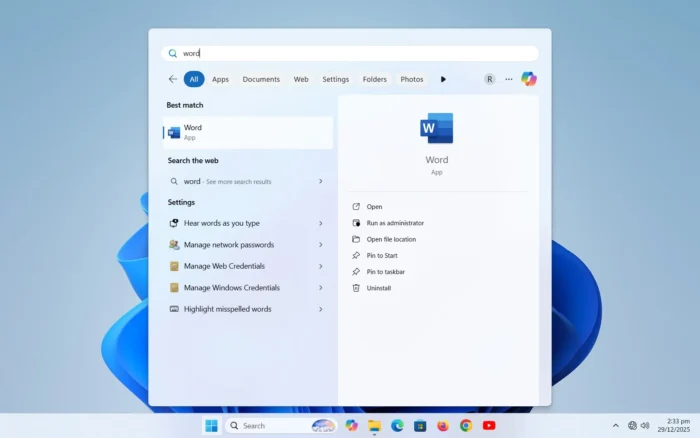
If your desired Office app does not appear in the Start Menu, there is no need to worry.
Simply use the Windows search bar and search for the app, such as Microsoft Word or Microsoft Excel, to open it.
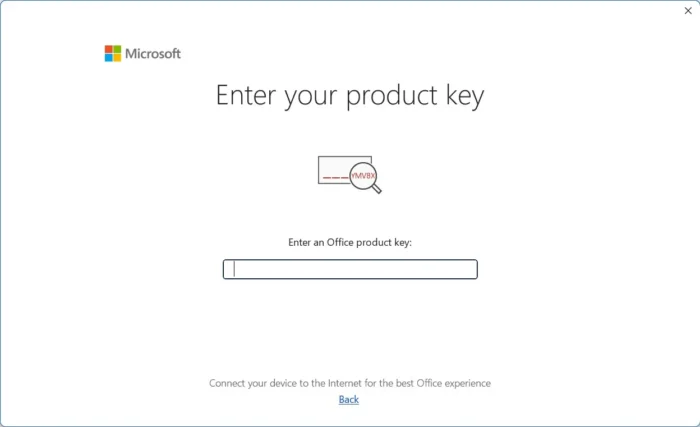
Step 8: Product Key Prompt
When you open an Office app for the first time, you may be asked to enter a product key.
- If you have a purchased product key, enter it here.
- If you do not have a key yet or want to use Office for trial/testing purposes, click the X (close) button at the bottom right to skip this step.
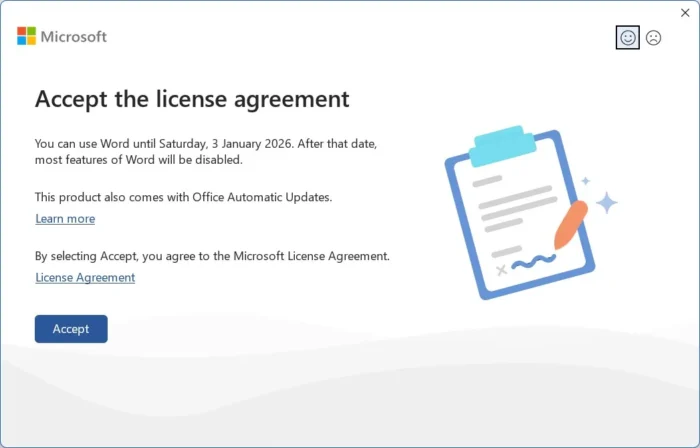
Step 9: Accept License Agreement
If the Microsoft Office License Agreement appears, read it carefully and click the Accept button.
There is no option to reject the agreement, so accepting it is required to use Microsoft Office.
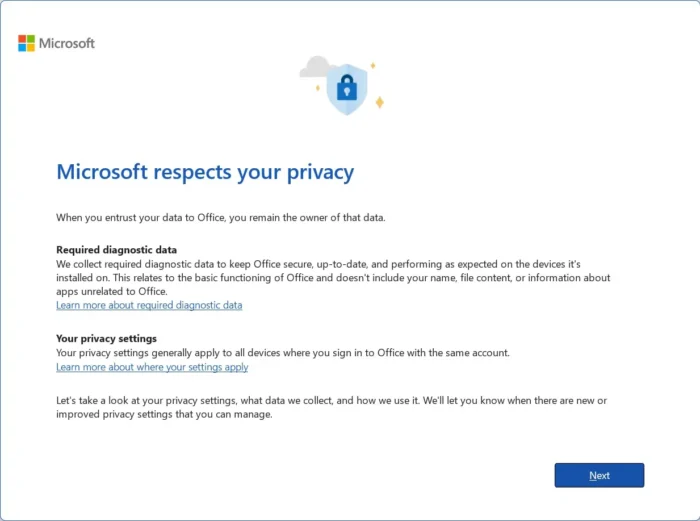
Step 10: Privacy Settings
On the next screen, you will see some information related to Microsoft’s privacy policy.
You may read it if you wish, then click the Next button to continue.
Step 11: Optional Usage Data Sharing
On the next screen, Microsoft will ask whether you want to share some Office usage data with them.
This data helps Microsoft improve its products and works as a form of silent feedback.
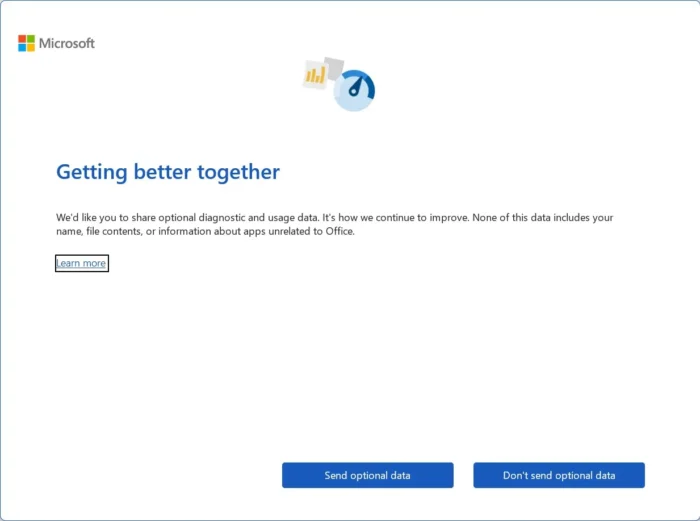
Many users prefer not to share their usage information. You can choose the option that matches your preference, as both Send and Don’t Send options are available.
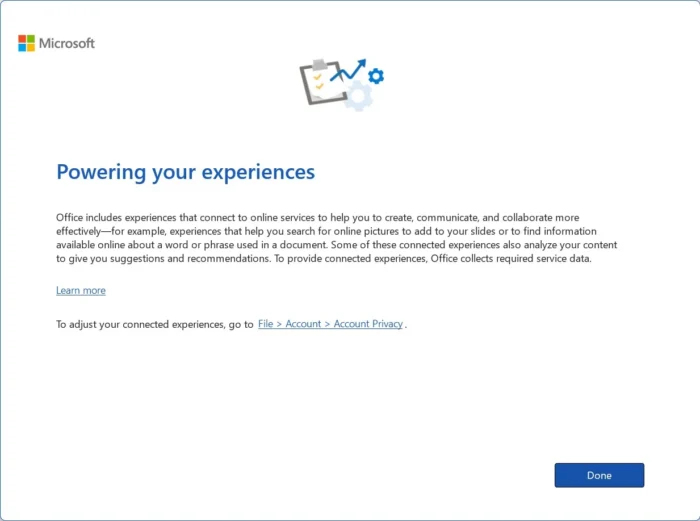
Step 12: “Powering Your Experience” Screen
Another screen will appear with the title “Powering your experience”, containing some additional information.
Read it if you like, then click the Done button to proceed.
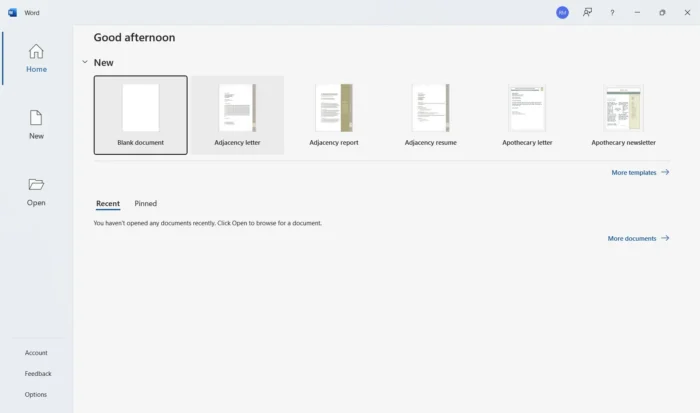
Step 13: Office Is Working Successfully
Since Microsoft Word was opened first, you will see its welcome screen.
This confirms that Microsoft Office 2024 has been installed successfully and is working properly.
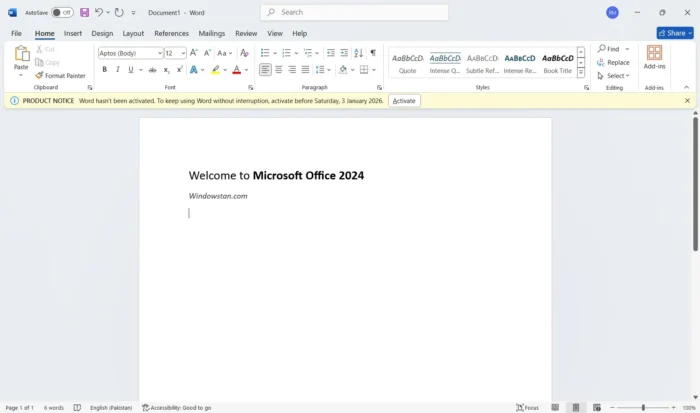
Step 14: Test Microsoft Word
Type some text in Microsoft Word to make sure the application is functioning correctly.
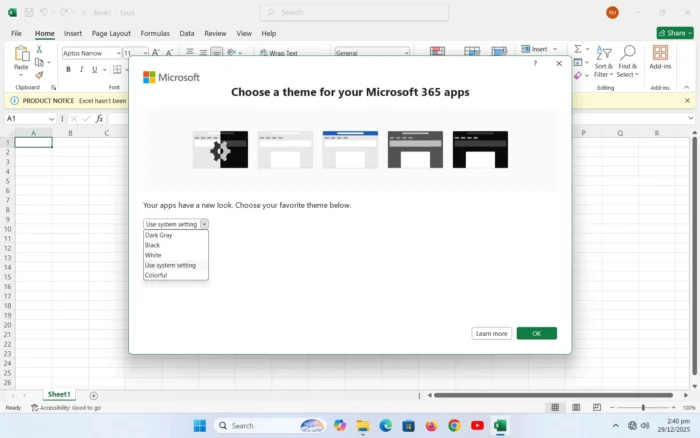
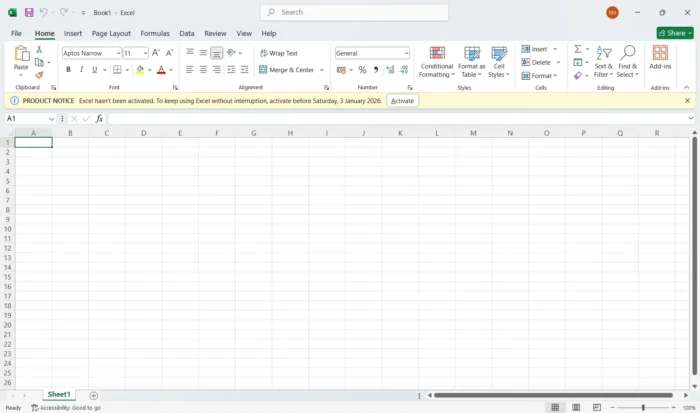
Step 15: Open Microsoft Excel
Now open Microsoft Excel.
When Excel launches for the first time, it may ask you to choose a theme for Office products.
You can select any theme you like or keep the system default setting.
Step 16: Verify Excel Functionality
After Excel opens, check that it is working properly.
Everything should function smoothly.
Step 17: Open Microsoft PowerPoint
Next, open Microsoft PowerPoint and review its interface to confirm it is working as expected.
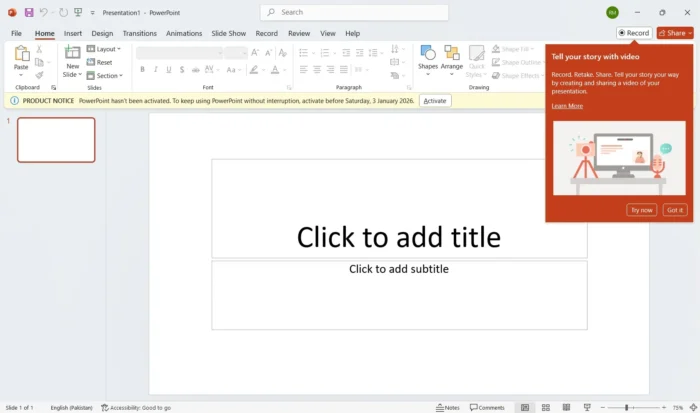
You can test the remaining Office apps in the same way.
Microsoft Office 2024 has now been successfully installed on your computer.
You can use Office 2024 free for 30 days. If you decide to continue using it, you can purchase a product key.
We strongly recommend buying the license directly from Microsoft. Avoid third-party sellers and stay away from activation tools.
Microsoft Office 2024 Free Download
You can begin your Microsoft Office 2024 Free Download using the provided offline installer, offering a complete standalone setup for both 32-bit and 64-bit systems. Once downloaded, installation is simple, and certain editions allow a 30-day free trial before activation.
Microsoft Office 2024 – English Download Links
| Product Name | License | Download |
|---|---|---|
| Office 2024 Pro Plus | Retail | Download |
| Project Professional 2024 | Retail | Download |
| Project Standard 2024 | Retail | Download |
| Visio Professional 2024 | Retail | Download |
| Visio Standard 2024 | Retail | Download |
| Office 2024 Professional | Retail | Download |
| Office 2024 Home & Business | Retail | Download |
| Office 2024 Home & Student | Retail | Download |
| Access 2024 | Retail | Download |
| Excel 2024 | Retail | Download |
| Outlook 2024 | Retail | Download |
| PowerPoint 2024 | Retail | Download |
| Publisher 2024 | Retail | Download |
| Word 2024 | Retail | Download |
Office 2024 ISO Files Available in More Languages
Choose a language and you will land on another page having your chosen language and more as well.