
Windows 10 (version 22H2)
Windows 10 version 22H2 was released on October 18, 2022 and is the final feature update for Windows 10. It follows version 21H2 and shares the same core system files, so it looks and behaves much like 21H2 with the latest updates installed. This page has the 64-bit and 32-bit ISO files, explains which edition and architecture to choose, and covers installation, upgrading and the current support status of Windows 10.

IMPORTANT: Microsoft ended support for Windows 10 on October 14, 2025, and 22H2 was the last version. Regular security updates stopped on that date. Eligible PCs can still receive security-only updates through Microsoft’s Extended Security Updates program, and PCs that meet the hardware requirements can upgrade to Windows 11 for free. The details are in the support section below. Related: why 22H2 is the last Windows 10 release.
Download Windows 10 22H2 ISO
Pick the file that matches your PC’s processor type. Most PCs run the 64-bit version. Choose 32-bit only if your processor or your current Windows installation is 32-bit, or if you need it for a specific compatibility reason.
| File | Windows 10 version 22H2 disc image (ISO) |
| Version | 22H2, also called the Windows 10 2022 Update (OS build 19045) |
| Developer | Microsoft |
| Architecture | 64-bit (x64) and 32-bit (x86), as separate files |
| File size | 64-bit: 5.69 GB 32-bit: 4.0 GB |
| License | A valid Windows 10 license is needed to activate (see Licensing and activation below) |
Download Windows 10 (22H2) 64-bit ISO (5.69 GB)
Download Windows 10 (22H2) 32-bit ISO (4.0 GB)
The 64-bit file is larger than a single-layer DVD (4.7 GB), so use a USB drive or a dual-layer DVD. The 32-bit file fits on a single-layer disc. These ISOs are for x86 and x64 PCs, not ARM-based devices.
If you would rather get the image straight from Microsoft, use Microsoft’s Windows 10 download page. It offers the Media Creation Tool, and opening it from a device that isn’t running Windows leads to a direct ISO download. Microsoft’s public page does not offer Windows 10 Enterprise; that edition comes through volume licensing channels such as the Microsoft 365 admin center.
Windowstan also has a page for each edition:
| Windows 10 Home | Windows 10 Home ISO |
| Windows 10 Pro | Windows 10 Pro ISO |
| Windows 10 Enterprise | Windows 10 Enterprise ISO |
| Windows 10 Education | Windows 10 Education ISO |
Support status and your options
Windows 10 PCs keep working after the end of support, but Microsoft no longer provides regular security fixes, feature updates or technical support for them. Long-Term Servicing Channel (LTSC) releases follow their own lifecycles. For a standard Home, Pro, Enterprise or Education install, you have three realistic choices:
- Upgrade to Windows 11. If the PC meets Windows 11’s hardware requirements, Windows Update offers a free upgrade from Windows 10 Home or Pro to the matching Windows 11 edition.
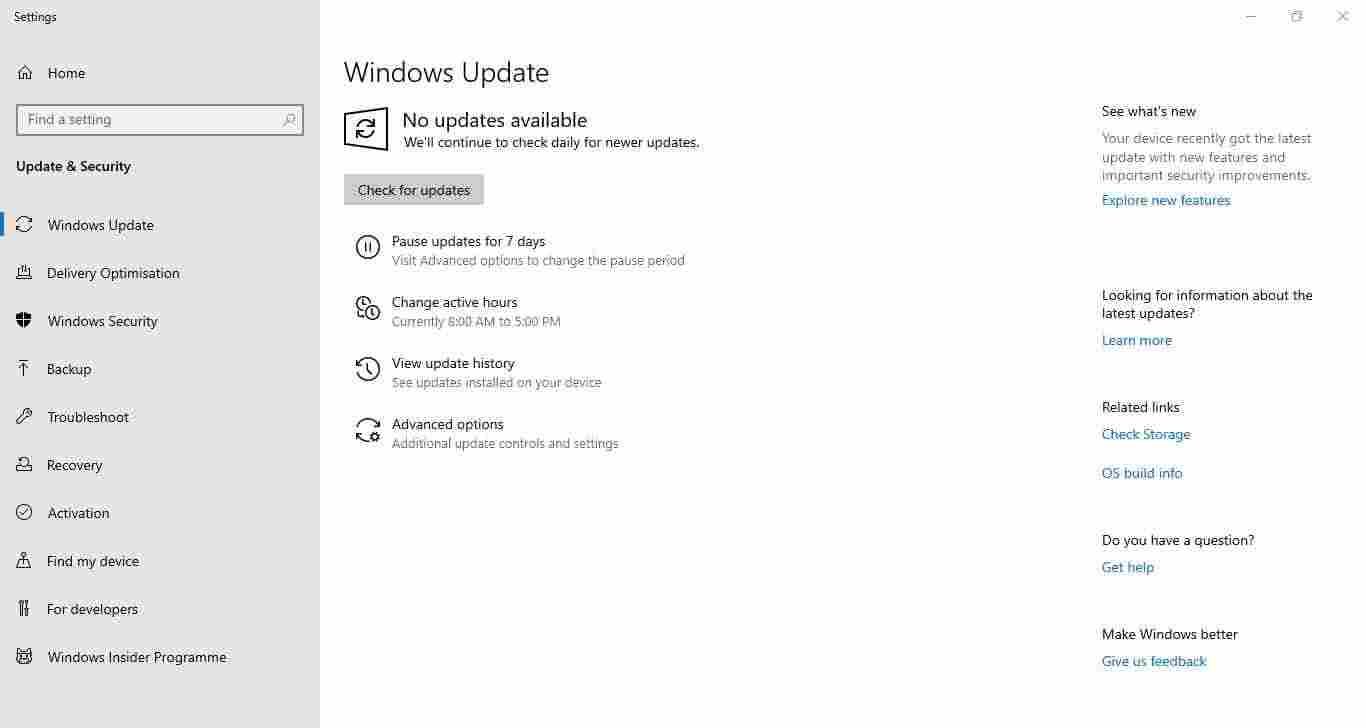
- Enroll in Extended Security Updates (ESU). Microsoft’s consumer ESU program delivers critical and important security updates through October 12, 2027 to eligible PCs running Windows 10 22H2 Home, Pro, Pro Education or Pro for Workstations. It requires an administrator Microsoft account and the latest Windows updates. Enrollment is free if you sync PC settings with Windows Backup, or you can redeem 1,000 Microsoft Rewards points or pay a one-time $30 (USD). Enroll from Settings > Update & Security > Windows Update. ESU covers security fixes only, with no new features and no general technical support.
- Keep using it without ESU. The PC will run, but it receives no security updates, and the risk grows over time.
A fresh install from this ISO does not include the latest updates, so run Windows Update before trying to enroll in ESU. Organizations use the commercial ESU program instead, which is licensed through Microsoft; see Microsoft’s documentation for the terms. Program terms have changed before, so check Microsoft’s ESU page for the latest dates.
What Windows 10 22H2 includes
Version 22H2 is a scoped release. Microsoft describes it as focused on quality improvements in existing feature areas rather than new headline features. PCs running version 2004, 20H2, 21H1 or 21H2 can move to it through a small enablement package that needs only one restart, because those versions share the same system files. If you are coming from 21H2, expect few visible differences.
Most of what people think of as Windows 10 features arrived in earlier releases and are all present in 22H2:
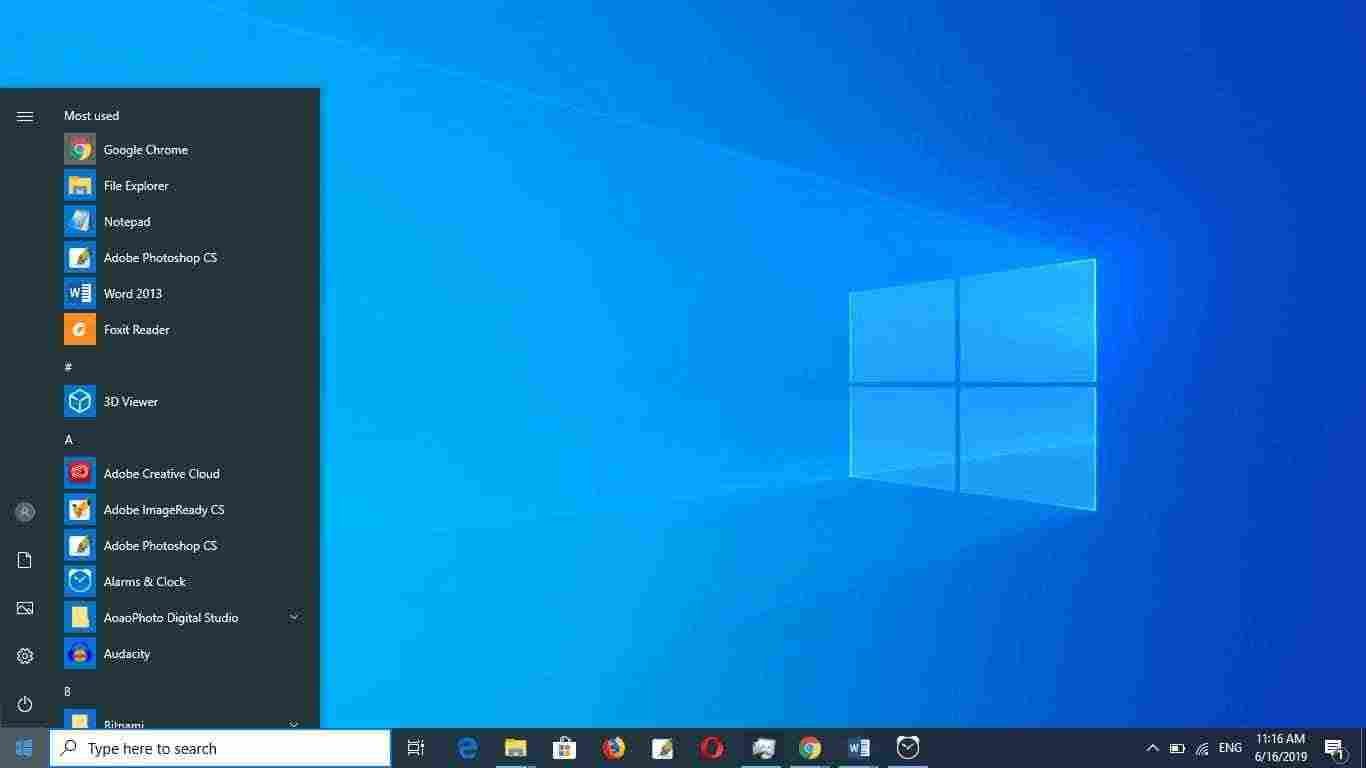
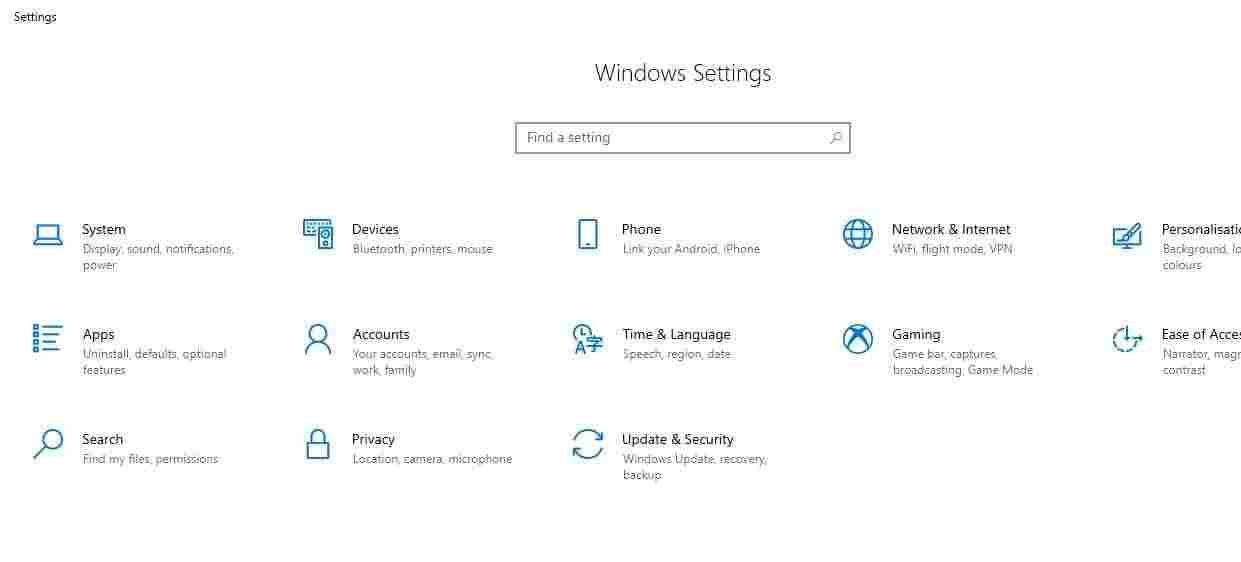
- A Start menu that combines an app list with live tiles, plus Task View with virtual desktops, an Action Center for notifications, and the Settings app.
- A system-wide light theme, added in version 1903 (May 2019 Update).
- Windows Sandbox, a disposable environment for running untrusted apps. It is available in Pro, Enterprise and Education, but not in Home.
- Reserved storage, which sets aside roughly 7 GB by default so updates have room to install.
- Windows Search separated from Cortana, and the option to uninstall more of the built-in apps. Microsoft has since stopped supporting Cortana as a standalone app in Windows.
- The Chromium-based Microsoft Edge and Microsoft Defender Antivirus, both built in.
- DirectX 12 and the Xbox Game Bar for gaming.
Windows 10 screenshots
System requirements and 32-bit vs 64-bit
These are Microsoft’s minimum requirements for Windows 10:
| Processor | 1 GHz or faster |
| RAM | 1 GB (32-bit) or 2 GB (64-bit) |
| Storage | 16 GB (32-bit) or 32 GB (64-bit) |
| Graphics | DirectX 9 or later with a WDDM 1.0 driver |
| Display | 800 × 600 |
Minimums only get the system running. For everyday use, 4 GB of RAM and an SSD make a noticeable difference. That is practical advice rather than a Microsoft requirement.
Windows 10 does not require TPM 2.0 or Secure Boot to install, which is why it runs on many PCs that cannot upgrade to Windows 11. The 64-bit version needs a processor that supports the CMPXCHG16b, PrefetchW and LAHF/SAHF instructions, which any reasonably recent 64-bit CPU does.
The 32-bit version can use at most 4 GB of RAM, whatever is installed. If the processor is 64-bit, the 64-bit version is the better choice. You cannot switch from 32-bit to 64-bit with an in-place upgrade; that takes a clean install.
Windows 10 editions
| Edition | Suited to | Maximum RAM (64-bit) |
| Home | Everyday personal use: browsing, office work, media and most games | 128 GB |
| Pro | Power users and small businesses. Adds BitLocker, Hyper-V, Remote Desktop hosting, domain join, the Group Policy Editor and Windows Sandbox | 2 TB |
| Enterprise | Managed organizations. Adds security and management tools such as AppLocker and Credential Guard, and is licensed through volume licensing or a subscription | 6 TB |
| Education | Schools and universities. Features closely follow Enterprise, licensed through Microsoft’s academic volume licensing | 2 TB |
Every 32-bit edition is limited to 4 GB of RAM. Pro for Workstations, Pro Education and the LTSC releases also exist, but they are not part of the regular consumer release and are not covered here.
For most people the choice is between Home and Pro. Home is enough unless you need BitLocker, Hyper-V, Windows Sandbox, the Group Policy Editor, Remote Desktop hosting or the ability to join a domain. The 128 GB RAM cap on Home is rarely a factor for personal PCs. See the Windows 10 Pro edition page if you need the extra features.
Windows 10 Enterprise and Windows 10 Education only make sense with the matching volume license or subscription, and their extra tools are aimed at IT teams managing many PCs. Individuals rarely benefit from them.
There is no Ultimate edition of Windows 10, just as there was none for Windows 8. That edition name belonged to earlier releases such as Windows 7 Ultimate.
Ways to get Windows 10 22H2
Windows Update
If the PC already runs version 2004 or later, 22H2 arrives as a small enablement package through Windows Update. Older versions, such as 1909 and earlier, need the full feature update, which is easier to do with the Media Creation Tool or an ISO.
Media Creation Tool
The Media Creation Tool for Windows 10 has two modes. “Upgrade this PC now” updates the current installation and keeps your apps, documents and settings, with the previous Windows files retained so you can roll back. “Create installation media” builds a bootable USB drive or saves an ISO file. A USB drive needs at least 8 GB, and everything on it is erased.
Windows 10 Update Assistant
Windows 10 Update Assistant (sometimes called the Upgrade Assistant) steps through an upgrade to the newest Windows 10 version with a simple wizard. It downloads files as it goes, so the internet connection must hold until it finishes, and an interrupted connection can stop the upgrade. You can keep using the PC while it downloads and restart when it asks.
ISO file
An ISO takes longer to download than the tools above but is the most flexible option. You can keep it for later, reuse it on several PCs, write it to multiple USB drives, mount it to run an in-place upgrade, or attach it to a virtual machine. The Media Creation Tool can also save an ISO, but you have to download the tool first, and an interrupted download may need to restart.
Install Windows 10 from a USB drive
First write the ISO to a USB drive of at least 8 GB with Rufus or the Media Creation Tool. Back up the drive first, because it will be erased. Also back up anything you care about on the PC you are installing to. A clean install can wipe the target drive.
- Plug in the USB drive and restart the PC. Open the boot menu and pick the USB drive. The key varies by manufacturer (F12, F10, F9 and Esc are common), so check your PC’s manual or the startup screen. If the screen says “Press any key to boot from USB or DVD”, press a key.
- Choose your language, time and currency format, and keyboard layout, then select Next and Install now.
- Enter a product key, or select I don’t have a product key to activate later. If you skip the key, Setup asks which edition to install. Pick the edition your license covers, because a Home key will not activate Pro.
- Accept the license terms, then choose Custom: Install Windows only (advanced) for a clean install. The Upgrade option only works when Setup is started from inside a running copy of Windows (see the next section).
- Select the drive or partition to install to. Deleting or formatting a partition erases its data. If the drive is empty, select the unallocated space and Setup creates the partitions it needs.
- Setup copies files and restarts the PC several times. Do not press a key at the boot prompt again. If the PC returns to the installer, unplug the USB drive or choose the internal drive in the boot menu.
- After the final restart, the first-run screens ask for your region, keyboard layout, a network connection and an account. Depending on the edition and whether the PC is online, you can sign in with a Microsoft account or create a local account. You will also be asked to set a PIN and review privacy settings.
When you reach the desktop, run Windows Update, install any drivers your PC maker recommends, and check activation under Settings > Update & Security > Activation.
Upgrade in place from an ISO
An ISO can also upgrade an existing Windows installation without erasing it. In Windows 10, right-click the ISO file and choose Mount, open the new drive and run setup.exe. When asked, choose to keep personal files and apps. Use an ISO with the same architecture (32-bit or 64-bit) as the installed Windows, and pick the same language and edition. Setup does not upgrade 32-bit Windows to 64-bit.
Install in a virtual machine
The process is the same in VirtualBox and VMware:
- Install the virtualization software if you don’t have it.
- Create a new virtual machine and select the Windows 10 ISO as the installation disc.
- Assign resources. Microsoft’s 64-bit minimums are 2 GB of RAM and 32 GB of storage, but 4 GB of RAM and a 60 GB virtual disk give a more comfortable result.
- Start the virtual machine and follow the same Setup steps as on a physical PC. VirtualBox may offer an unattended installation that fills in some of the screens for you.
Read the full guide to installing Windows 10.
Licensing and activation
The ISO is only the installation media. It does not include a license. Windows 10 can be installed and used without a product key, but an unactivated copy has restrictions, such as limited personalization options and an activation notice. If the PC previously ran an activated copy of the same Windows 10 edition, reinstalling while online usually reactivates it automatically through the digital license linked to the hardware.
You can reuse one ISO on as many PCs as you like, but each PC needs its own license. Enterprise and Education need a volume license or subscription. Avoid third-party activation tools and cracks. They are unlicensed and are a common way for malware to spread.
Check your download
ISO files are large, and it is sensible to confirm a Windows image is intact before installing from it, whatever the source. In PowerShell, run the following with the path to your file:
Get-FileHash C:\Users\YourName\Downloads\Windows10.isoMicrosoft lists SHA-256 values for its Windows 10 ISO files on its download page, one for each language and architecture. If your file is an unmodified copy of the same Microsoft ISO, the values match. Microsoft refreshes its images from time to time, so a file from a different build produces a different hash. If you cannot match a file to a published value, download the ISO from Microsoft instead.
Other Windows 10 versions
Earlier releases such as 21H2 and 21H1 are listed below with the update history. All of them are out of support, and Microsoft’s own download page currently offers only 22H2, so older builds are mainly useful when you need to match a specific existing version.
| Icon | Version | Year | Status | Resource |
|---|---|---|---|---|
 | Windows 10 22H2 | 2022 | Final / End of Support | Download |
| Windows 10 21H2 | 2021 | Previous | Guide |
| Windows 10 21H1 | 2021 | Previous | Guide |
| Windows 10 20H2 | 2020 | Previous | Guide |
| Windows 10 2004 (20H1) | 2020 | Previous | Guide |
| Windows 10 1909 | 2019 | Legacy | Archive |
| Windows 10 1903 | 2019 | Legacy | Archive |
| Windows 10 1809 | 2018 | Legacy | Archive |
| Windows 10 1803 | 2018 | Legacy | Archive |
| Windows 10 1709 | 2017 | Legacy | Archive |
| Windows 10 1703 | 2017 | Legacy | Archive |
| Windows 10 1607 | 2016 | Legacy | Archive |
| Windows 10 1511 | 2015 | Legacy | Archive |
| Windows 10 1507 | 2015 | Legacy | Archive |